Tasks
Tasks (page hero: Project Tasks) is where your team tracks the operational work of the engagement. Tasks arrive from Delivery (created on activities, or suggested by EVA), from an applied Playbook, or are created directly here.
Tasks is a persistent item in the project sidebar — it sits above the journey rail rather than being a step in the journey, so the work stays reachable at every stage. Open it from Tasks in the sidebar, or from My Tasks (under My Work) for the cross-project view of everything assigned to you.
If you skip this: delivery work lives in heads and inboxes. Tasks is the difference between “I think the venue’s booked?” and knowing — and the Timeline view is the earliest place schedule collisions become visible, while they’re still cheap to fix.
Views
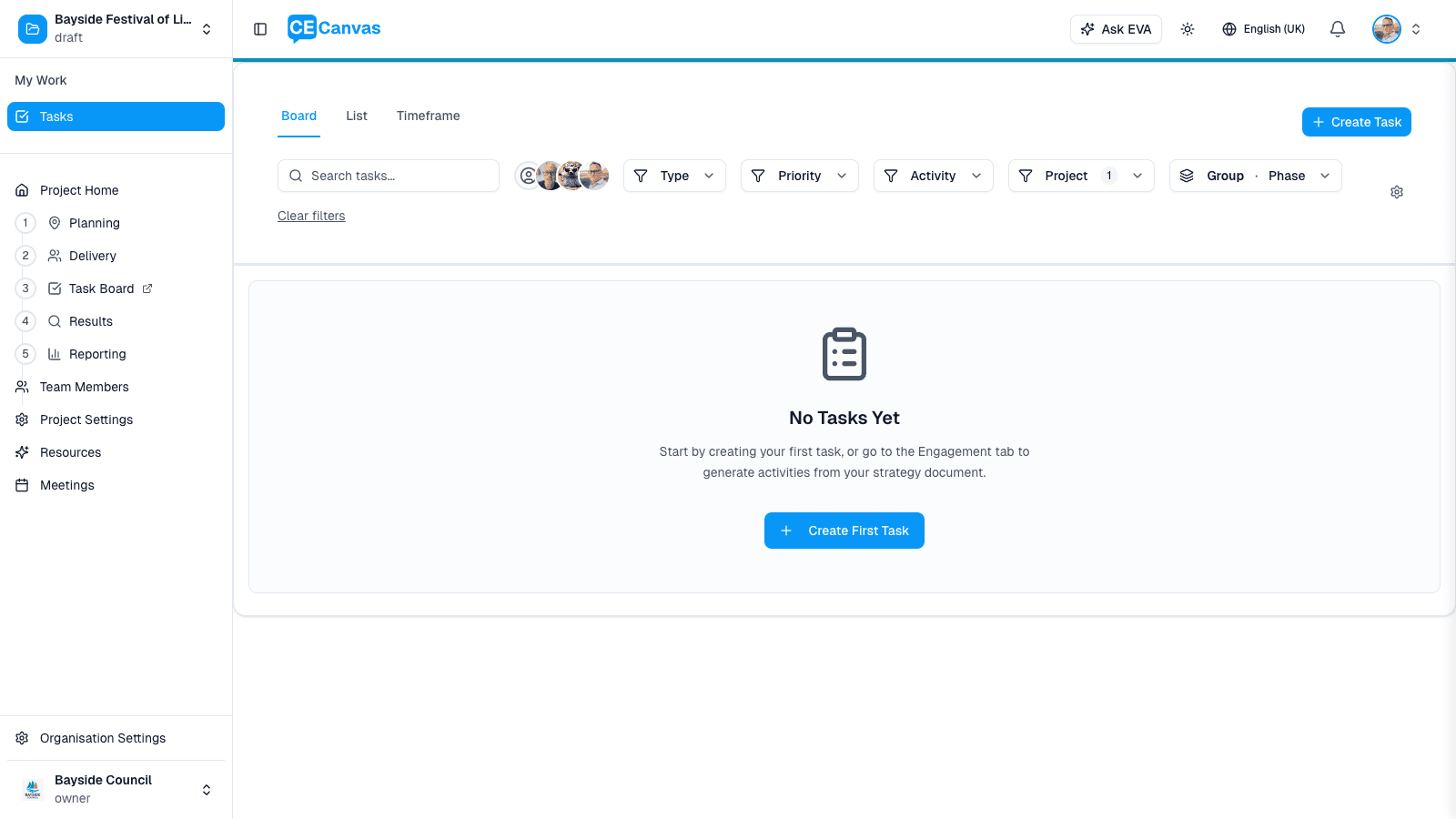
| View | Best for |
|---|---|
| Board | Drag-and-drop management — group by phase, status, assignee, priority, or activity |
| List | Table view with sortable columns and two-level grouping (e.g. phase, then status) |
| Timeline | Gantt-style schedule of phases, activities, tasks, and milestones — see below |
Your view and filters persist in the URL, so a filtered view can be shared with a teammate as a link.
The Timeline view
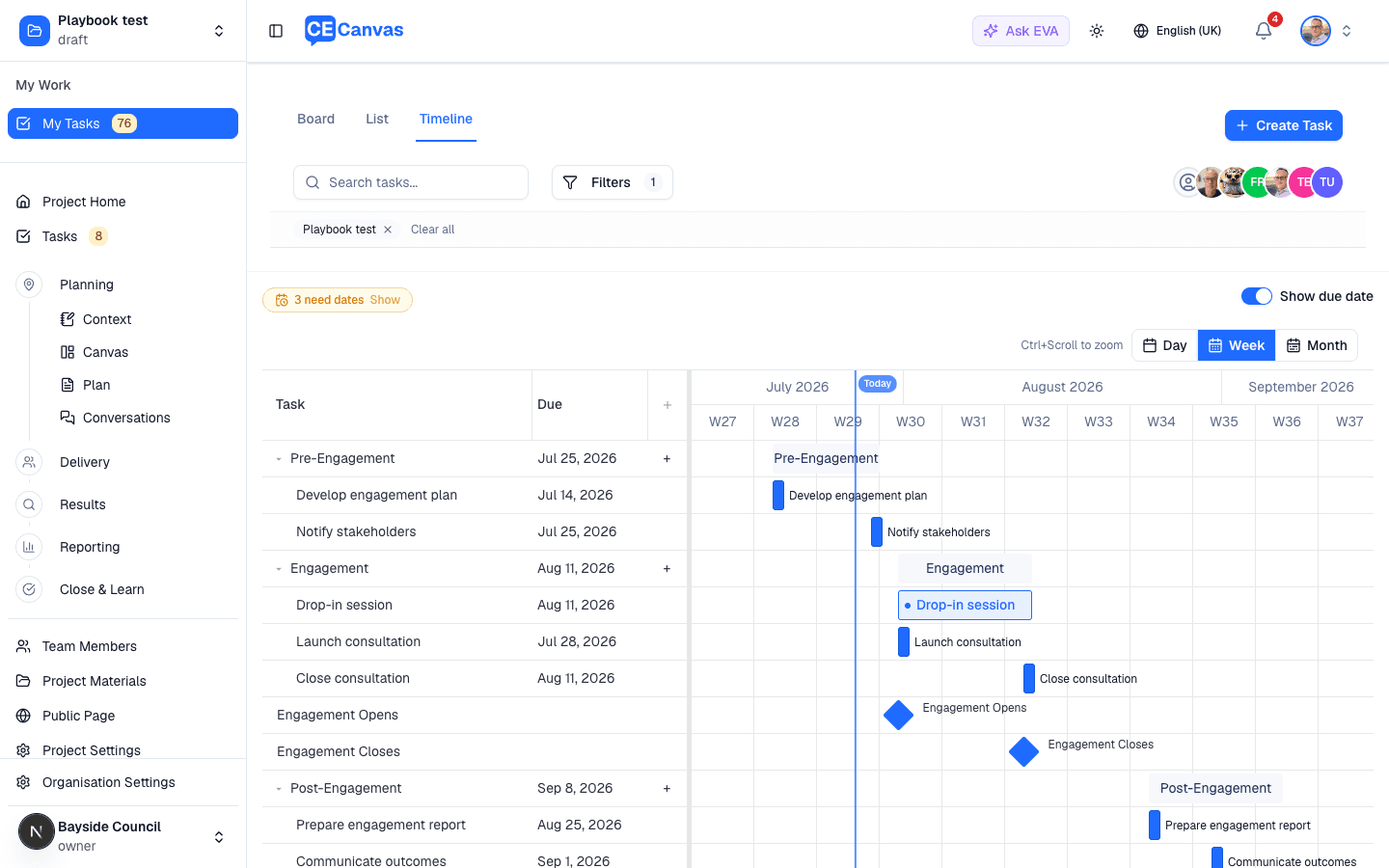
The Timeline reads like a plan, top to bottom:
- Phases are the summary bars; each contains its activities (light outlined bars) and tasks, all in date order.
- Milestones are the solid diamonds — Engagement Opens, Engagement Closes, Decision Date — placed in sequence among the phases, exactly where they fall in time.
- The Today marker keeps the current date in view, and Day / Week / Month (or Ctrl/Cmd + scroll) changes the zoom.
- Tasks with only a due date draw as a compact pill on that day; the Show due date toggle adds the date text to every row.
- Anything undated is collected behind the “N need dates” chip above the chart — press Show to list them.
Editing happens directly on the chart: drag a bar to reschedule it, and drag a milestone to move the moment itself — you’ll be shown every milestone-relative task that will move with it before anything is saved. Double-click an activity to open it in Delivery.
Toolbar
| Control | What it does |
|---|---|
| Search tasks… | Filter by name or short code |
| Filters | Type, priority, activity, and (in the org-level view) project |
| Assignee avatars | Filter to specific team members’ tasks |
| Group | Group by phase, status, assignee, priority, or activity; List view supports a second level |
Active filters appear as chips below the toolbar with Clear all. Completed tasks can be archived to keep the active views clean; an Archived filter chip brings them back into view when you need them.
Creating and editing tasks
+ Create Task opens the task panel:
| Field | Notes |
|---|---|
| Task Name | Required |
| Project | Pre-selected inside a project |
| Description | Rich text |
| Type | Task, Milestone, Meeting, Decision, or Deliverable |
| Priority | High, Medium, or Low |
| Status | See statuses below |
| Assignee | A project team member, or an external assignee — someone outside your organisation you add to the project so tasks can be assigned to them |
| Phase | The delivery phase the task belongs to |
| Depends on milestone / Offset | Schedule relative to a key milestone — tasks then move with the milestone if dates shift |
Click any task to open its detail and edit inline. Cards drag between columns in Board view; status edits inline in List view.
Milestone-relative scheduling is underused and worth the setup. “Brief the comms team 10 days before Engagement Opens” stays correct when the opening date moves. Hard-dated tasks silently go stale.
Statuses and types
Statuses: Not Started (shown as To Do on the board), In Progress, On Hold, Completed.
Types — Task, Milestone, Meeting, Decision, Deliverable — show as icons in all views and work as filters. Typing decisions and deliverables matters at reporting time: they’re the items your outcomes report will need to reference.
Next steps
- Delivery — the structural view tasks execute against
- Project Team — add people before assigning work