Results
Results is where community input enters the project — survey exports, workshop notes, transcripts, scanned post-its — and where EVA’s analysis turns raw submissions into themes, sentiment, and evidence you can use. Just as importantly, it’s where you check coverage: whether the people you promised to hear from have actually been heard, while there’s still time to fix it.
From the project sidebar, go to Results (the third stop on the journey).
If you skip this: input lives in inboxes and folders, analysis happens once at the end under deadline pressure, and the under-reached stay invisible until the report makes it permanent. Results are evidence — treat them like it from the first submission, not the last week.
The Results workspace
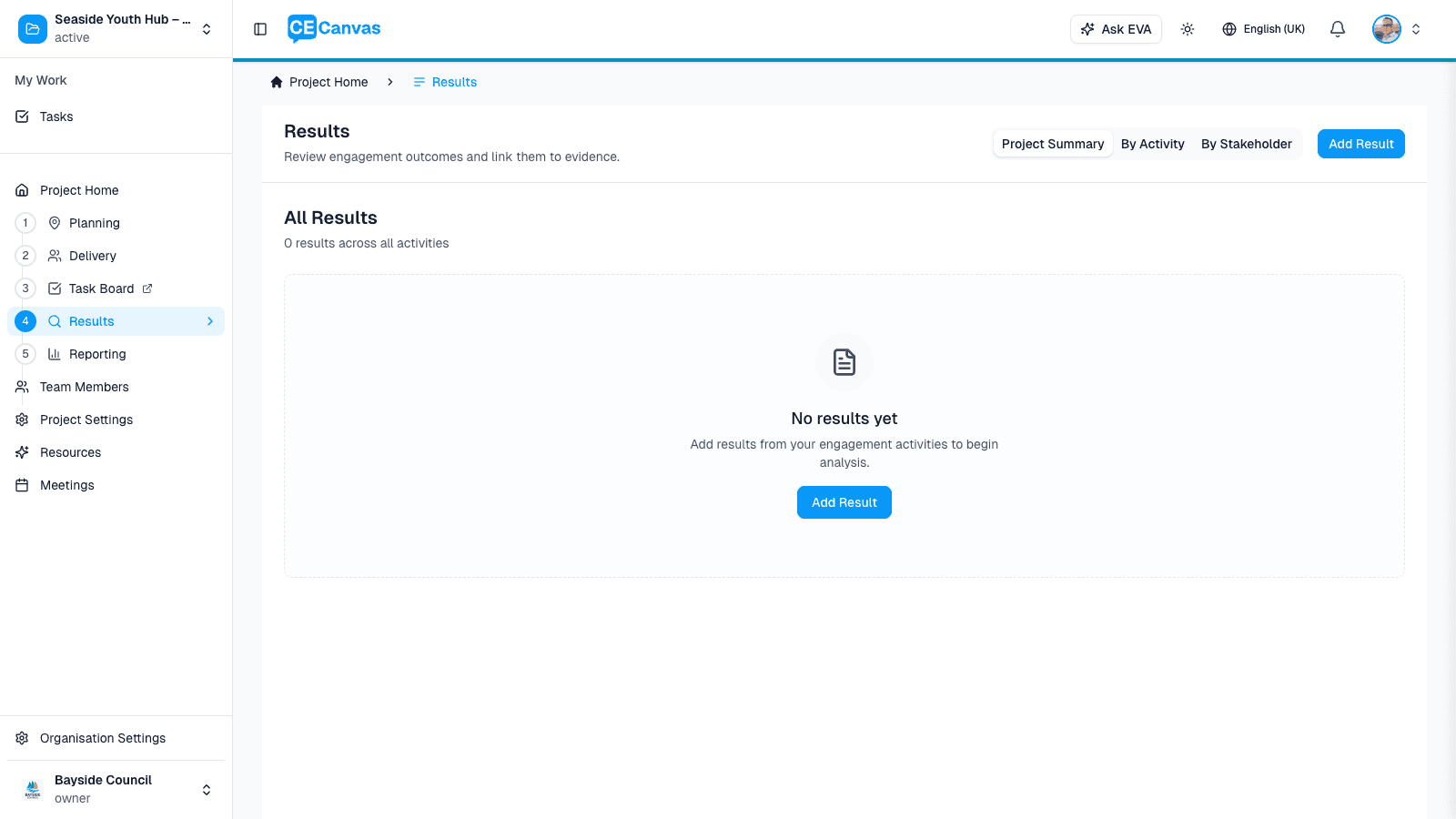
Five tabs:
| Tab | What it’s for |
|---|---|
| Overview | The story so far — the workspace focus panel tells you the single next action, followed by what’s emerging across reviewed results |
| Results Library | Every result as working evidence — compare activities, inspect findings, open the source data |
| Coverage | Planned stakeholder groups vs who has actually been reached — the accountability view |
| Explore (Beta) | Cluster free-text responses into topics, see who is saying what, and promote what matters — see Explore Topics |
| Themes | The themes EVA has identified across all analysed input |
The workspace focus panel at the top of Overview is state-aware: it tells you when results need analysis, when analysis is still running, when activities are missing target groups (which breaks coverage), when planned groups remain unreached, and when everything is ready to use.
Adding a result
Click Add Result. The first step asks how the input arrives — a capture-medium picker, not a fixed list of result types:
| Medium | Use for |
|---|---|
| Spreadsheet (CSV / Excel) | Survey results and other exported data |
| Document | PDF or Word — reports, submissions, notes |
| Paste or type text | Workshop notes, a transcript, quick notes |
| Images | Photos of post-it notes or scans |
| Audio / video | Recordings of sessions or interviews |
These sit under an Upload group. A dimmed Coming soon group holds mediums that aren’t available yet.
After choosing a medium, the flow guides you through uploading or pasting the content, linking the result to an engagement activity, and recording source details. EVA then analyses the submissions into themes, sentiment, and representative quotes.
Link every result to its activity. The activity link is what powers Coverage — an unlinked result can’t count toward any stakeholder group, so the engagement looks less representative than it was.
Input tools run in CE Canvas
Instruments built on the Information needs page need no upload. The Overview lists each one under Input tools — its state, how many people took part, how many of your planned groups it heard from, and which groups are still silent — with View responses opening its counted responses.
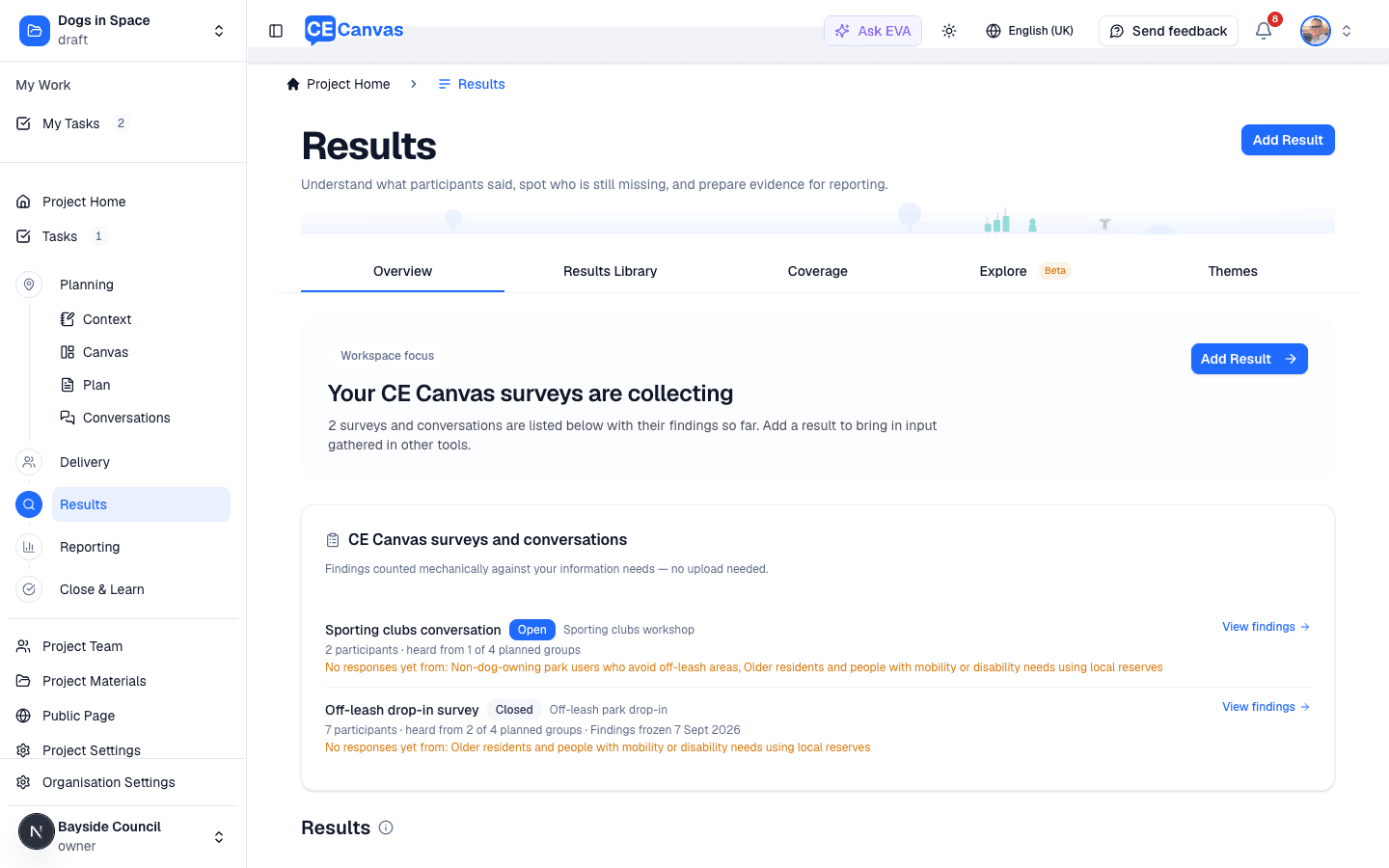
These findings are counted mechanically against your information needs — no AI summary — and an instrument that is still open is shown live. Closing it freezes the numbers, which is what lets the Outcomes Report cite them.
Coverage — the view that changes outcomes
Coverage compares the stakeholder groups you planned to hear from (the Canvas Stakeholders section) against the groups actually reached — by analysed results, and by participants who identified with a group in one of your input tools. Only groups a participant stated (or you confirmed) count; a group with only a few respondents is shown as reached without a number. An export of one of your own tools uploaded as a result does not count its participants twice.
Used during delivery, this view changes what happens next: a gap with three weeks left is a prompt to add an outreach activity; the same gap discovered at reporting time is a permanent caveat in your report. The workspace focus panel surfaces gaps automatically — including the setup problem that masks them (activities without target groups).
Working with analysed results
Open any result from the Library to inspect EVA’s findings — themes, sentiment, quotes — alongside the source submissions. Analysis can be re-run, and results can be deleted (with their analysis) if added in error.
Each result carries a review status (a triage badge — New, In progress, Ready to use, Follow up) so the team can see at a glance which evidence has been checked and is safe to rely on. For survey data, coding into a shared codeframe is part of the analysis — grouping open-text responses into consistent themes you can count.
EVA’s analysis is evidence-handling, not judgement: it organises what was said. Deciding what it means for the decision — and what to do about conflicting input — stays with your team.
Next steps
- Reporting — compile analysed results into the outcomes report
- Delivery — results link to the activities planned there
- Engagement Canvas — coverage is measured against the groups mapped in section 4