Profile Settings
Your profile is personal to you — your name, avatar, password, notification choices, and language. Open it from your avatar in the top-right corner by choosing My Profile.
There are four tabs: Profile, Security, Notifications, and Preferences.
Profile
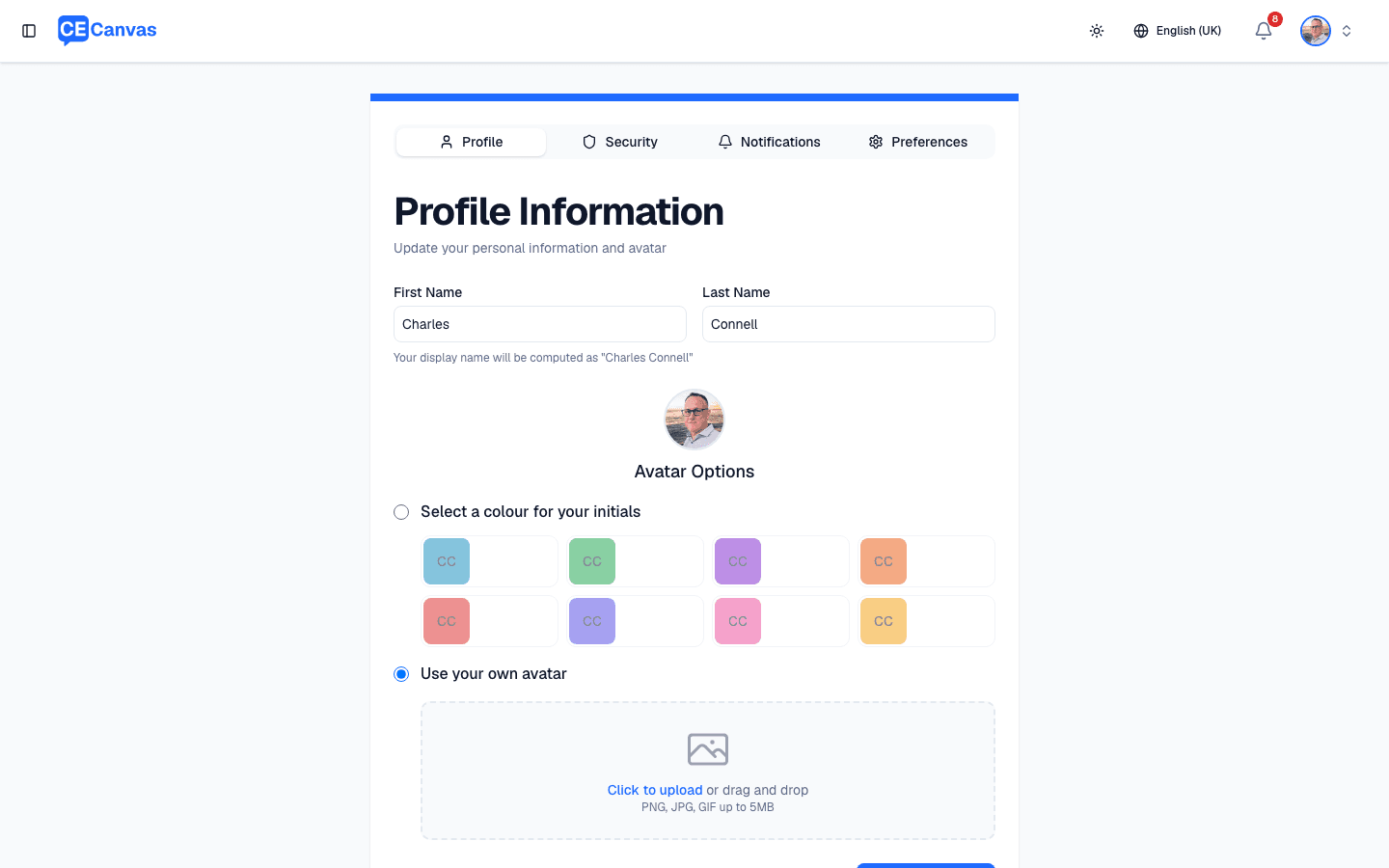
Set your first and last name — your display name is computed from them and is how teammates see you on tasks, comments, and project activity.
For your avatar, choose either:
- A colour for your initials — pick from the colour swatches, or
- Your own avatar — upload a PNG, JPG, or GIF up to 5MB.
Select Save Changes when you’re done.
Security
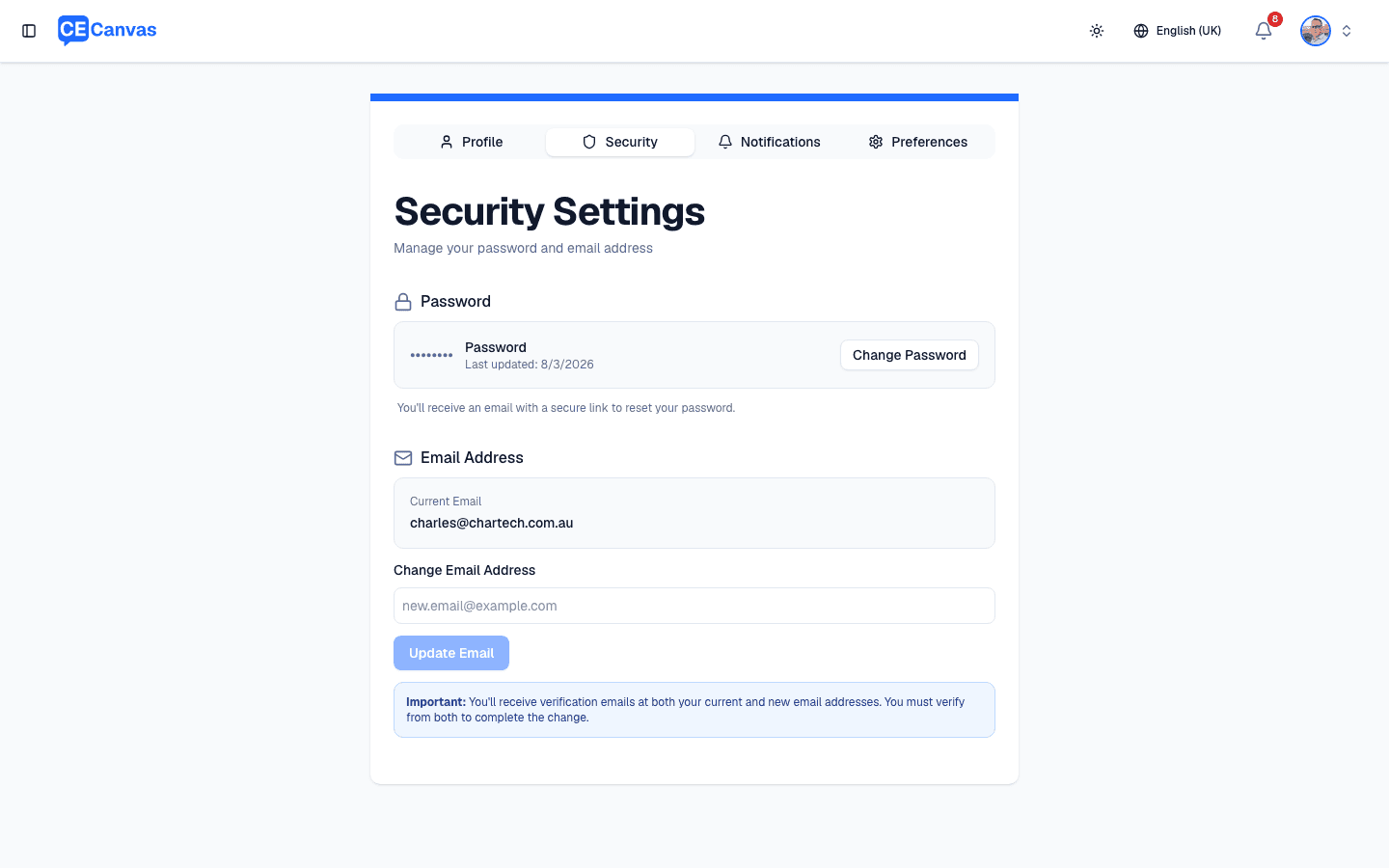
- Password — select Change Password and you’ll receive an email with a secure link to reset it.
- Email address — enter a new address and select Update Email. You’ll receive verification emails at both your current and new addresses, and must verify from both to complete the change.
If your organisation signs in with Single Sign-On, your password is managed by your identity provider instead.
Notifications
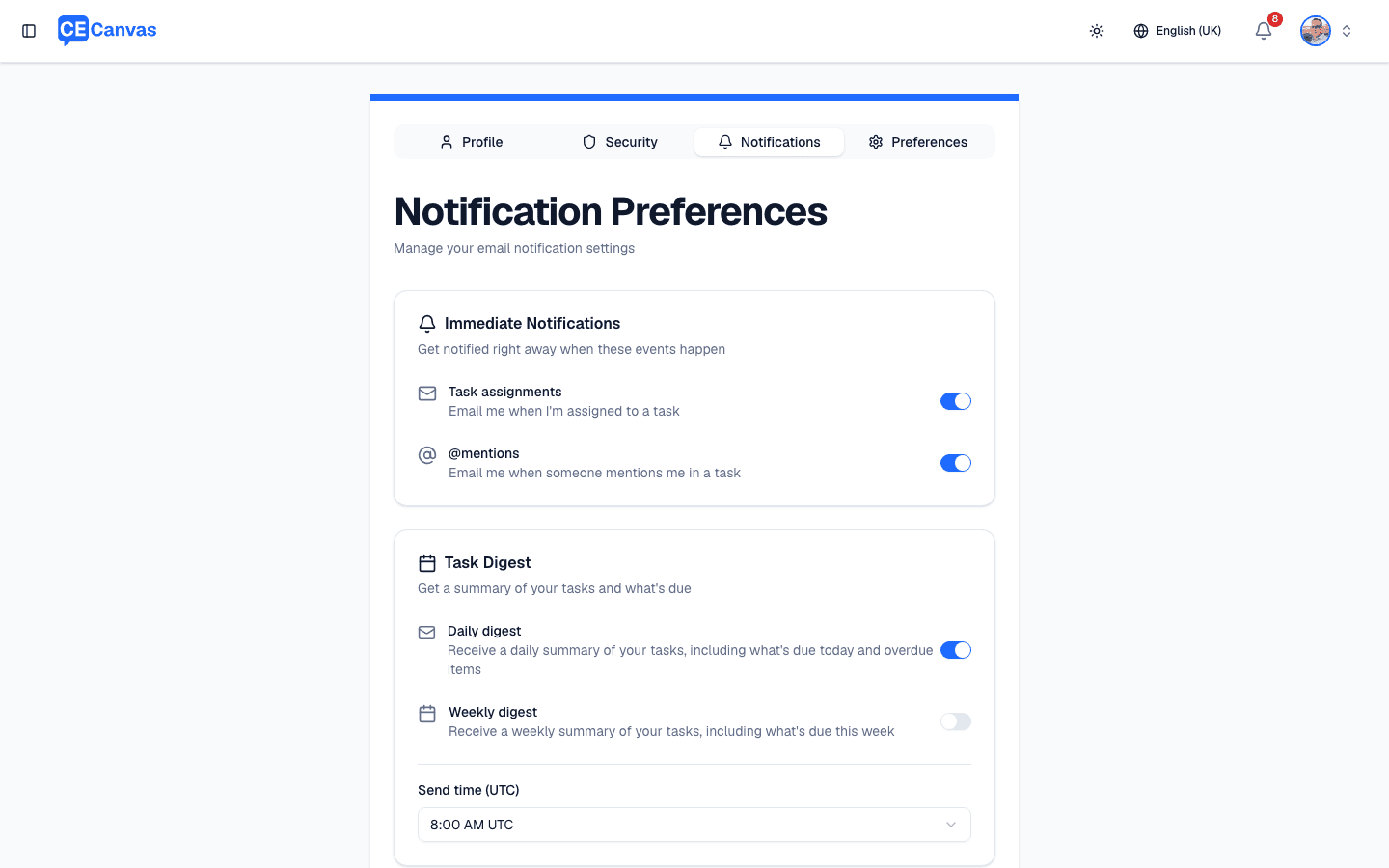
Control which emails CE Canvas sends you:
- Immediate notifications — emails when you’re assigned a task or @mentioned in one.
- Task digest — a daily or weekly summary of your tasks, including what’s due and overdue, with a configurable send time.
Preferences
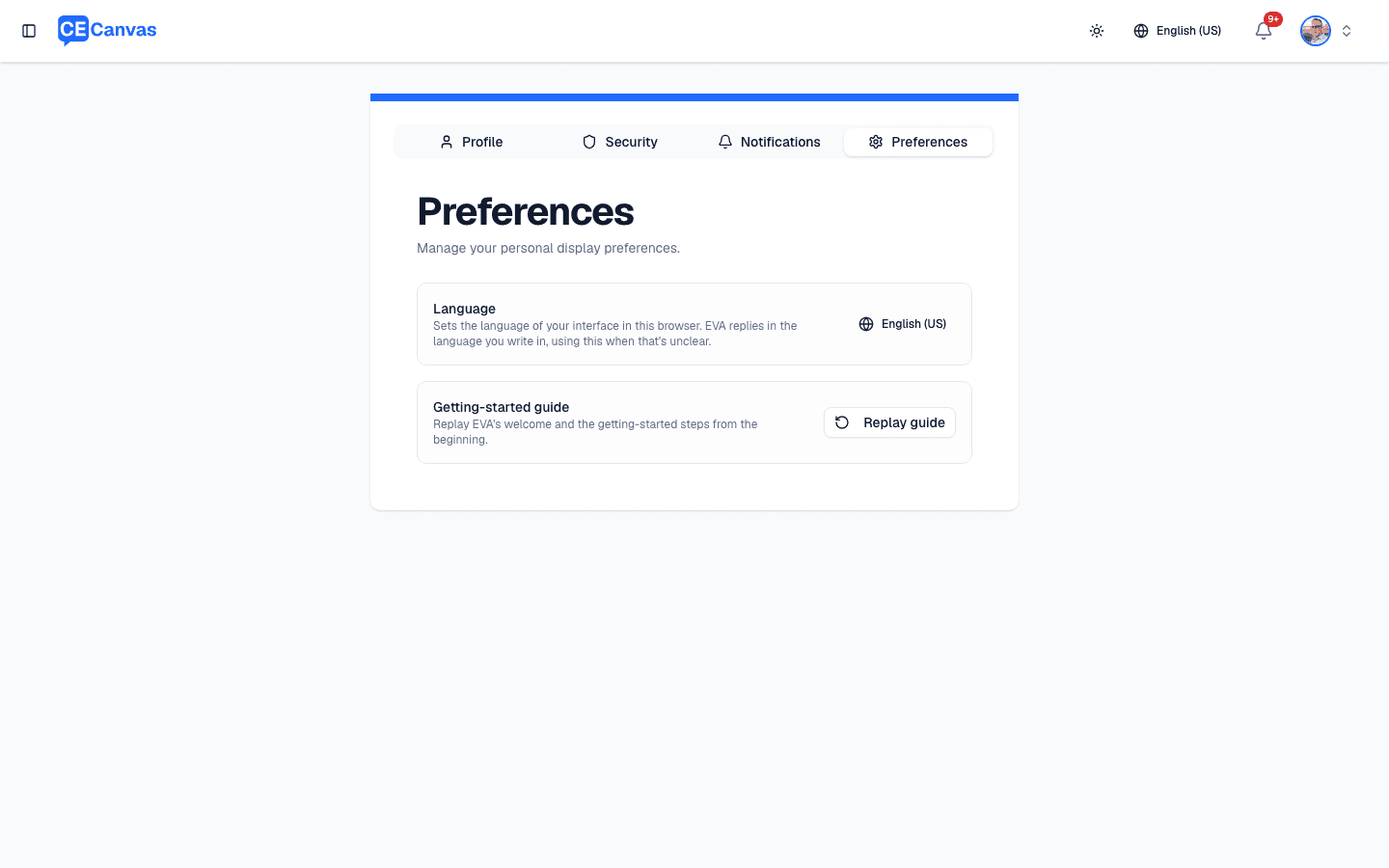
- Language — sets the language of your interface in this browser. It isn’t stored on your account, so it won’t follow you to another device. EVA replies in the language you write in and falls back to this setting only when your message is too short to tell. The English spelling EVA uses for shared documents comes from your organisation’s Language setting, not this one.
- Getting-started guide — select Replay guide to run EVA’s welcome and the getting-started steps again from the beginning. Useful if you skipped it on your first visit, or when showing a colleague around.
Related pages
- Getting Started
- Organisation Settings — organisation-wide settings managed by admins
- Roles and Permissions