Google Drive · Beta
Availability: Selected organisations. Google Drive is in beta — the interface and limits may still change. The one thing to know up front: imported files don’t update themselves; refreshing is a manual step (keeping files up to date).
Connect your own Google account and pull work you already have in Drive into CE Canvas:
- Resources — attach Drive files (including Google Docs and Sheets) as organisation or project resources. Imported files become context EVA can read and cite.
- Results — import survey responses straight from a Google Sheet in the Add Result flow, so results collected with Google Forms or maintained in Sheets don’t need a manual export first.
Everyone signs in with their own Google account. You browse your own Drive, colleagues browse theirs, and CE Canvas only ever gets access to the specific files someone picks — chosen in Google’s own file picker, with nothing else in the Drive visible to CE Canvas. Once a file is imported it is a CE Canvas resource like any other, visible to the people who can see that project or organisation.
Turning it on
Google Drive is enabled per organisation. When it’s on, it appears under Settings → Integrations in the Resources category. If you don’t see it, contact support@cecanvas.com to enable it for your organisation.
Any member of the organisation can connect their own Google account and pick files. Connecting Drive folders (below) stays with organisation owners and admins.
Connecting
Connect where you need it: the Google Drive tab of the upload dialog and the Add Result flow both offer Sign in with Google the first time you use them.
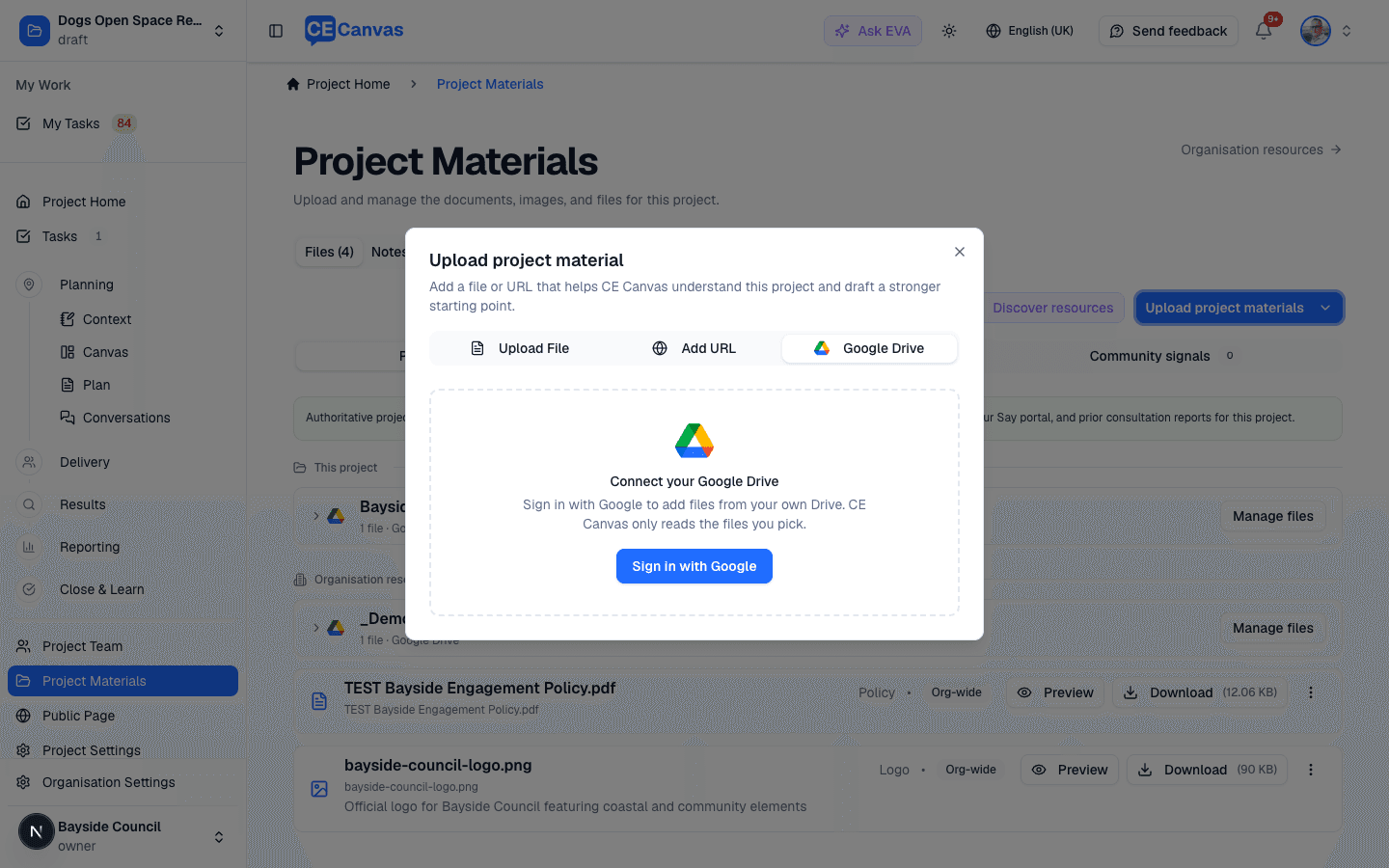
- Choose Sign in with Google. Google opens in a small window, so you don’t lose what you were doing.
- Sign in and allow the Drive access Google asks for (“See, edit, create and delete only the specific Google Drive files that you use with this app”). That per-file permission is the whole grant — CE Canvas cannot browse your Drive.
- The window closes and you carry straight on to picking files.
Your connection is yours: signing in doesn’t give anyone else access to your Drive, and disconnecting doesn’t affect colleagues. To disconnect, open your profile → Security → Connected accounts. (Organisation admins can also connect and disconnect from Settings → Integrations → Google Drive.) Leaving an organisation removes your connection to it automatically.
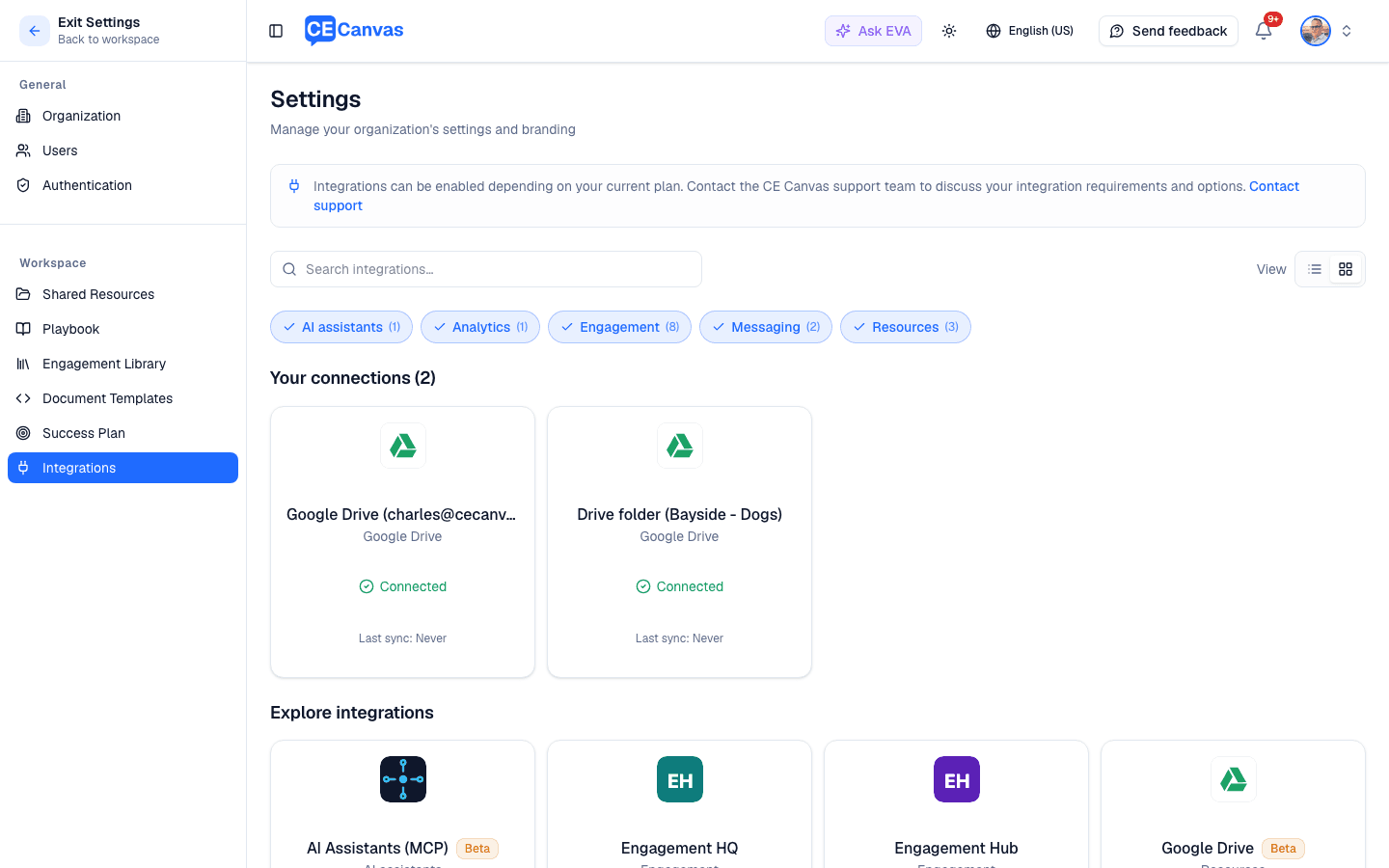
Connected accounts and folders appear under Your connections:
Adding Drive files as resources
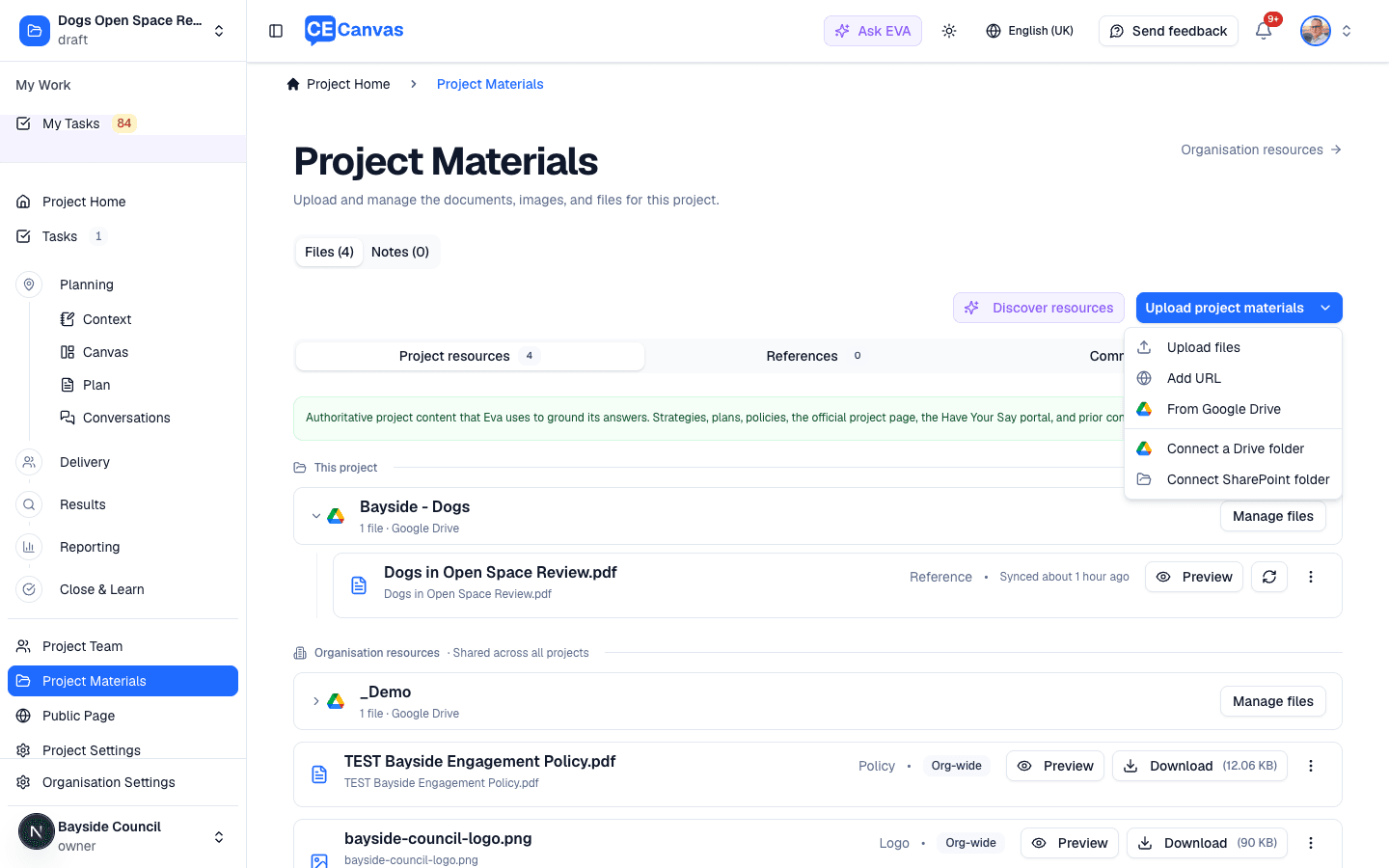
- On a project’s Project Materials page, open the Upload project materials menu and choose From Google Drive. (On the organisation resources page, use the Google Drive tab of the + Add Resource dialog.)
- Choose Choose from Google Drive.
- Select one or more files in the Google picker and confirm the import.
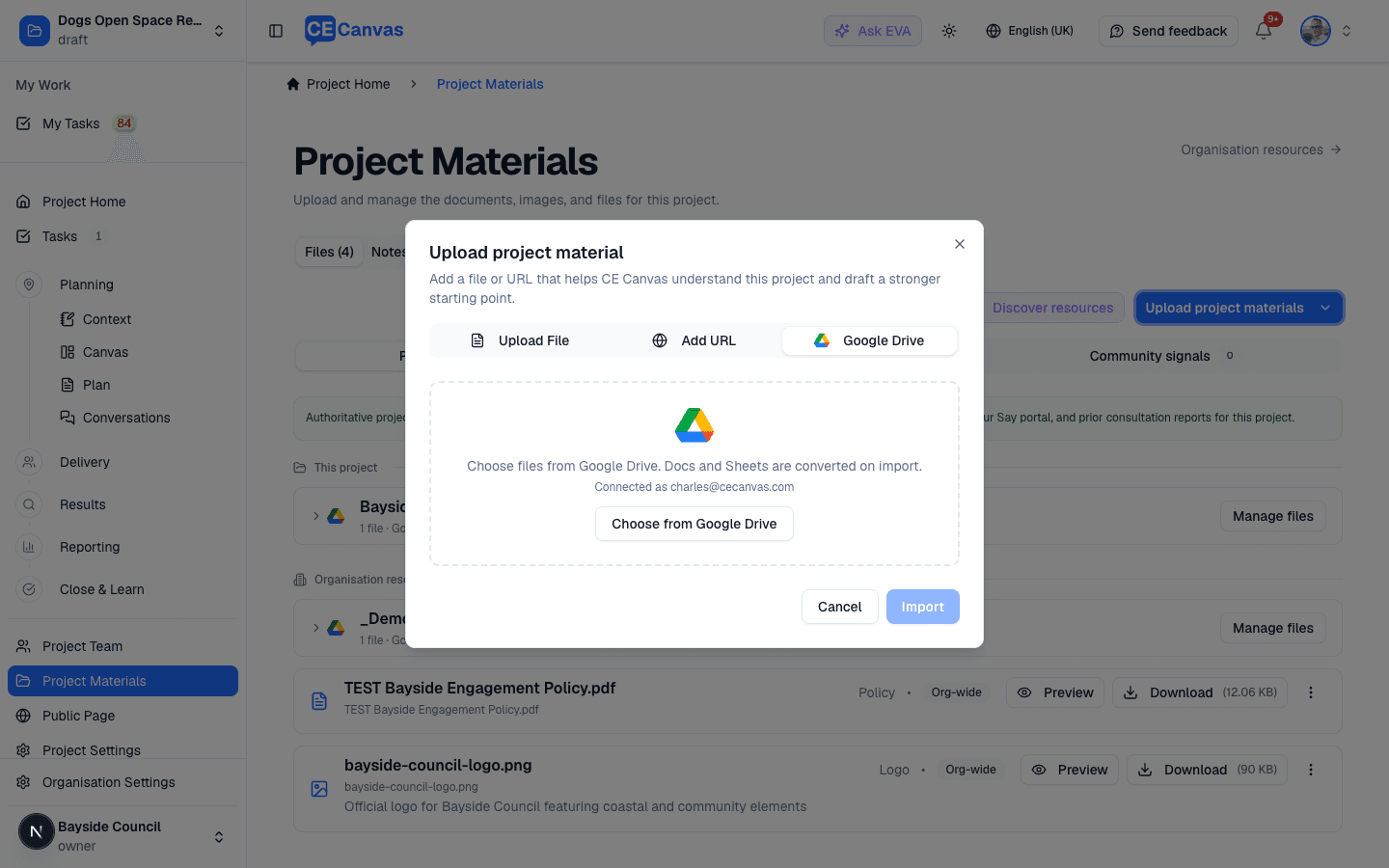
Files import in the background and appear in the resource list shortly after. Google-native formats are converted on the way in — Docs arrive as Word documents, Sheets as Excel workbooks, Slides as PDFs — and are processed for EVA like any uploaded file.
Connecting a project folder
If your organisation keeps a Drive folder per engagement project — or organisation-wide folders of policies and templates — connect them and curate their contents from inside CE Canvas:
- Open Connect a Drive folder — from a project’s Project Materials page (files become that project’s resources) or from Settings → Shared Resources (files become organisation resources, available to every project). Organisation owners and admins only.
- The dialog shows your organisation’s own CE Canvas address. In Google Drive, share the folder with it — Viewer access is enough, exactly like sharing with a colleague. Because the address belongs only to your organisation, no one else can connect that folder.
- Paste the folder link and connect. The dialog states where the files will land before you confirm. Repeat for as many folders as you need.
The person who shares the folder in Drive and the person who connects it in CE Canvas don’t have to be the same — connecting only needs the link.
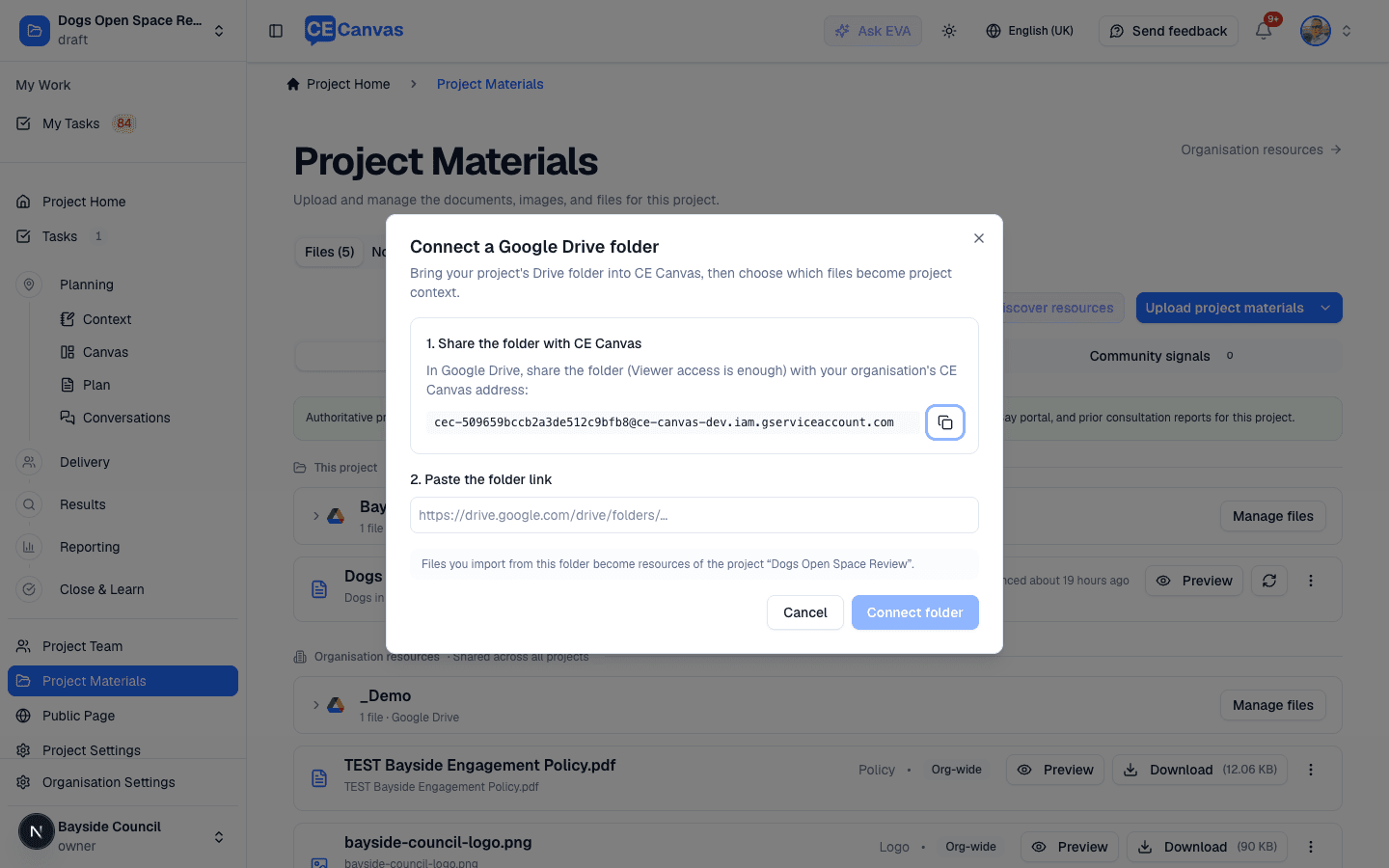
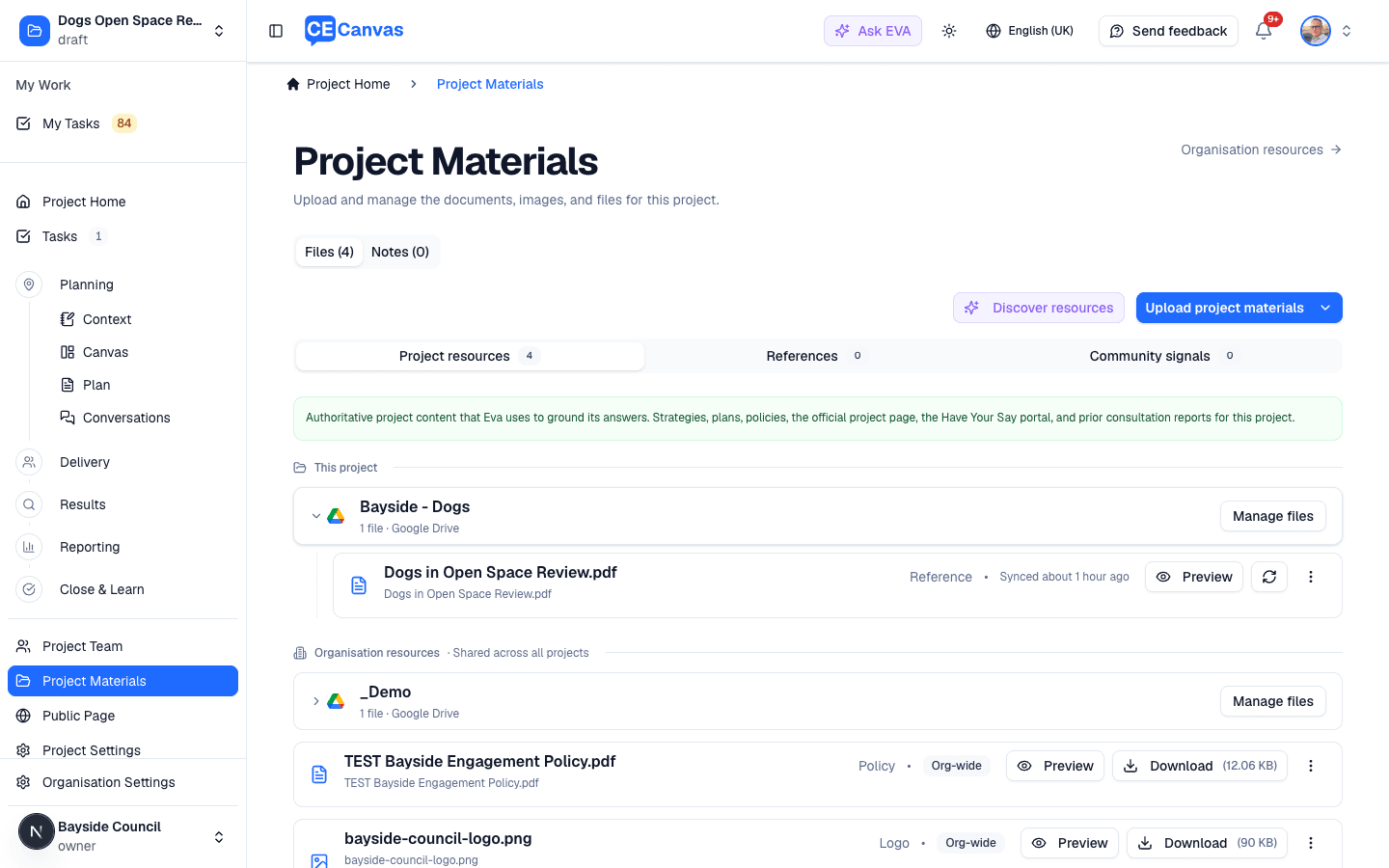
Each connected folder appears as its own entry in the resources list — a collapsible group showing the folder name and how many files it has brought in:
Manage files on that entry opens the folder as a checklist — including subfolders, marking each file as new, already imported, updated in Drive, or not importable. Ticking a file brings it in; unticking removes it from CE Canvas (it stays in Google Drive). Any project member can curate it:
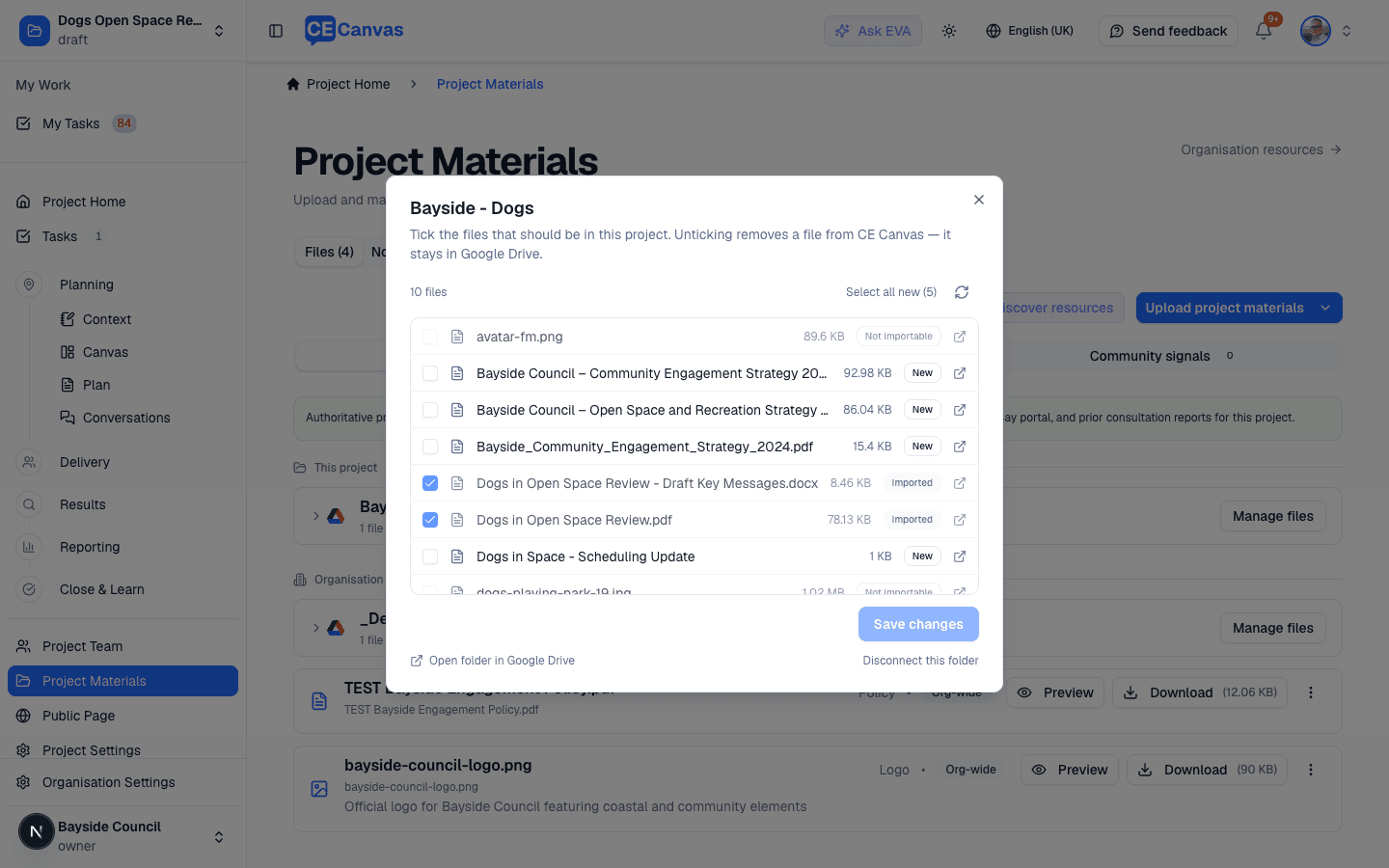
Revisit it as the folder grows: new files appear ready to tick, and files changed in Drive can be re-imported the same way. Importing is always selective — project folders accumulate working clutter, and only what you tick shapes EVA’s context.
Folder listings cap at 200 files and 3 levels of subfolders. Videos, images, and Google file types without a document export (Forms, Sites, Maps) are shown but can’t be imported.
Keeping files up to date
An imported file is a snapshot of the Drive file at the moment it was imported, and nothing syncs automatically yet. Editing the Doc in Google Drive does not change what CE Canvas holds — so EVA keeps quoting the version that was imported until someone refreshes it. Automatic syncing is on the roadmap; while Google Drive is in beta, updating is deliberate and manual.
Each imported resource stays connected to its source:
- Preview opens the live document in Google Drive (like URL resources, and it needs your own Google access to the document). Edit there — the live Doc stays the single working version, so there’s no Download button to spawn stray copies. The stored snapshot remains available via the ⋯ menu → Open in new tab if you need exactly what CE Canvas has.
- Refresh (the circular-arrow button, also in the ⋯ menu) pulls the current version into CE Canvas and re-processes it for EVA. Any member who can see the resource can refresh it; re-picking the file in the Google picker does the same thing.
- Each resource shows when it last synced, so you can tell at a glance how current it is.
For folders, Manage files flags anything that has changed since it came in as Updated in Drive — tick it and save to pull the new version. It’s worth a pass through the folder before a milestone where EVA’s drafting matters: a report, a plan, a briefing.
Practical habit: refresh (or check the last-synced time) before asking EVA to draft from a document you know has been edited recently.
Importing results from Google Sheets
- In a project’s Results, choose Add Result and pick the spreadsheet option.
- On the upload step, choose Import from Google Sheets and pick the sheet.
- Continue through the usual mapping steps — the data arrives exactly as if you’d uploaded the file, and the result records Google Sheets as its source.
If the sheet is linked to a Google Form, pick the Google Forms (Sheets export) format on the upload step so the Timestamp column is filtered automatically. Very large sheets (over 10 MB exported) can’t be pulled directly — download them as CSV and upload the file instead.
Troubleshooting
- “Your Google sign-in has expired” — choose Sign in again where you saw it, or reconnect from Settings → Integrations → Google Drive. Previously imported files are unaffected.
- “You’re browsing … a Google account shared with your organisation” — your organisation connected Google before per-person sign-in existed, and that older shared connection is still in place. Choose Use my own Google account instead; once everyone has, an admin can remove the shared connection from Settings → Integrations → Google Drive.
- Nothing happened when I chose Sign in with Google — the sign-in window was blocked by the browser. Allow pop-ups for CE Canvas, or connect from Settings → Integrations → Google Drive instead.
- I edited the Doc but CE Canvas (or EVA) still shows the old wording — the import is a snapshot and nothing syncs automatically yet. Use Refresh on the resource, or tick it again under Manage files if it came from a folder. See keeping files up to date.
- A file was skipped on import — files that are in the Drive trash, have downloading disabled, are over 50 MB, or are Google formats with no document export (Forms, Sites, Maps) can’t be imported.
- Disconnecting (your profile → Security → Connected accounts) removes CE Canvas’s access to your Drive and withdraws the permission at Google’s end too, so CE Canvas stops appearing under your Google account’s third-party apps. (If you’ve connected the same Google account in another CE Canvas organisation, the permission stays until you disconnect that one as well — otherwise disconnecting here would break it there.) Files already imported stay in CE Canvas and can be managed like any other resource. Refreshing a file that someone else imported keeps working through their connection — unless they have left the organisation, which removes their connection along with them.