Project Intake
Intake is the start of every project: the stretch between “someone wants engagement help” and “this project is running on a play with owners and dates”. CE Canvas runs it the same way whether the project began as a request, a conversation, or a blank project you created yourself.
If you skip this: projects start on habit. A communications job is run as an engagement, a major decision gets a two-week survey, and the team finds out what was open to influence after the community does. Intake is where the size and shape of the engagement is decided from the decision itself.
The journey
| Step | What it concludes | Where |
|---|---|---|
| 1. Request (optional, per organization) | What someone is asking for, in the shared questions plus your organization’s own | Requests · Requests and the Intake Form |
| 2. Project Context | The decision, who makes it, what is fixed, what is genuinely open — and from that, whether the project is engagement or communications-led | Planning → Context · Project Context |
| 3. Assess needs | How much effort the project needs, what role people have, and which of your plays fit | Planning → Assess needs · Assess Needs |
| 4. Playbook setup | When people can have their say; the play’s steps, tasks and activities, dated from that window | Confirm intake decision opens it · Engagement Playbooks |
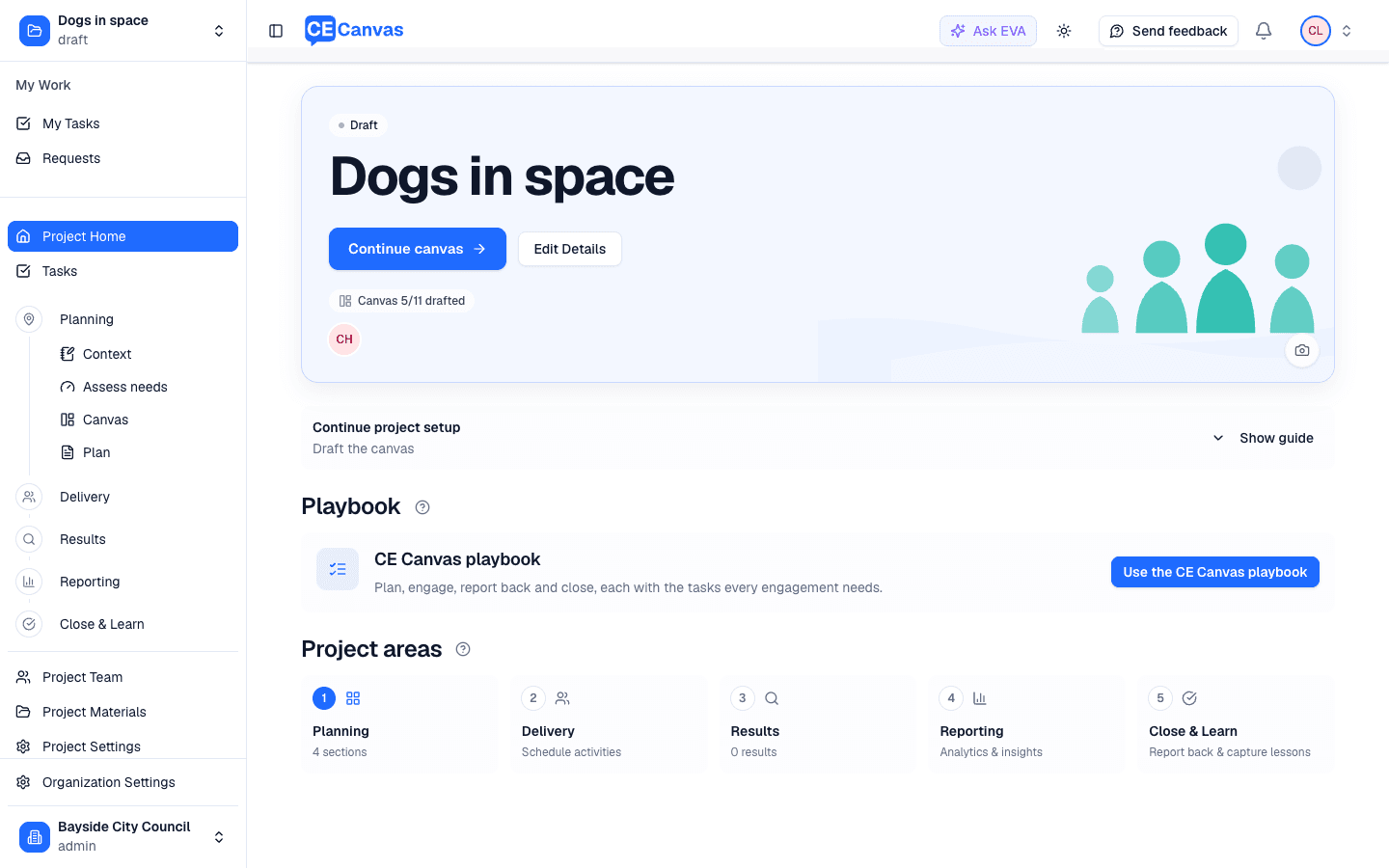
Project Home then leads with the Project playbook: the steps in order, the one marked Now open with its tasks, and the next task in the hero. Every task that belongs to a screen carries an Open… button and shows that screen’s progress.
Each step is a task on the project, owned and dated, and each completes by its own finishing act: the Context task when the brief is written, the assessment when the intake decision is confirmed, the request task when a request is linked. Nothing has to be ticked by hand.
What is on for everyone, and what is enabled on request
On for every organization: Project Context with the Project approach block, Assess needs, the Project playbook on Project Home, CE Canvas practice tasks, playbook setup with phases and windows, and the Delivery and timeline views that follow.
Enabled per organization — the Intake step: the hosted request form, the Requests inbox and the Intake step before Planning (Intake form → Context → Assess needs). It changes who starts a project and how, so we switch it on with you rather than by default.
Want the Intake step in your account? Email support@cecanvas.com or reply to any CE Canvas message. We turn it on the same day, load your intake form questions from a file, and walk your first request through with you.
Three ways to run it
Intake works with whatever your organization has adopted. The worked examples walk through each from a new project to a dated workplan.
| No playbook | Engagement Essentials (the CE Canvas default) | Your own playbook | |
|---|---|---|---|
| Steps and tasks | CE Canvas practice: Plan, Engage, Report back, Close and learn, with one task per screen | Essentials’ six plays by impact level, one engagement window | Your plays, phases, approvals and methods, imported from a file |
| Assess needs | Sizes effort, people’s role and phases; no play to choose | Ranks the compatible plays; one click opens setup | Ranks your plays; types can declare one or two engagement phases |
| Engagement window | Set on Delivery or the timeline; practice tasks follow it | Set in playbook setup; tasks and activities dated from it | One window per phase; tasks dated from each |
| Best for | Trying CE Canvas, or an organization with its own process outside the product | Most organizations starting out | Organizations with a policy, framework or rules of play |
Adopt Essentials or import your own from Organization Settings → Engagement Playbook. A sample import file with three plays, including a two-phase play, is in the playbooks guide.
Existing projects
Projects created before this release keep their tasks and steps. Project Home offers Use the CE Canvas playbook on any project that has no steps yet; accepting it adds the practice steps and tasks around the work already done, and nothing is removed. Where a playbook is later adopted, the play’s own tasks replace the practice tasks that open the same screens.
Continue
- Requests and the Intake Form — the hosted form, triage, and linking a request to a project
- Project Context — the decision frame and the Project approach block
- Assess Needs — the questions, the sizing, the obligations, and the plays
- Three Worked Examples — no playbook, Engagement Essentials, your own playbook
- Engagement Playbooks — adopting, importing, applying and removing a playbook