Requests and the Intake Form
Availability: enabled per organization. Email support@cecanvas.com and we will switch on the Intake step, load your form questions from a file, and walk the first request through with you.
Most engagement work starts as a conversation: a project officer, a planner or a councillor asks the engagement team for help. Requests gives that conversation a form and an inbox, so the ask arrives with the facts the engagement team needs, and nothing is retyped.
If you skip this: requests arrive by email and hallway, half the facts are missing, and the engagement team starts every project by chasing them. The form asks once; Context, the needs assessment and the decision date all start from the answers.
The request link
Requests in the sidebar shows the organization’s request link and whether it is on. Anyone with the link can use the form; no CE Canvas account is needed. Turn it on from the same page.
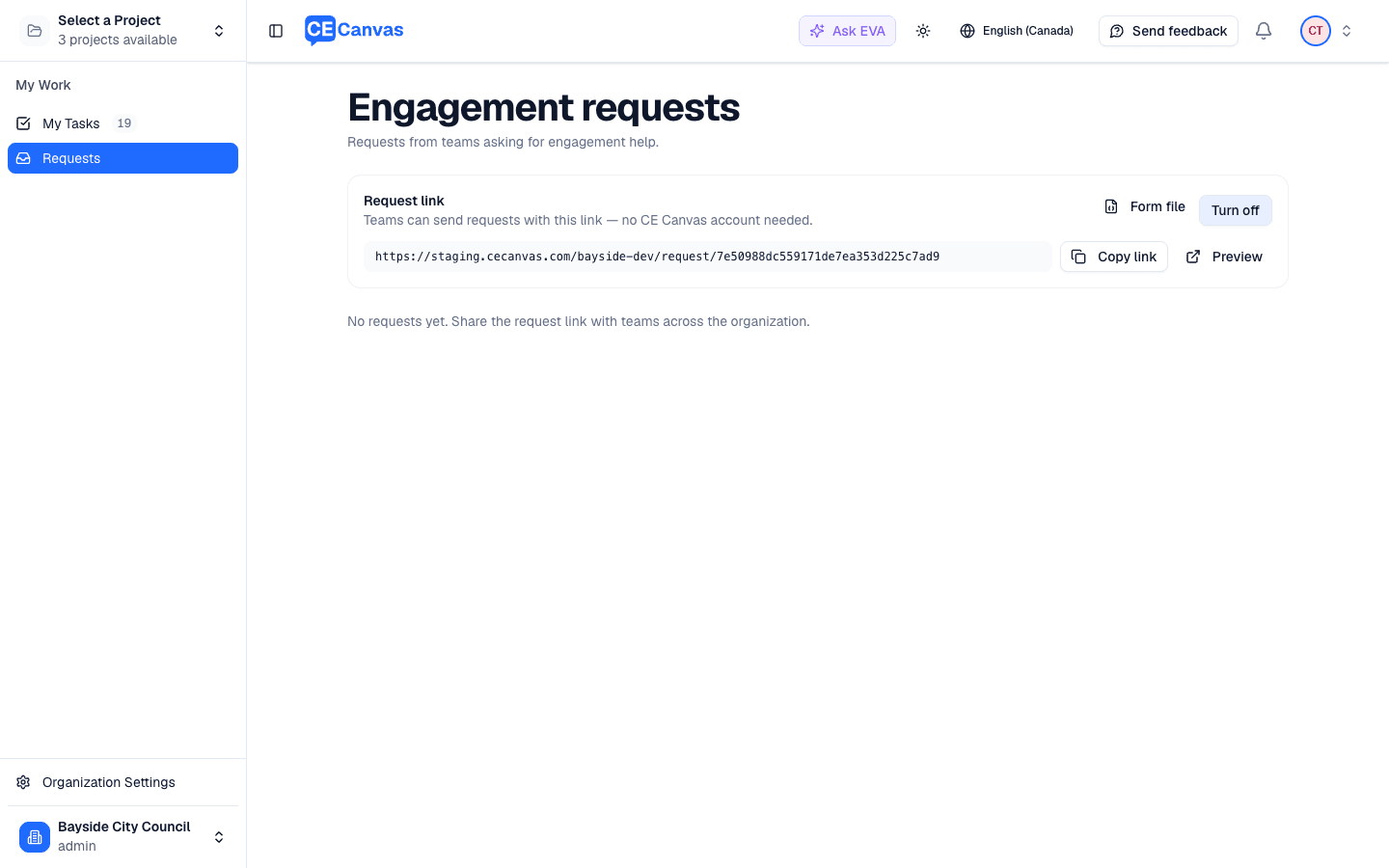
Form file — the form always asks the shared core questions: who is asking, the project, the decision to be made, who decides, what people can influence, what is being asked of people, whether engagement is required, and when the decision is due. Your organization’s own sections, strategic fit, risk, measures, whatever your framework needs, come from a JSON file you import here, and export the same way. The form carries your logo and color.
Filling in the form
The person asking works through one page: about the project, the decision, the people affected, timing. Not sure yet is always an answer, and it becomes the first thing the engagement team works through with them.
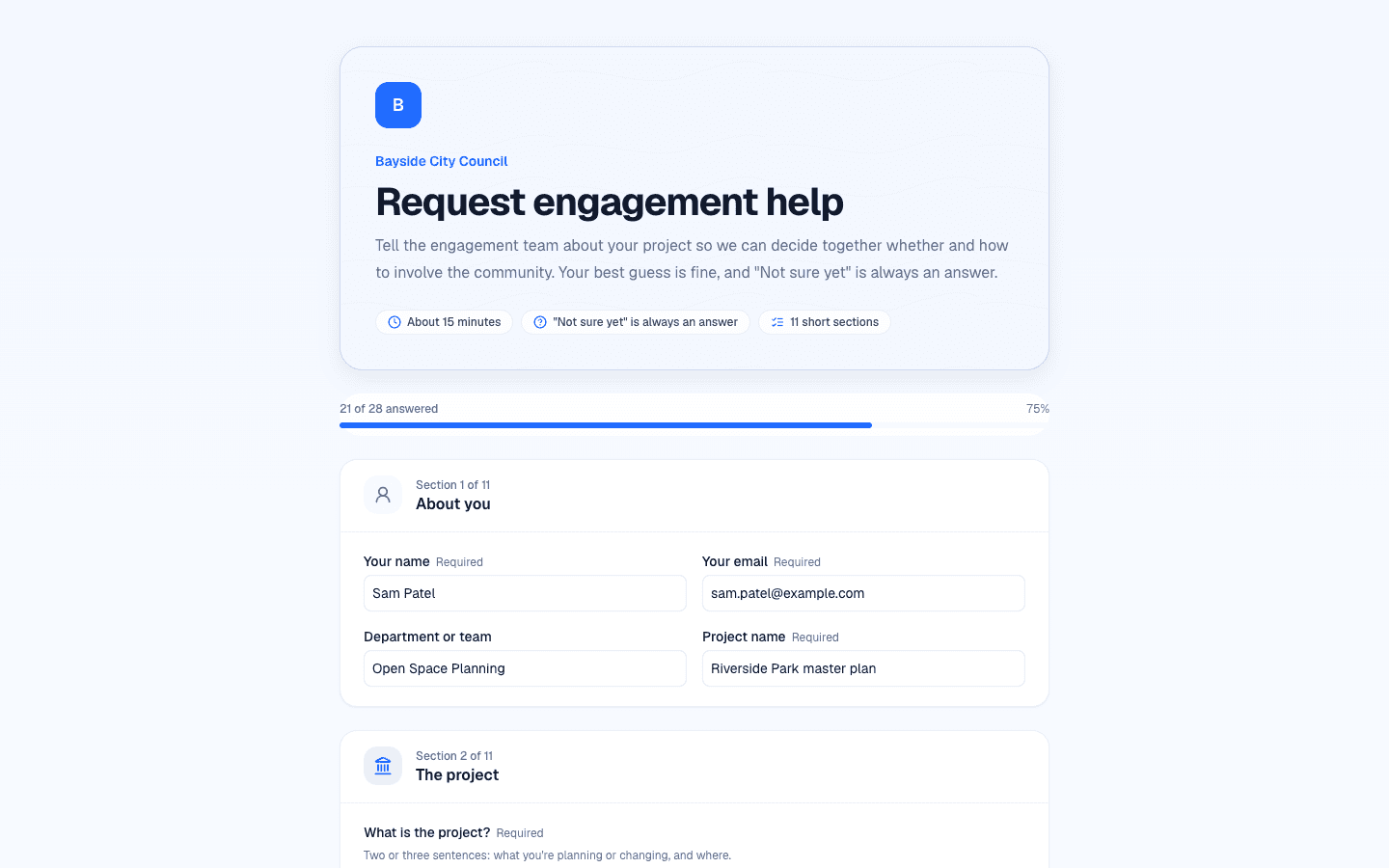
Sending it shows a confirmation and a printable copy. The request arrives in the inbox and the organization’s admins are notified.
Triage
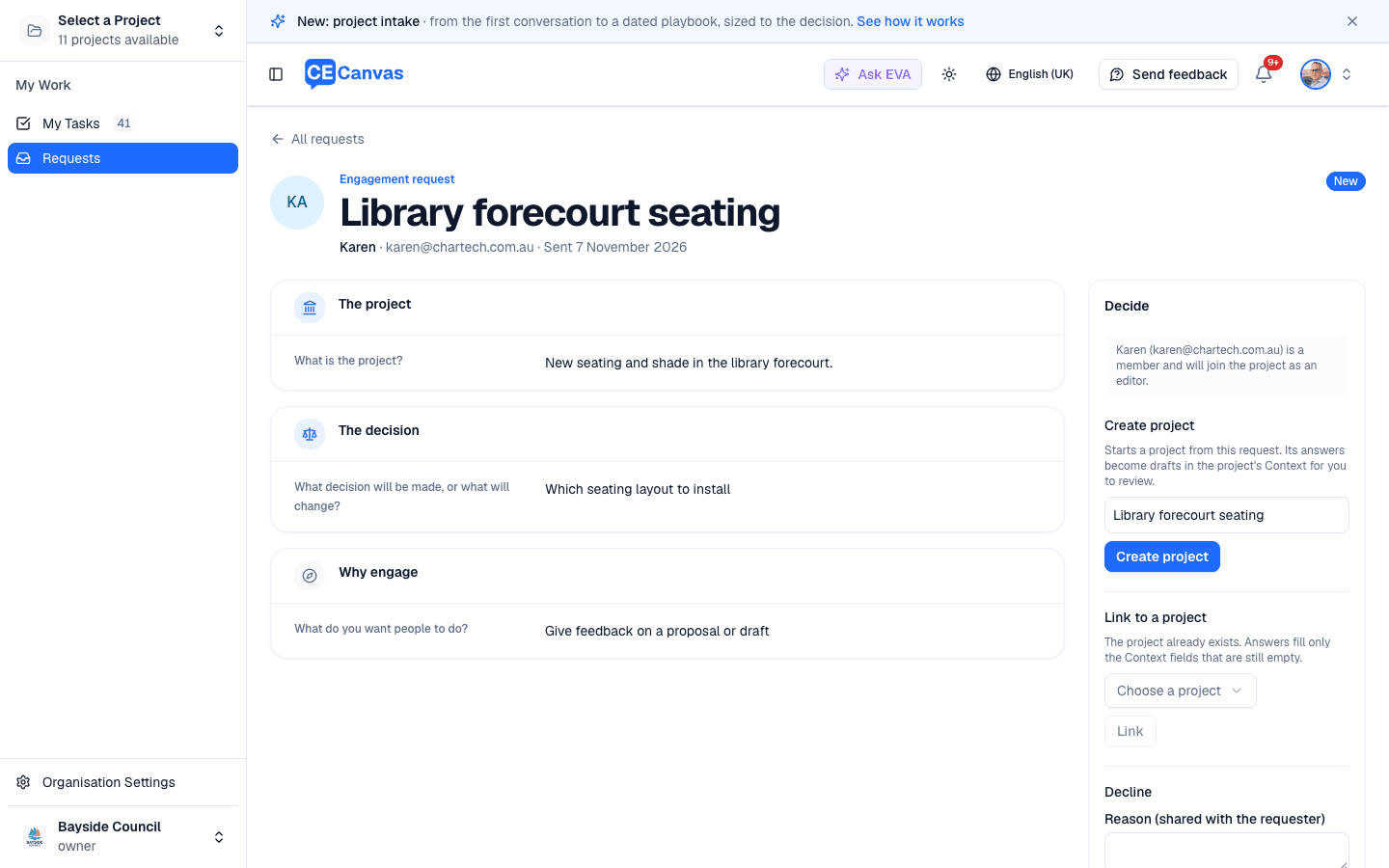
Open a request to read the answers in full, note how it should be handled, and decide what to do with it:
- Create project — a new project with the request’s answers drafted into Project Context, the requester added to the project team, and the decision date recorded as a milestone where the form gave one. You land on Context with the drafts waiting to be reviewed. If the project is created but the request cannot be marked accepted, you are offered Open project, and Create project again finishes the link rather than making a second project.
- Link to a project — attach the request to a project that already exists. Context is kept; the request’s answers are offered as drafts only where a field is still empty.
- Decline — close it with a note. The requester is told.
Before you choose, the panel says what happens to the person who asked. If their email belongs to a member of your organization, they join the project as an editor (Sam Patel (sam@…) is a member and will join the project as an editor). An email that no member uses adds nobody: they stay named on the request only. Afterwards the request records who joined and when.
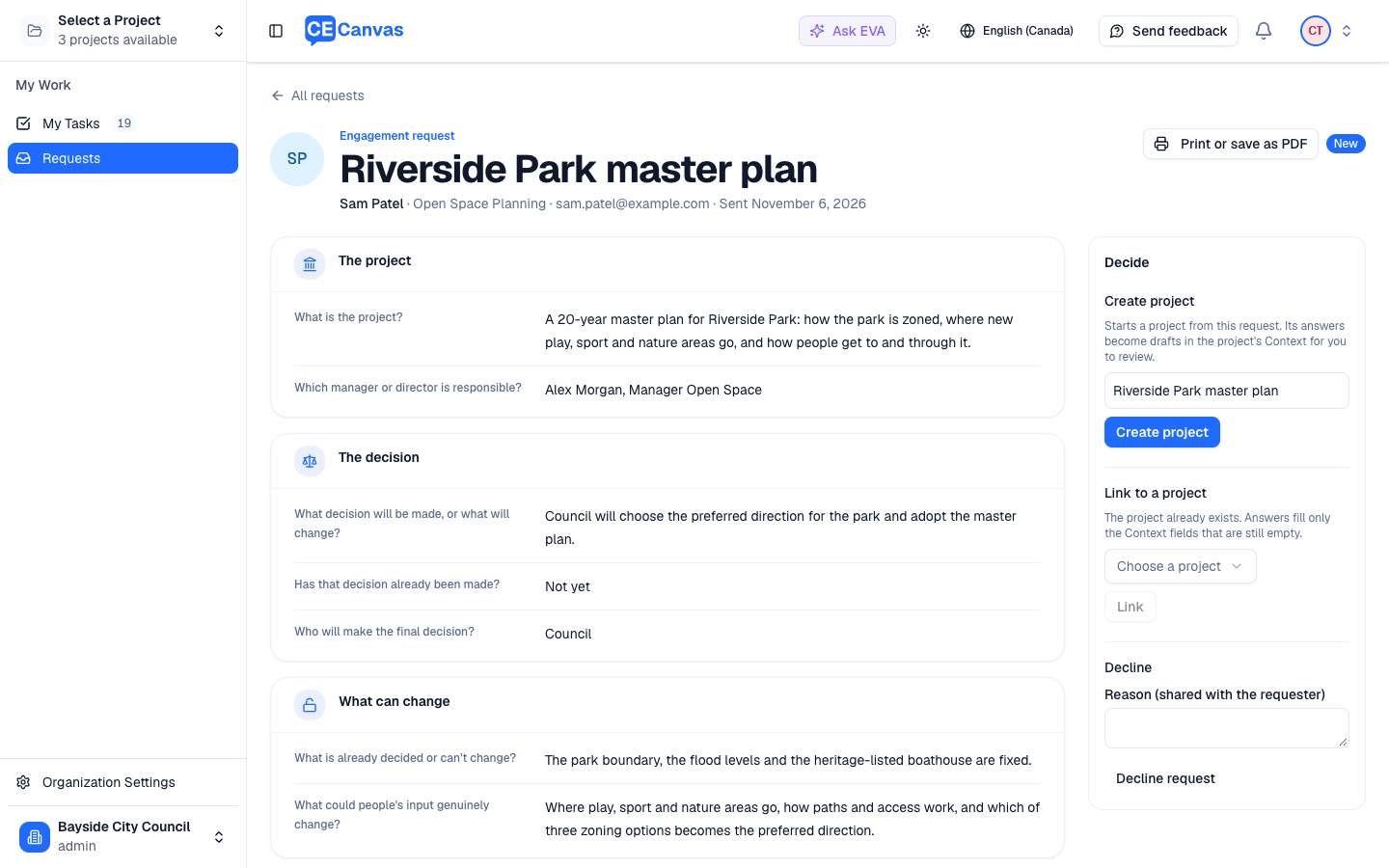
The request stays beside the project under Intake → Intake form, printable, so what was asked is never lost behind what was built.
What happens next
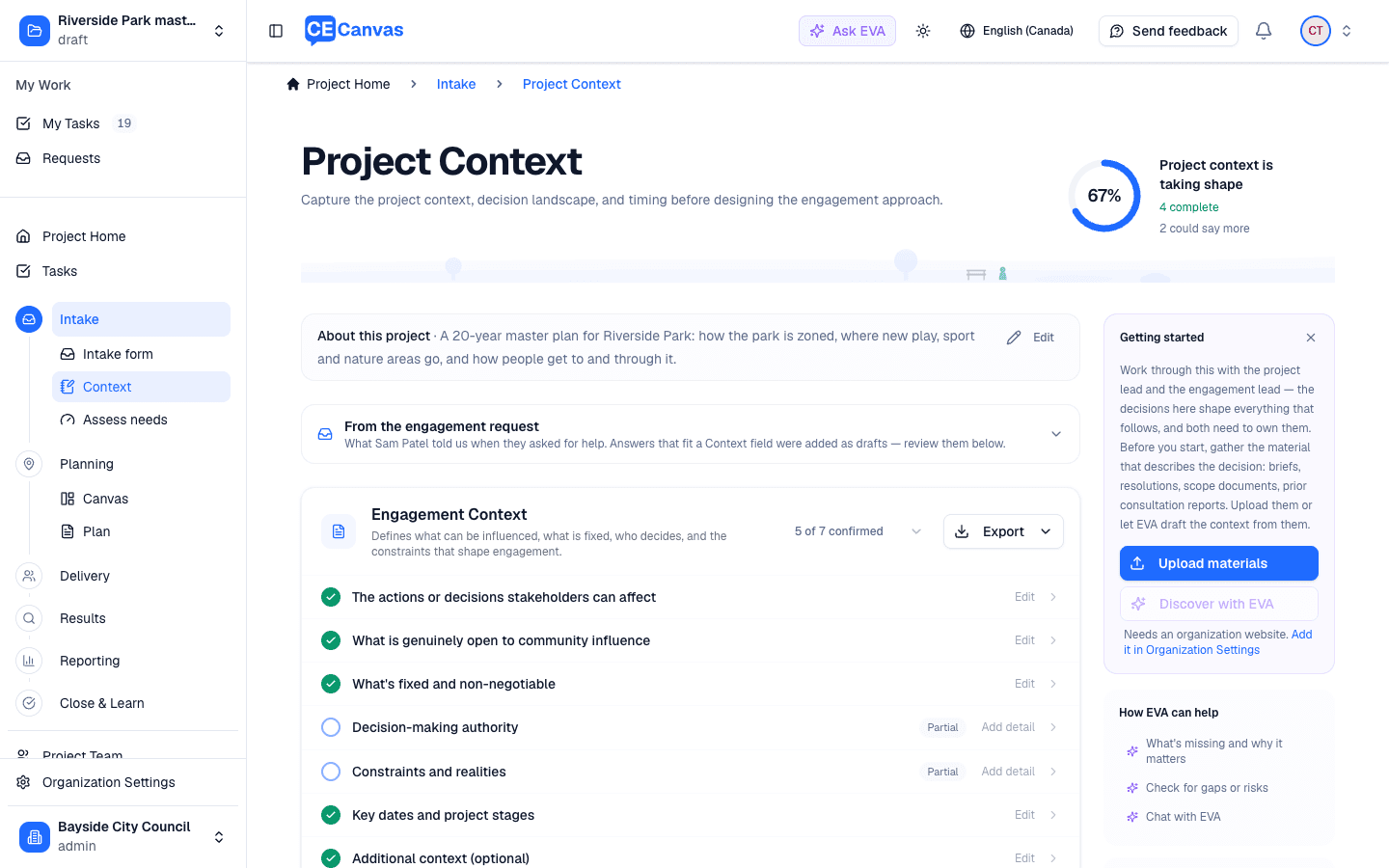
With the Intake step on, the project’s journey starts with Intake form → Context → Assess needs:
- The intake tasks are owned by whoever accepted the request and dated from the day intake started.
- The request task is done the moment the request is linked; the assessment task closes when the intake decision is confirmed.
- Context shows From the engagement request beneath its header: what the requester told you, with the answers that fit a Context field already drafted and marked as such.
Continue with Project Context and Assess Needs.