Organisation Settings
Organisation Settings is where you manage your organisation’s profile, branding, and team membership. Access it from Organisation Settings in the project sidebar, or from the bottom of the left navigation.
General settings
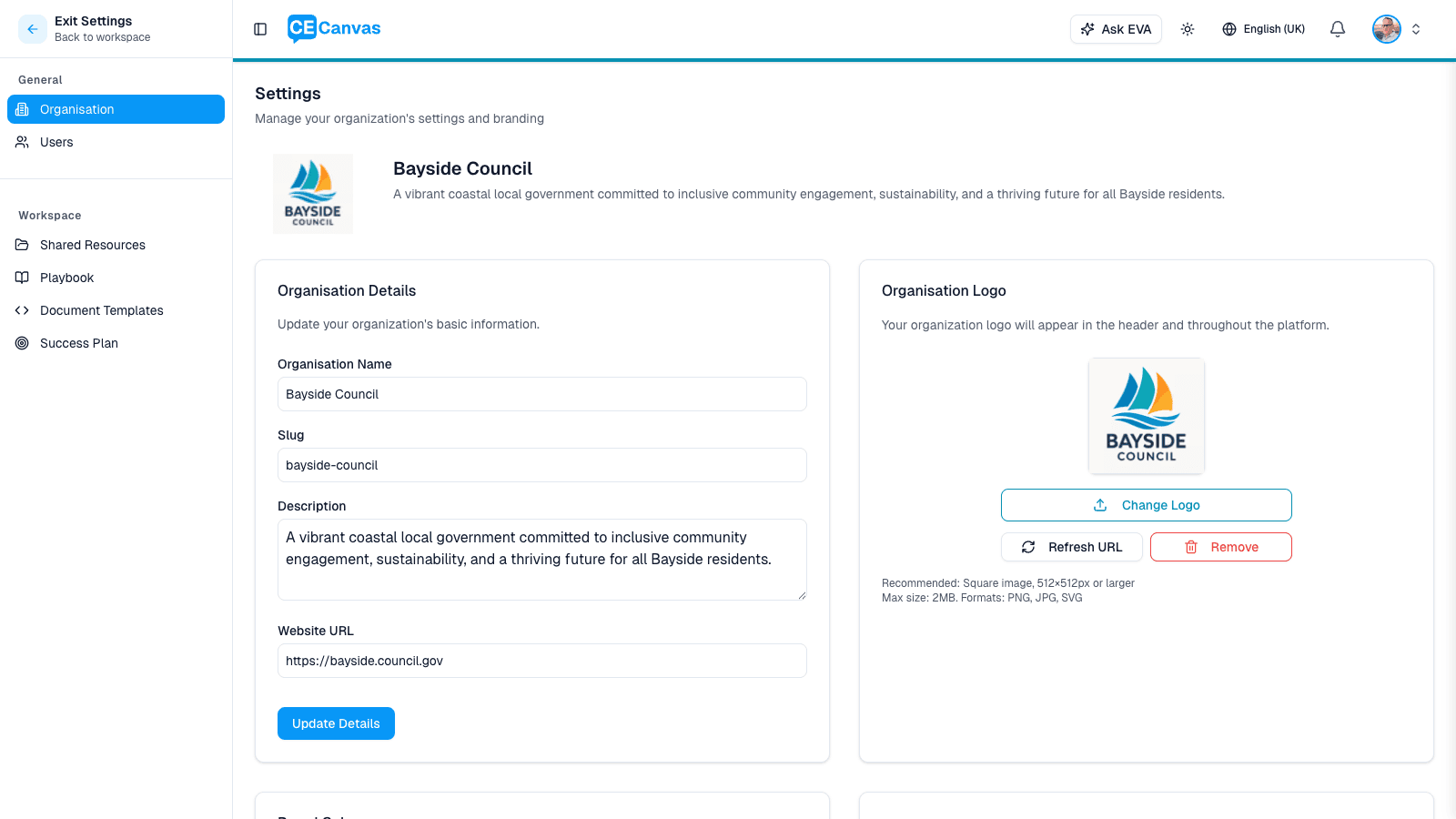
The Settings sidebar has two main sections — General (Organisation, Users, and Authentication) and Workspace (Shared Resources, Playbook, Document Templates, Success Plan, and Integrations).
A Subscription panel at the top of General settings shows your current plan and status.
Organisation Details
| Field | Notes |
|---|---|
| Organisation Name | The display name shown across the platform |
| Slug | Used in all URLs for this organisation. Changing the slug will break existing links. |
| Description | A short description of the organisation, shown on the organisation profile |
| Website URL | Optional link to the organisation’s public website. Use Find website and logo to let EVA auto-discover the website and logo from the organisation name. |
| Timezone | Your organisation’s working day. Search by city, region or abbreviation — typing “Minneapolis”, “Central” or “CST” all find Chicago. Common markets are grouped by country and every remaining timezone is listed under Other, so anywhere you work is available. Each option shows the current local time so you can confirm at a glance. |
| Language | Your organisation’s house style: the English spelling EVA uses when drafting shared documents, and the language of the lifecycle emails CE Canvas sends your team. Available in English (UK), English (Australia), English (Canada), English (US) and Français. |
Click Update Details to save changes.
Timezone and language are organisation-wide. The timezone decides when a task becomes overdue and when scheduled emails go out, so set it to the timezone your team works in.
The language does two things: it sets the English spelling for shared drafts, so two teammates never produce different spelling in the same document whatever their own browsers are set to, and it sets the language of the lifecycle emails CE Canvas sends (welcome, reminders, weekly summaries). It does not change what language EVA talks to you in — EVA replies in the language you write in, and your own interface language lives under Profile → Preferences. If you work in French, EVA answers in French regardless of this setting.
English (Canada) is not a synonym for English (UK). Canadian English takes colour, centre and cancelled from British usage but organization, customize and analyze from American usage, so it is its own option — choose it rather than English (UK) for Canadian councils and agencies.
EVA is also instructed to preserve the spelling and defined terminology of documents you upload — if your source says “Workgroup” and uses US spelling, your drafts should too. This is a strong instruction rather than a mechanical guarantee, so it’s worth a glance when reviewing a draft.
Organisation Logo
Upload your organisation’s logo — it appears in the platform header and throughout the application. Requirements:
- Square image, 512×512px or larger
- Max file size: 2MB
- Formats: PNG, JPG, SVG
Use Change Logo to upload a new image. Refresh URL forces the platform to reload the logo from storage if it’s not displaying correctly. Remove deletes the current logo.
Brand Colours
Below the logo panel (scroll down on the settings page), you can set a Primary Colour and Secondary Colour for your organisation. Enter a hex value in each field — a swatch beside it previews the colour, and a contrast check flags low-contrast values as you type. A live preview shows how the colours will appear in the platform.
Click Update Brand Colours to save. The button stays disabled while either value isn’t a valid hex colour — the message under the field explains what to fix.
Users (Team Members)
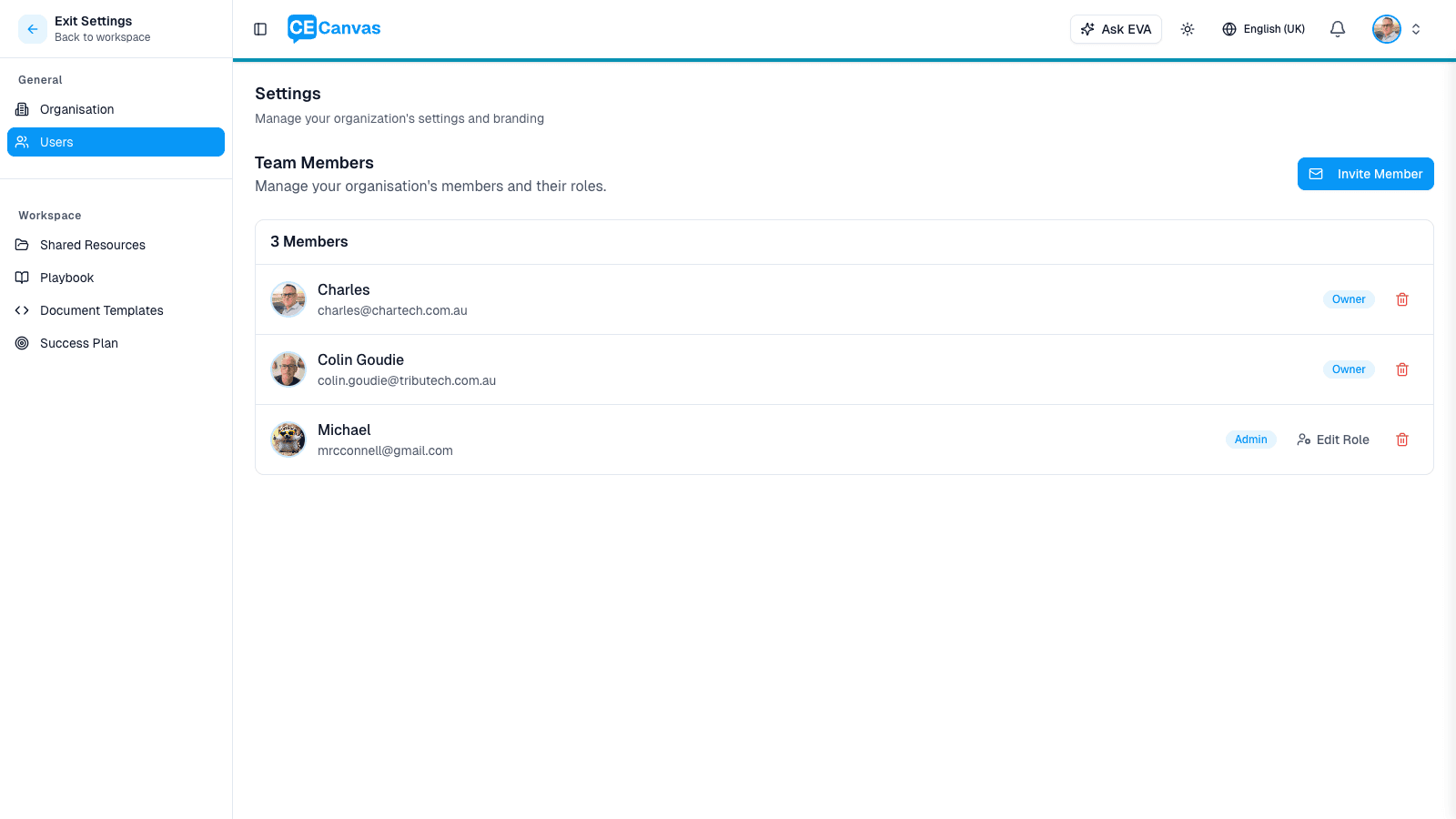
Navigate to Users in the settings sidebar to manage organisation members.
The members list shows each person’s name, email address, and current role. From this page, Organisation Owners and Admins can:
- Invite Member — send an invitation by email, assigning either an Admin or Member role
- Edit Role — change a member’s role between Admin and Member
- Remove (trash icon) — remove a member from the organisation
Owner is a protected role and cannot be assigned or removed from the Users page. See Roles and Permissions for details on what each role can do.
Authentication
Navigate to Authentication in the settings sidebar to review single sign-on and sign-in method settings for your organisation.
Organisation Owners and CE Canvas support use this page to configure:
- SAML single sign-on provider type
- Email domains that should use SSO
- Whether SSO is required for matching domains
- Whether password sign-in and magic links are disabled for matching domains
- Identity provider metadata and optional role mapping
SSO setup normally requires coordination with your IT or identity administration team. See Single Sign-On for the full client setup guide.
Workspace settings
The Workspace section of the settings sidebar provides additional configuration areas:
| Section | Purpose |
|---|---|
| Shared Resources | Manage resource documents shared across all projects in the organisation |
| Playbook | Configure organisation-level playbook project types and methods |
| Engagement Library | Browse and extend the catalogue of engagement methods (see below) |
| Document Templates | Manage templates used for engagement plans and outcomes reports |
| Success Plan | Configure success planning templates for the organisation |
| Integrations | Connect and manage external data-source integrations for the organisation |
Engagement Library
The Engagement Library is the catalogue of engagement methods, approaches and governance structures your projects draw on — a curated global set (workshops, surveys, citizens’ panels, drop-in sessions and more), plus entries your organisation adds for its own ways of engaging. Each entry carries the facts that matter when choosing it: IAP2 levels, cost and duration bands, what EVA designs for it, suggested materials, and a real-world example.
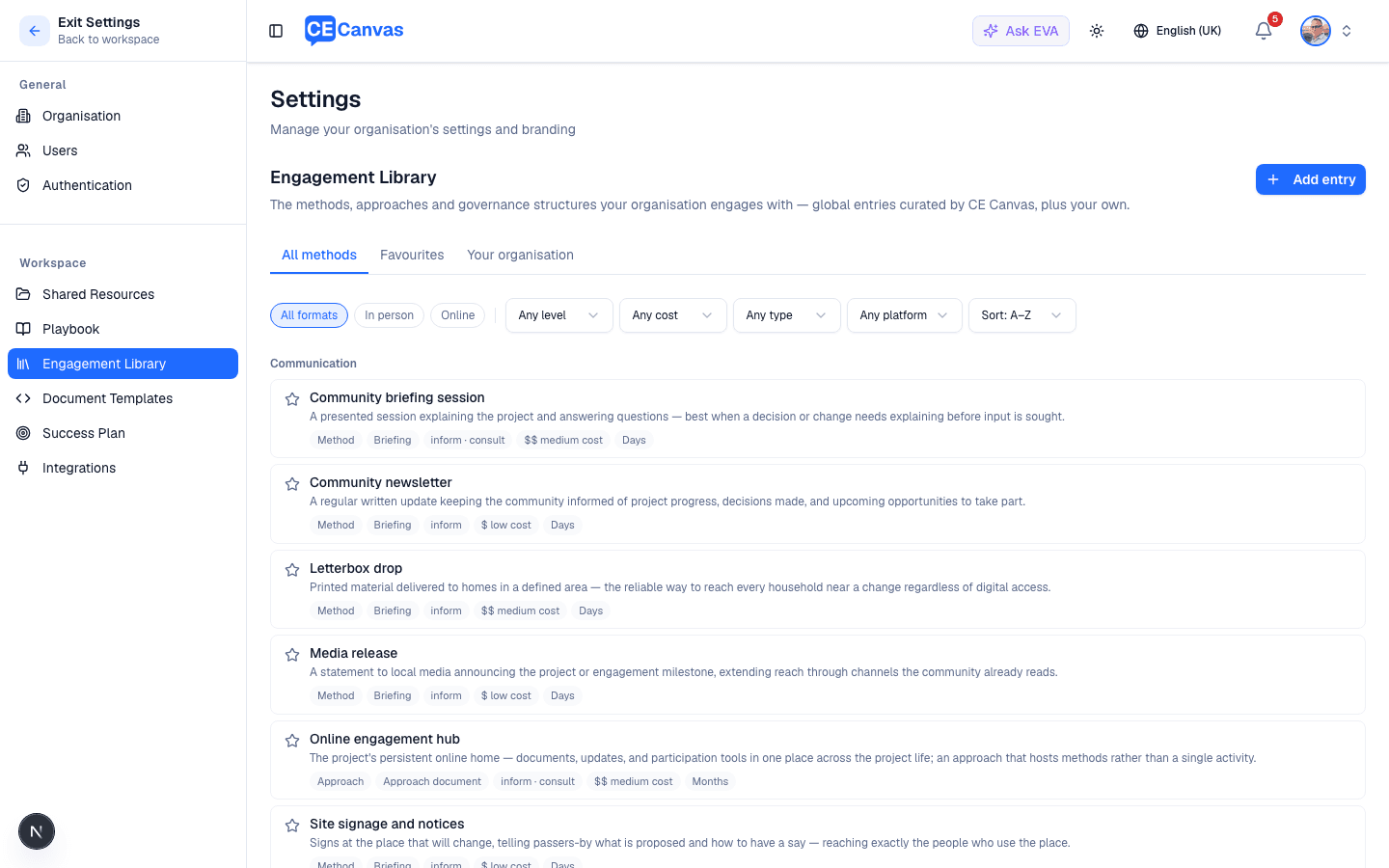
Three tabs organise the catalogue — All methods, Favourites, and Your organisation — with a filter row for format (in person / online), IAP2 level, cost, type, platform, and an A–Z or cost sort.
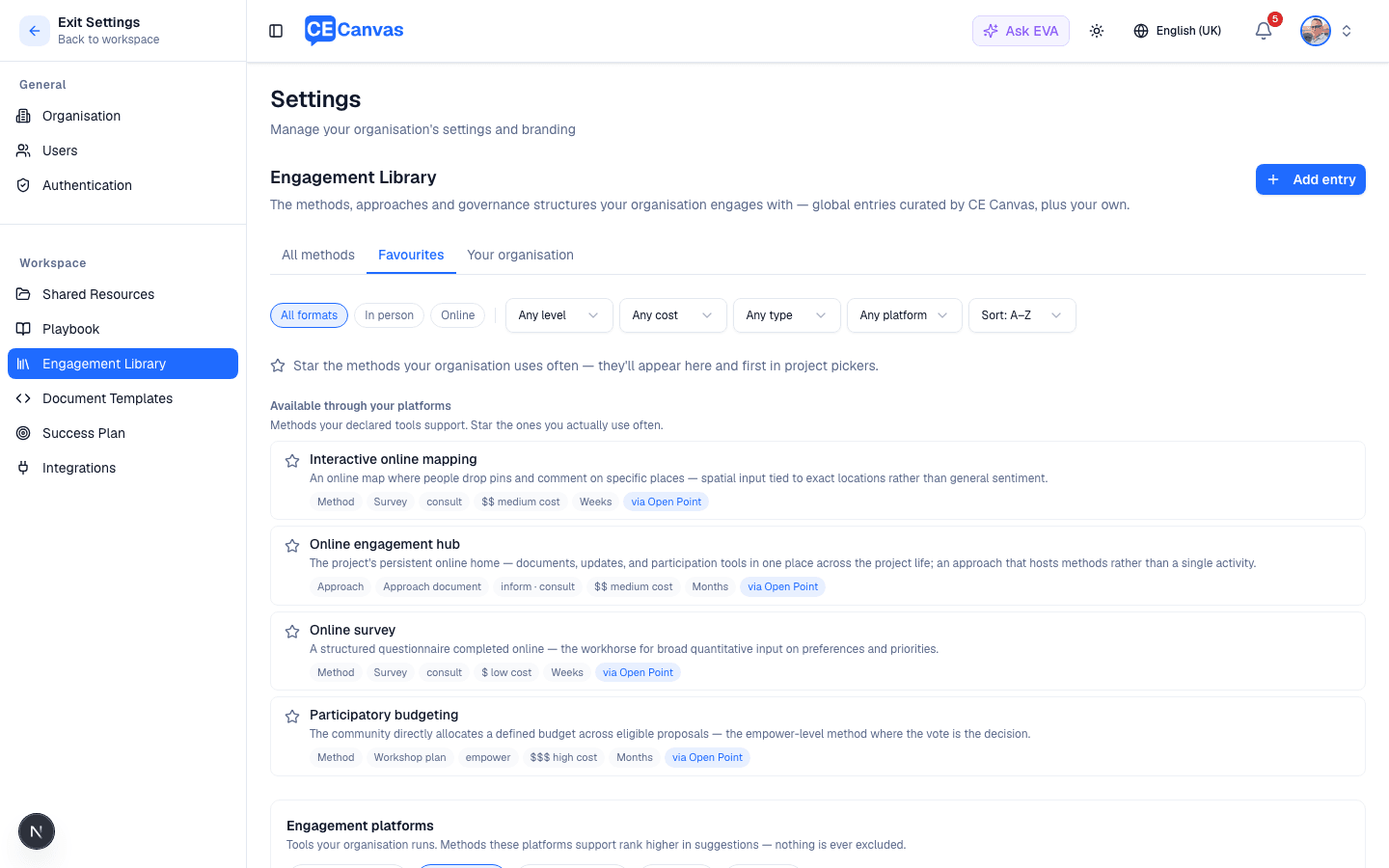
- Star your favourites. Any team member can star the methods your organisation uses often — starred entries appear in the Favourites tab and first in project pickers. Favourites are shared across the organisation, like a team playbook of go-to methods.
- Declare your engagement platforms (EngagementHQ, Open Point and others). Methods those tools support rank higher in EVA’s suggestions — nothing is ever excluded, and the reason (“you run EngagementHQ”) is always shown. The Favourites tab also lists what’s available through your platforms, ready to star.
- Add your own entries for bespoke methods your organisation runs. They appear first in project pickers.
- Add practice notes to a global entry (“this is how we run workshops”) — EVA folds them into activity designs alongside the entry’s own guidance.
- Review suggestions from your team. When someone describes a method in their own words while designing an activity, it lands here as awaiting review — approve it to make it a full entry, or dismiss it.
Entries marked community protocols apply (such as First Nations engagement) are designed protocol-first: EVA drafts the step where the way of working is agreed with the community, never the protocol content itself.
Next steps
- Roles and Permissions — understand organisation and project access levels
- Single Sign-On — configure SAML SSO with your identity provider
- Getting Started — initial organisation setup walkthrough
- Project Settings — configure individual project details