Delivery
Delivery is where strategy becomes operations. The engagement activities you designed in the Canvas arrive here to be prepared, run, and recorded — one phase in context, one activity at a time.
From the project sidebar, go to Delivery.
If you skip this: the canvas stays a poster. Activities happen ad hoc, nothing is dated, groups flagged for deliberate outreach quietly drop off the plan, and three weeks before engagement opens someone builds a panic spreadsheet. Delivery exists so that spreadsheet never does.
How the page is organised
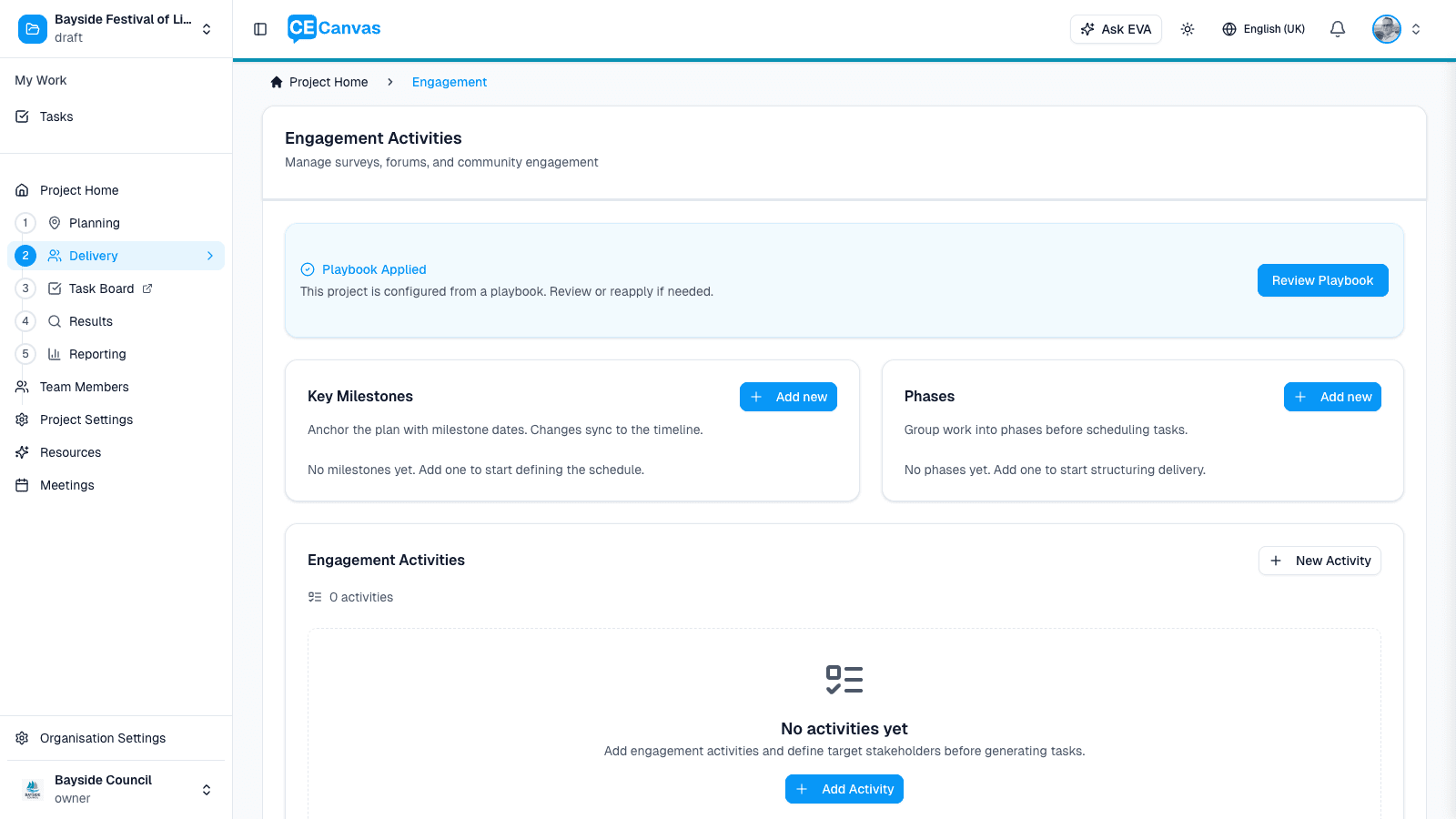
Delivery holds one phase in context at a time. Pick the phase at the top; everything below belongs to it.
| Part | What it’s for |
|---|---|
| Phase selector | Which phase you’re working in. Tabs while they fit, a dropdown once there are more than five. The + adds a phase. |
| Activities sidebar | Navigation. Every activity in the phase, plus Phase overview at the top. |
| The pane on the right | Either the phase overview, or the workspace of the activity you selected. |
Each surface has exactly one job, so nothing is answered twice: the sidebar navigates, the phase overview tells you when, an activity workspace is where you prepare and run one activity, Tasks is where the work gets done, and the Timeline owns the whole project’s schedule and any date editing.
The activities sidebar
Rows show the activity’s name and, underneath, the one thing most worth acting on:
- “6 tasks overdue” — linked tasks are past their due date
- “Needs a date” — the activity hasn’t been scheduled
- “Delivered” / “Cancelled” — the activity is now a record, not work in preparation
- nothing — nothing needs you here
Only one line, always the most urgent, and nothing at all when there’s nothing to say. If a row is quiet, that’s information too.
Phase overview — the phase in date order
Phase overview is the phase laid out in time: milestones and activities interleaved on a single rail, earliest first.
- Milestones are marked with a flag and link to the Timeline, which owns milestone editing.
- Activities open their workspace when you click the name.
- Anything without a date clusters at the end under No date yet — CE Canvas won’t guess where an undated activity belongs in a sequence.
- Expanding a row (the › on the right) shows its dates, who it reaches, and anything needing attention, without leaving the page.
Beneath the rail sits one line of counts — “6 tasks overdue · 6 tasks unassigned” — linking into the task board, plus View in timeline and Add task. The overview deliberately never lists tasks: it can’t be complete without becoming the task board, and a partial list that looks complete is worse than a count.
Phases with no engagement activities — a phase marked as administrative (internal preparation or reporting) shows its team-only tasks instead of a chronology. Activities that haven’t been assigned a phase collect under Unphased activities.
The activity workspace
Select an activity and the right pane becomes its workspace: the name, its dates, Edit in Canvas, and two controls — status and phase — you can change inline.
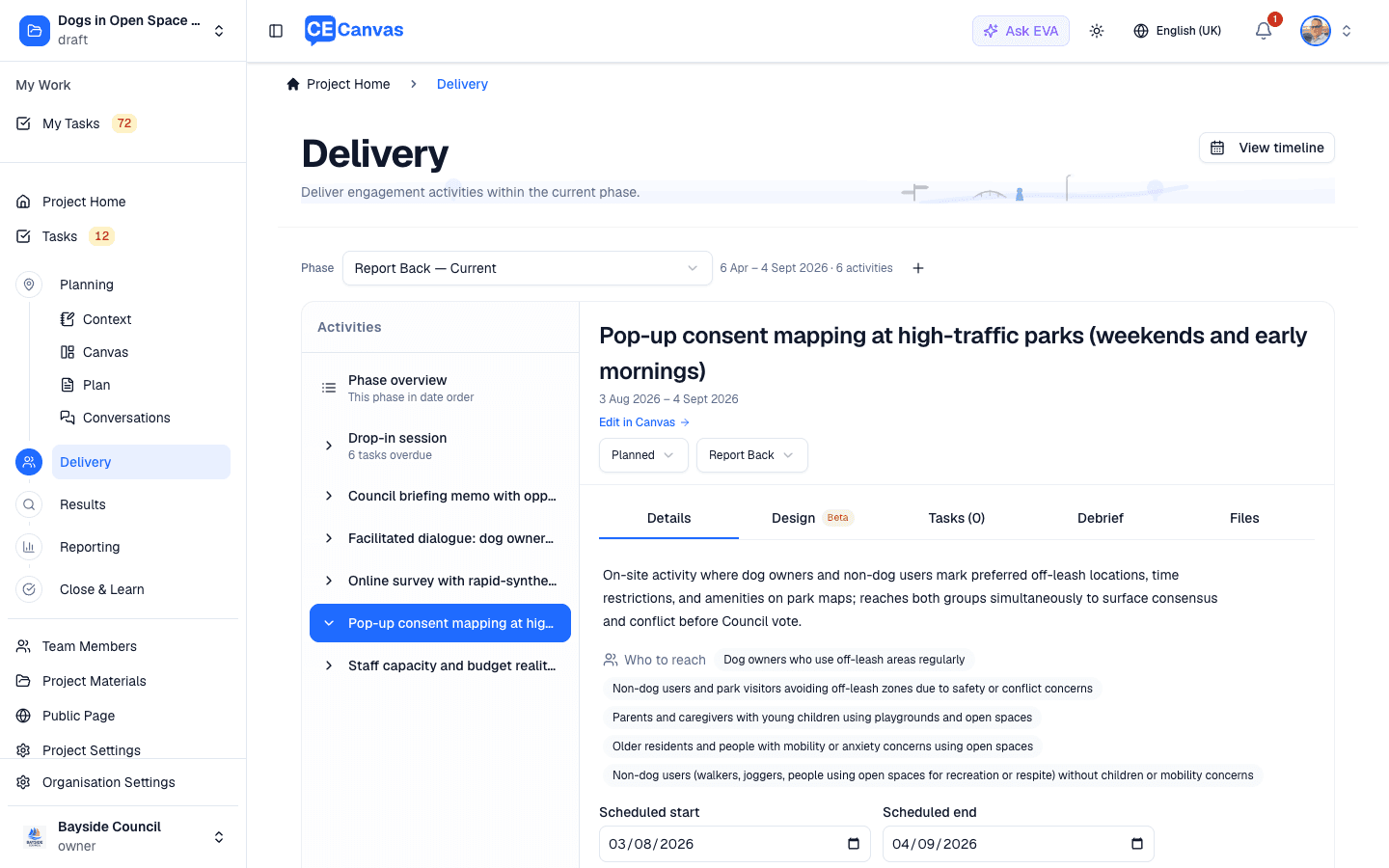
Six tabs, each answering one question:
| Tab | Answers |
|---|---|
| Details | Why are we doing this, who is it for, and when? |
| Materials | What do we need to run and promote this? |
| Tasks | What needs doing? |
| Input tools | Which tools collect structured input for this activity, and how many responses so far? (only once one is attached) |
| Debrief | What actually happened? |
| Files | What supporting material exists? |
Details leads with the activity’s purpose and the groups it reaches — both authored in the Canvas and read-only here, because Canvas owns strategy and Delivery owns execution. Then Input collection: activities deliver engagement, input tools (a survey, an interactive map, a guided conversation) collect structured contributions, and most in-person activities have none — that is complete, not unfinished. The section has three states. With no tool and nothing in your plan pointing to one, it says No input tool attached with Create input tool and Attach existing tool (only tools not already attached to an activity are offered). When your plan does point to one — the method your plan chose runs online, or EVA named the tool when it drafted the activity — it says Your engagement plan describes this activity as using a survey with Create survey, Choose another input tool, Attach existing tool and Not needed; choosing Not needed is remembered, so the suggestion does not nag. Creating a tool opens its builder straight away, named after the activity and drafted from your plan, with Back to the activity in its header. Once a tool is attached, Details shows it with its kind, state and question count, and Edit survey takes you to the builder. Then the scheduled dates — leave them empty and the activity runs across its phase — any suggestions (see below), and Event logistics — venue, facilitators, materials, accessibility — collapsed until you need them.
Input tools appears once an activity has a tool attached, with the count in the tab. It lists each tool with its state, a copy-able participation link and a live respondent count, and offers Create another input tool or Attach for a tool the project already has. An attached tool that nobody can reach yet shows up as a suggestion on Details (“Open the survey or conversation so people can take part”). Authoring stays on the Input tools page; Open takes you there.
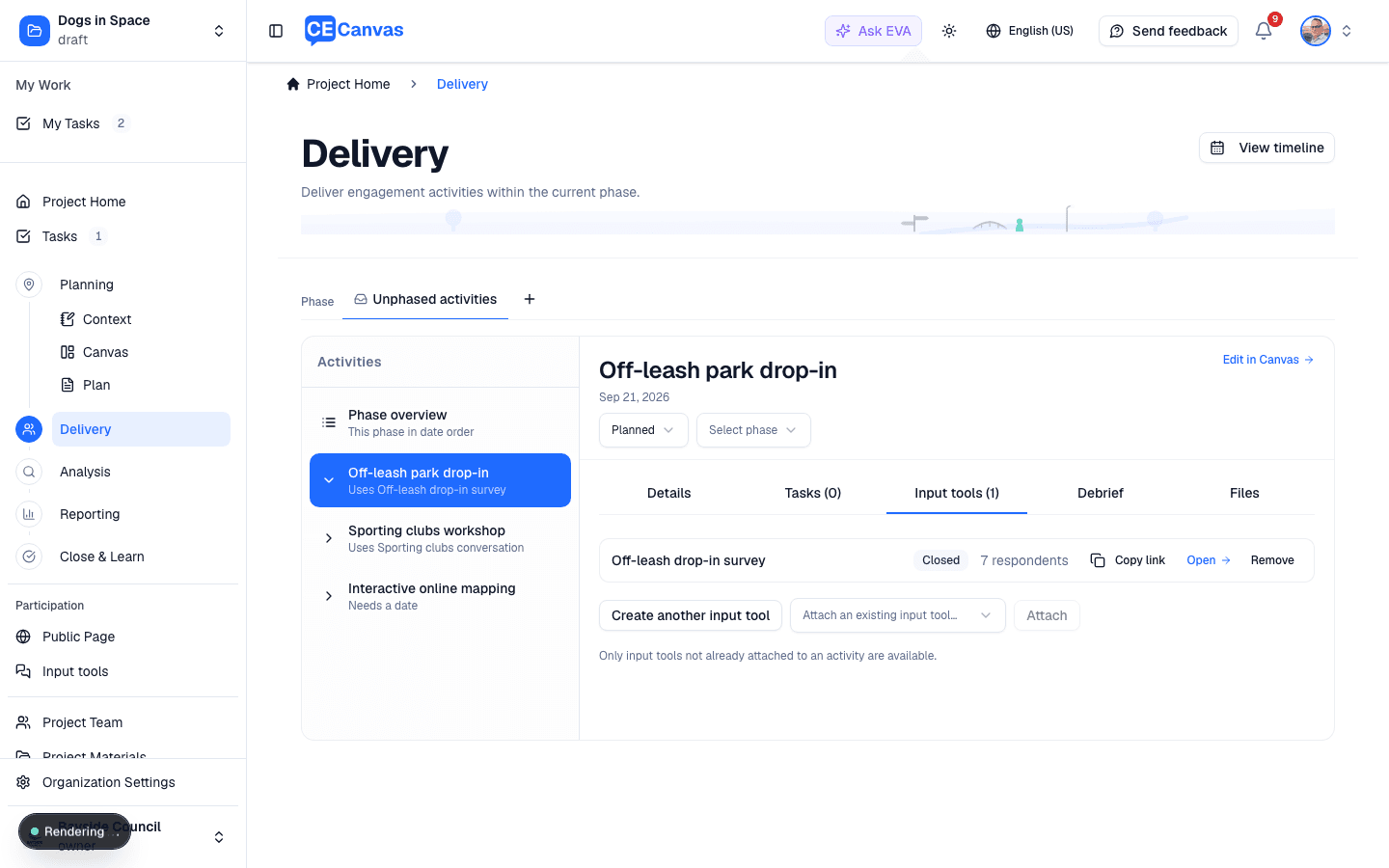
The Input tools tab appears for organisations with the Information Needs feature enabled.
Debrief is the record of how it actually ran: actual dates, attendance, delivery notes, what worked and what didn’t, and a door through to Results, where what people said is captured.
Materials — the activity’s plan and materials, drafted with EVA
The Materials tab is where an activity stops being a line on a plan and becomes something you could hand to a facilitator. One thing it never does is draft a survey: a survey is an input tool, and the one way to start one is Input collection on Details, so the builder opens with the activity’s needs already in its brief. If an activity reads as a survey, Materials says so and points you there.
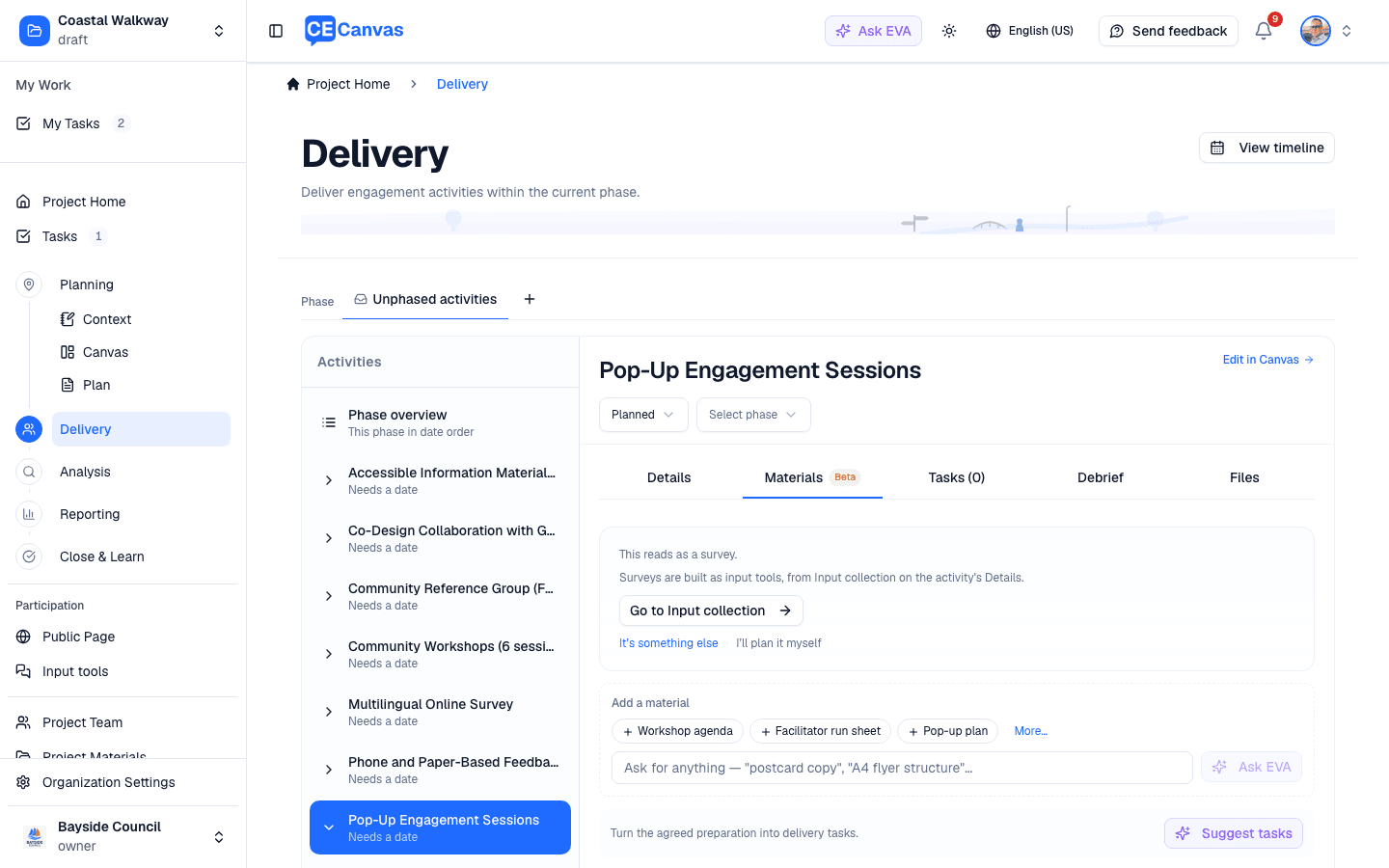
CE Canvas reads the activity’s name and description and suggests what kind of thing it is — a survey, a workshop, a deliberative panel, a drop-in display, even an engagement approach that spans many sessions. The suggestion is a question, not a decision: nothing is drafted until you confirm it. If the read is wrong, It’s something else opens your organisation’s Engagement Library — favourites and your own entries first, then the full catalogue by category — or describe it in your own words, and EVA designs for exactly what you said (your description also lands in the library’s review queue, so bespoke methods become reusable). I’ll plan it myself steps out of the way.
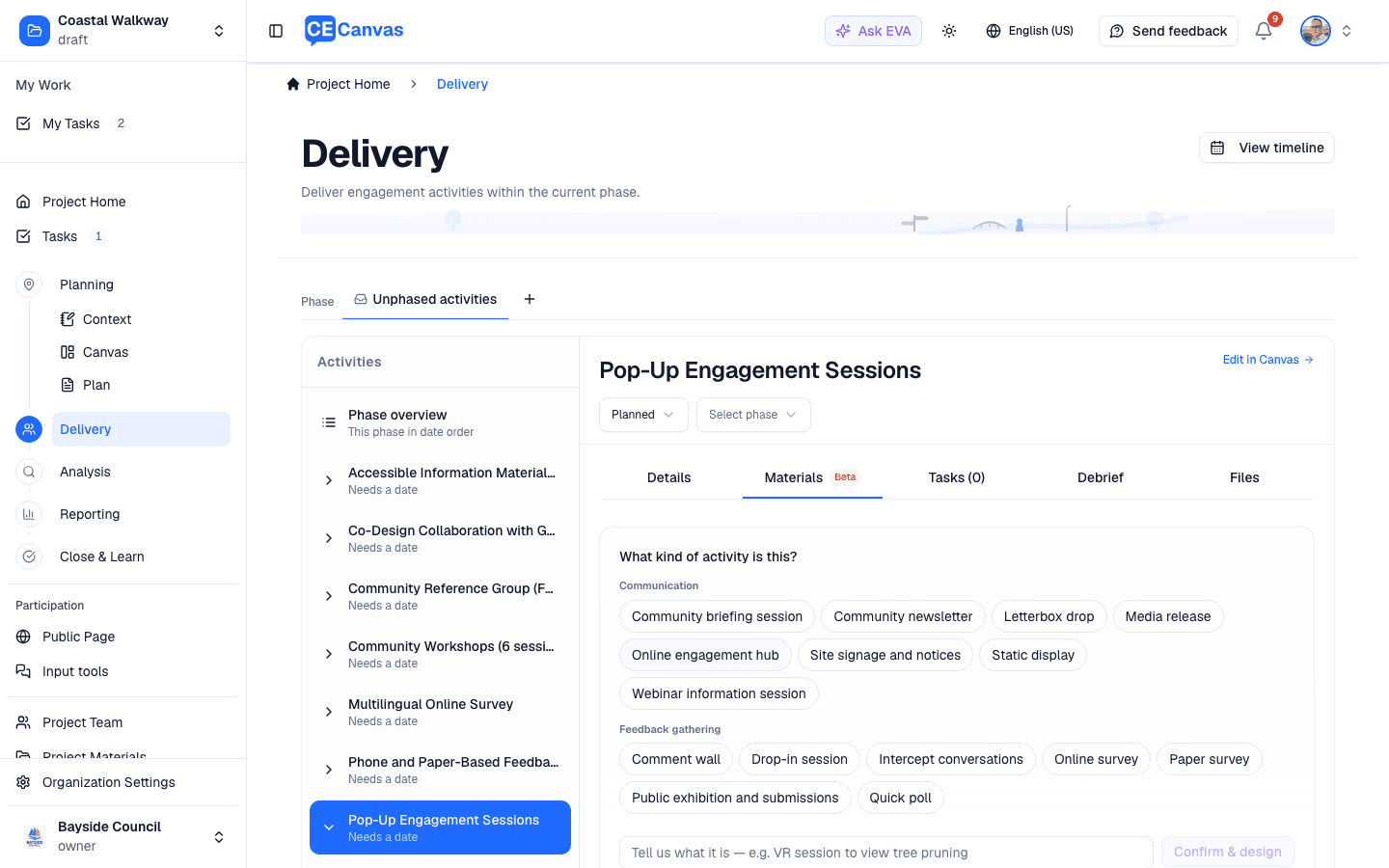
Your confirmed method stays on the activity (shown as Method, with Change beside it), so every draft — including regenerations — designs for what you said it is, never for a guess. Confirming a method also tunes the rest of the tab: the Add a material chips switch to the materials that method commonly needs, and drafts fold in the library entry’s guidance plus any practice notes your organisation has added to it.
A draft is written against everything the system already knows: your project objectives, the phase, this activity, and the groups it targets. It opens with the judgement calls a consultant would put first — why we’re doing this, how the input will be used, the method and outreach, and how we’ll know it worked — then the participant-facing material itself. It closes by explaining why it proposed that format and those questions, tracing them back to your objectives and to identifying who was heard. Nothing is saved until you keep it, and everything is editable.
Add a material covers the rest of the real world — a postcard, an invitation email, a paragraph promoting the survey on the council website, a priority-group inclusion plan — either from the suggested chips or by asking in your own words.
Saved materials read like proper documents — ruled section headings, numbered question blocks, and EVA’s caveats folded behind a design notes & flags row — with a fullscreen reading mode (⤢) for long run sheets. The Word export is your organisation’s document: headings in your brand colour and a footer naming your organisation. And because the phase, activity, and tab you’re viewing live in the page URL, you can share a link that lands a teammate on exactly this material.
Materials is in beta and is switched on per organisation. If you don’t see the tab, your organisation hasn’t enabled it yet.
Suggestions, not blockers
Both Details and the phase overview surface suggestions — derived facts, never a score:
- the activity has no date
- no target groups are set for it in the Canvas
- linked tasks are overdue
- tasks are still open with the event days away
They’re the same signals the sidebar summarises. Every one is a plain fact you can act on or ignore; nothing is blocked while you decide.
Turning preparation into tasks
Suggest tasks asks EVA to propose the operational work behind an activity — venue logistics, materials, promotion, facilitation, follow-up. Each suggestion arrives as a selectable row you can edit or deselect before anything is created.
Generated tasks are a strong starting checklist, but they don’t know your organisation’s procurement rules or your venue’s lead times. Edit before creating.
Created tasks live in Tasks and stay linked to the activity, which is what makes the counts on this page — overdue, unassigned, open before the event — mean anything.
Communications projects
On a project classified as a Communications Project (inform mode), the phase-and-activity spine is replaced by a communication-methods panel: work is anchored to your communication methods rather than engagement activities. Same discipline, honest framing.
Where Delivery hands off
- Tasks — triage, assignment, and the board; the day-to-day view
- Timeline (View timeline) — the whole project’s schedule; phases and milestones are edited there or in the Canvas Timeframe section
- Results — what was heard, once an activity has run
Delivery stays the view you return to when the question is “is this activity ready?” rather than “what am I doing today?”
Next steps
- Tasks — execute and track the work
- Engagement Canvas — where activities, purpose, and audiences are defined
- Engagement Playbooks — generate phases, milestones, and tasks from a Playbook