Engagement Planning
Planning is the first stop on the project journey, and it works as a hub for three connected surfaces — in the order they should be built:
- Project Context — the decision space, constraints, and timing (Steps 1–3 of the sequence)
- Engagement Canvas — the one-page engagement strategy (Steps 4–7)
- Engagement Plan — a generated plan document for approval, compliance, or publication, produced from the context and canvas
In the sidebar these appear as Context, Canvas, and Plan under Planning.
The Planning hub
The hub shows where each planning surface stands — Not started, required fields complete, sections drafted, Not generated — and the action to open each. Project Home remains the place that tells you the single next action; the hub is the status view across all three.
Work the order. The cards are numbered because each surface feeds the next: a canvas drafted before context exists is generic, and a plan generated before the canvas is settled documents a strategy you haven’t agreed yet.
Step 1 — Project Context
Classify the project and capture the decision frame. Covered in full in Project Context.
The hub shows how many required fields are complete. “Required” here is the floor, not the goal — the fields that must hold before canvas work is honest.
Step 2 — Engagement Canvas
The strategy itself — the connected sections from Project Context through to Closing the Loop. Covered in full in Engagement Canvas.
Step 3 — Engagement Plan
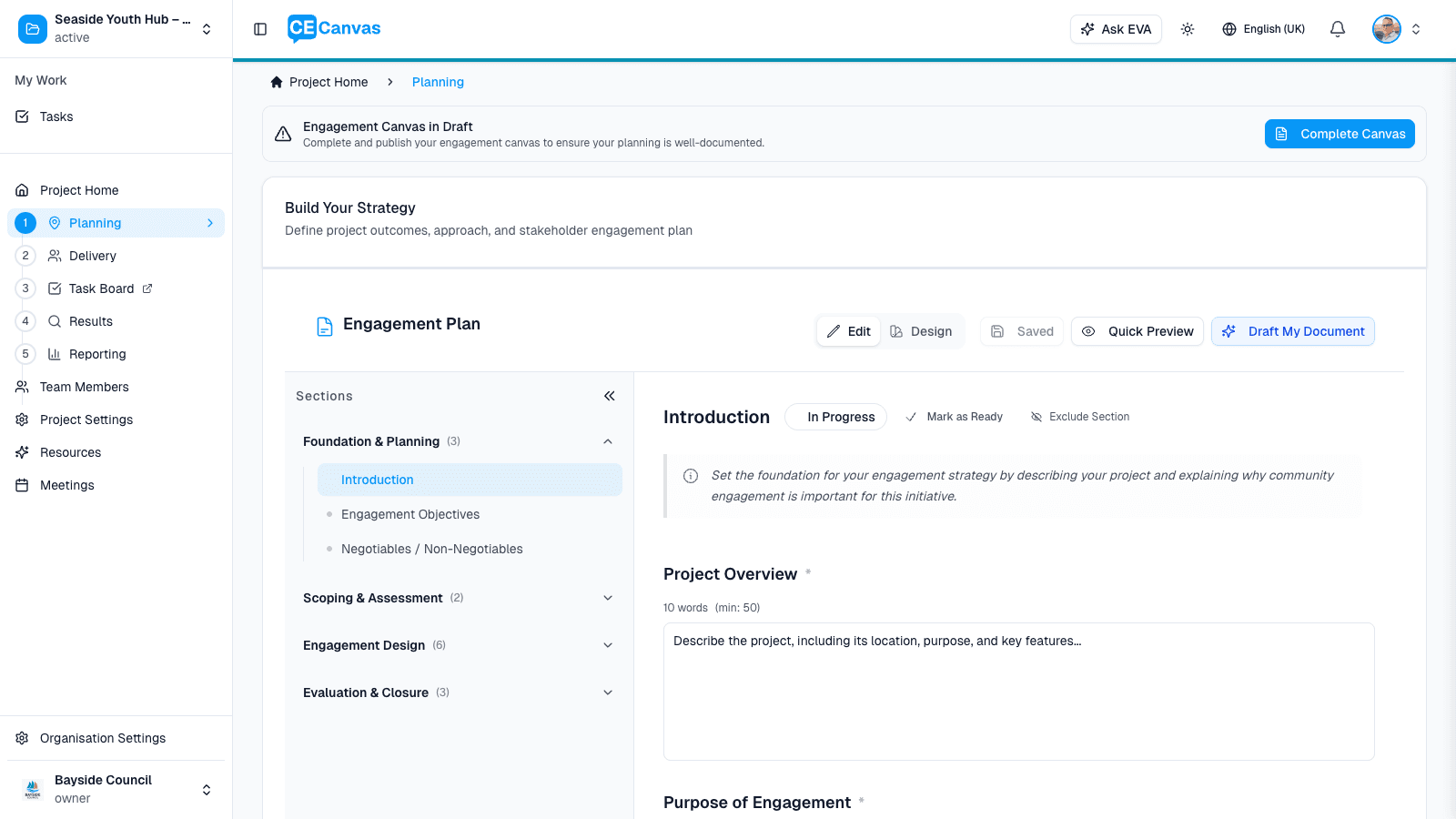
When the project needs a formal written document — for council approval, executive sign-off, compliance, or publication — generate the Engagement Plan from the Plan card (or Plan in the sidebar).
The plan expands the canvas strategy into a structured document — the default template’s four section groups (Foundation & Planning, Scoping & Assessment, Engagement Design, Evaluation & Closure), though the exact groups follow your organisation’s active template — drafted with EVA and refined section by section. Covered in full in Engagement Plan.
Not every project needs the formal plan. For many projects the canvas is the plan. Generate the document when an audience outside the team needs it — and treat the canvas as the source of truth that the document expresses, not the other way around.
How the three surfaces stay aligned
- Context changes (a constraint added, a decision made) should flow forward: revisit the canvas sections they affect, then regenerate or edit the affected plan sections
- The canvas’s Project Context card is populated from your Project Context surface automatically — the canvas stays anchored to the real decision frame
- EVA drafts at every level use the same sources, so improving Project Context improves everything downstream at once
Next steps
- Project Context — start here on a new project
- Engagement Canvas — the strategy surface
- Engagement Plan — the generated formal document
- Delivery — after planning, turn strategy into delivery