Sending Feedback
If your account has feedback access, you can tell the CE Canvas team about a problem, an idea or something unclear without leaving the page you are on. Choose Send feedback in the top header from any organisation or project page.
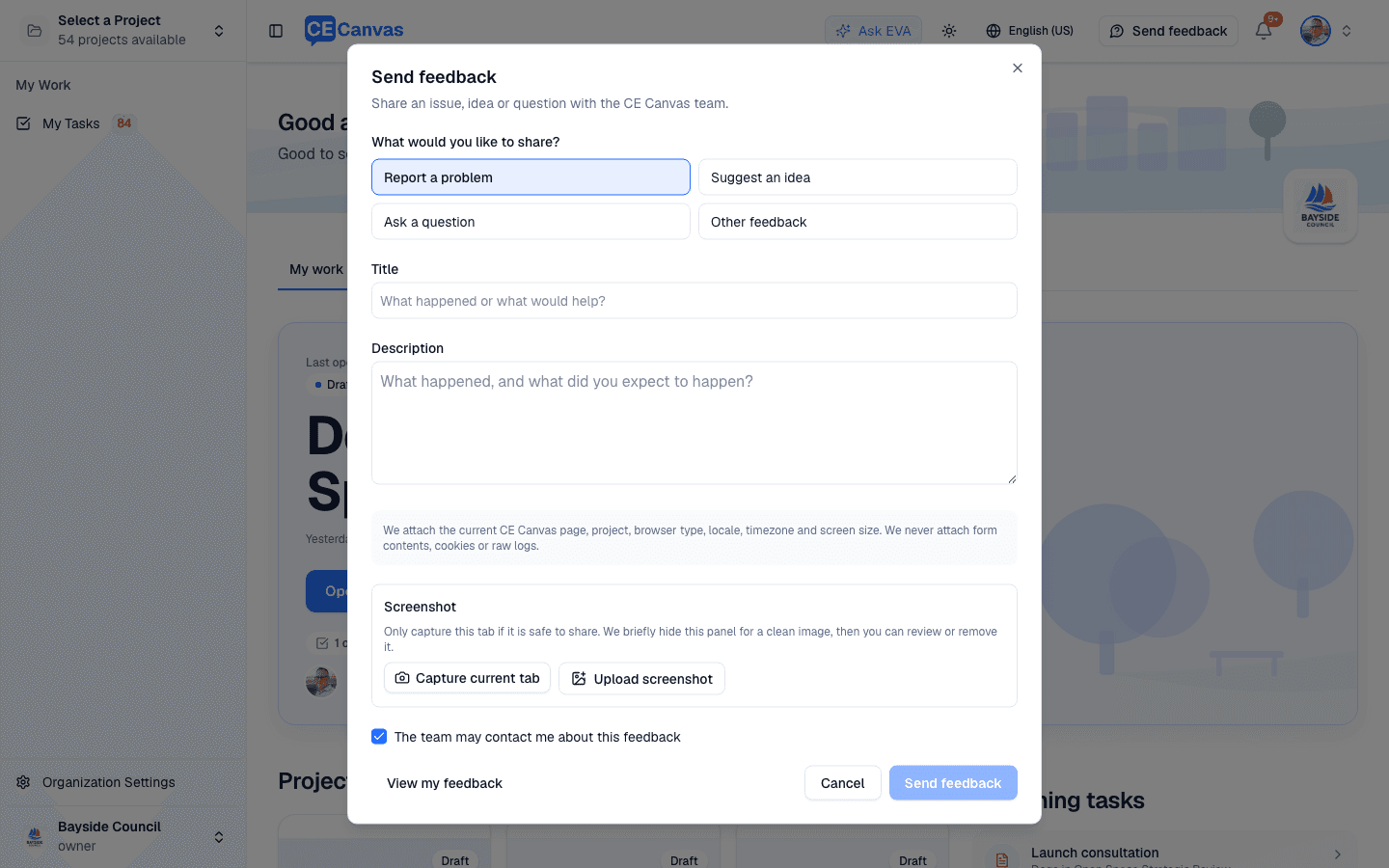
Choose the feedback type, add a short title and describe what would help.
Who has access
- Platform administrators and members of internal organisations have it automatically.
- Advisory-board reviewers are granted access individually by the CE Canvas team, and receive an email when it is turned on.
If you don’t see Send feedback in the header, your account doesn’t have access — email support@cecanvas.com instead.
What to send
Pick the type that fits; it decides how the report is triaged, not how seriously it is taken.
- Report a problem — something behaved incorrectly, or didn’t work at all. Say what you did, what happened, and what you expected instead.
- Suggest an idea — something you want to be able to do. Say what it would let you achieve, not just the feature you have in mind.
- Ask a question — something is unclear or you can’t find it.
- Other feedback — anything that doesn’t fit the above.
A useful report names one thing. If you have three unrelated observations, three short reports are easier to act on than one long one.
What gets attached
CE Canvas attaches the page you were on, the organisation and project identifiers, your browser type, locale, timezone and screen size. It does not attach form contents, cookies or raw logs.
Adding a screenshot is optional. You can capture the current tab or upload an existing PNG, JPEG or WebP image, then review or remove it before sending. Only capture the tab if what’s on screen is safe to share — the screenshot is stored privately and visible only to the CE Canvas team.
The team may contact me about this feedback is ticked by default. Untick it if you’d rather not be emailed about this report.
What happens next
Your report is saved with a FB-… reference, shown in the confirmation and sent to you by email. Keep it if you want to follow up.
The team reviews every submission. Saving feedback does not create a delivery commitment, and it does not automatically create a ticket — that only happens if the work is accepted.
Checking your feedback
Choose View my feedback — at the bottom of the Send feedback dialog, or on the confirmation after you send a report — to see everything you’ve sent in this organisation and where it is up to.
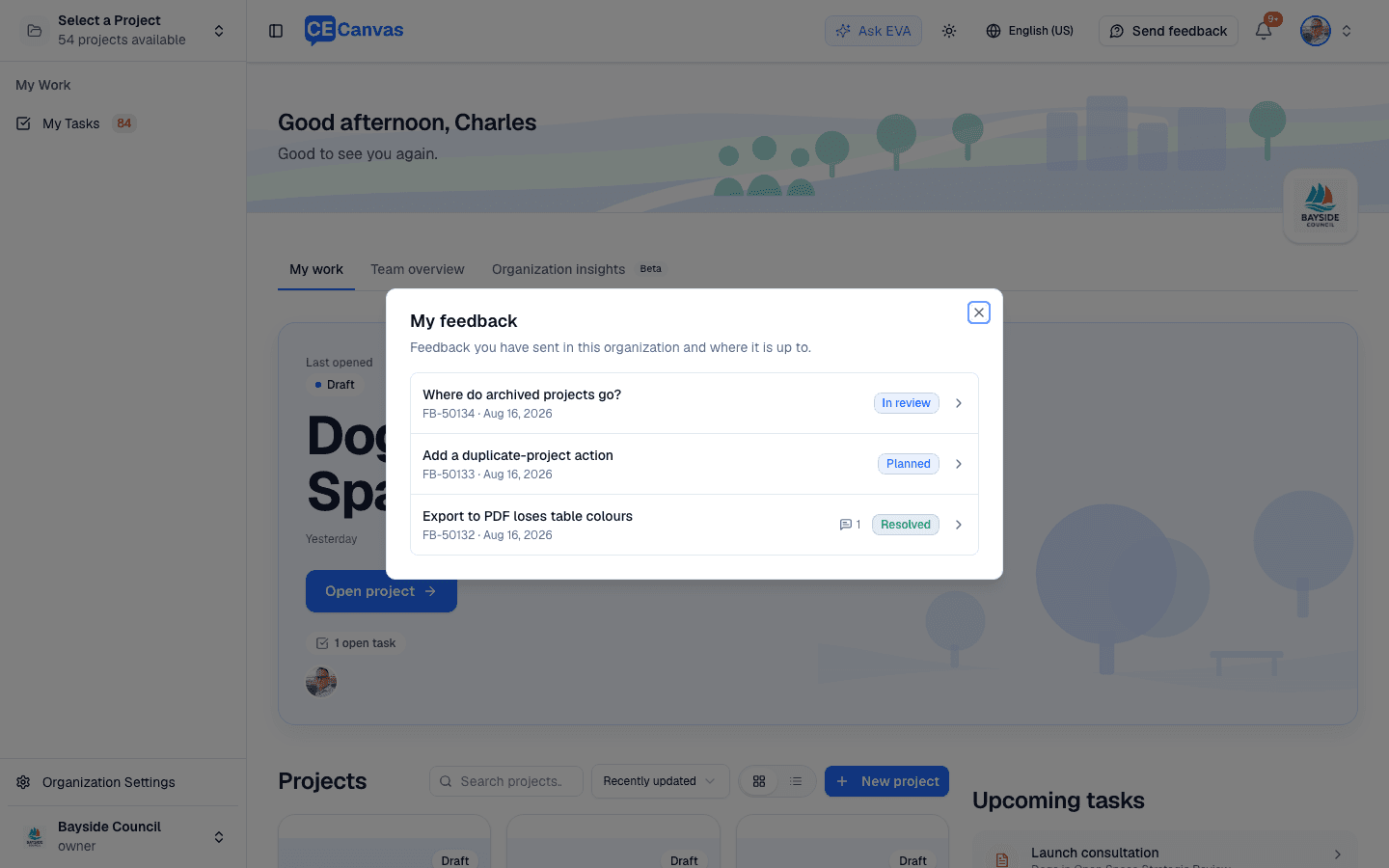
Each report shows one of four statuses:
- In review — received, and either waiting for review or being looked at now.
- Planned — reviewed, and work is planned as a result.
- Resolved — the report led to a change that has shipped, or the question has been answered.
- Closed — reviewed, with nothing further planned on this report.
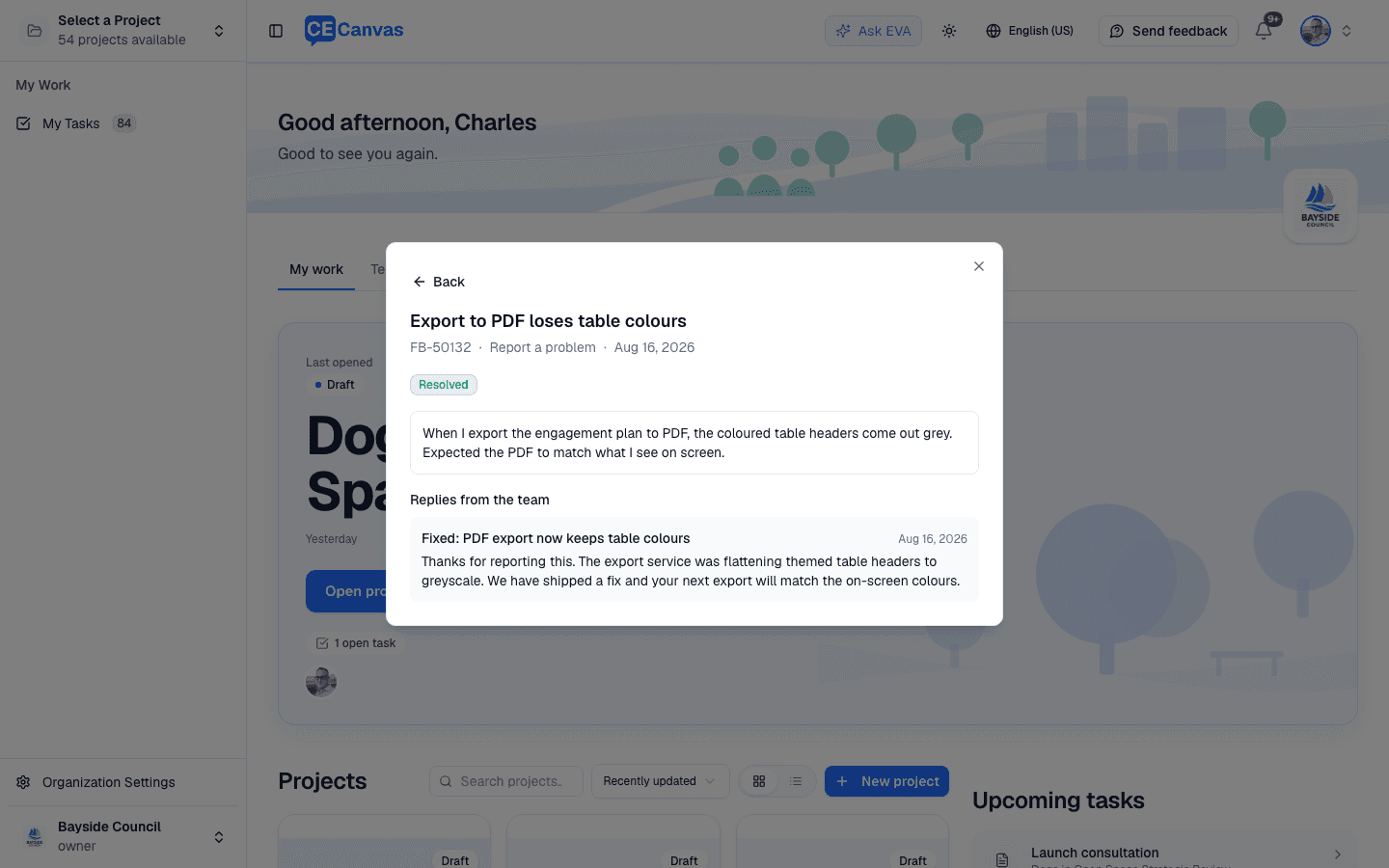
Select a report to read what you sent. When the team has replied to a report, the reply appears underneath it.
There is a limit of 50 reports in any ten minutes, so writing up a batch of findings in one sitting is fine. If you are asked to wait a few minutes, your earlier reports were saved; send the next one once the window passes.