Input tools
Input tools are how CE Canvas collects input online: a survey, a guided conversation, or an interactive map. They are one kind of method among many — a workshop, a pop-up or a town hall needs none of them — and each one arrives set up from your plan, then is yours to shape.
Pick the tool, keep the plan
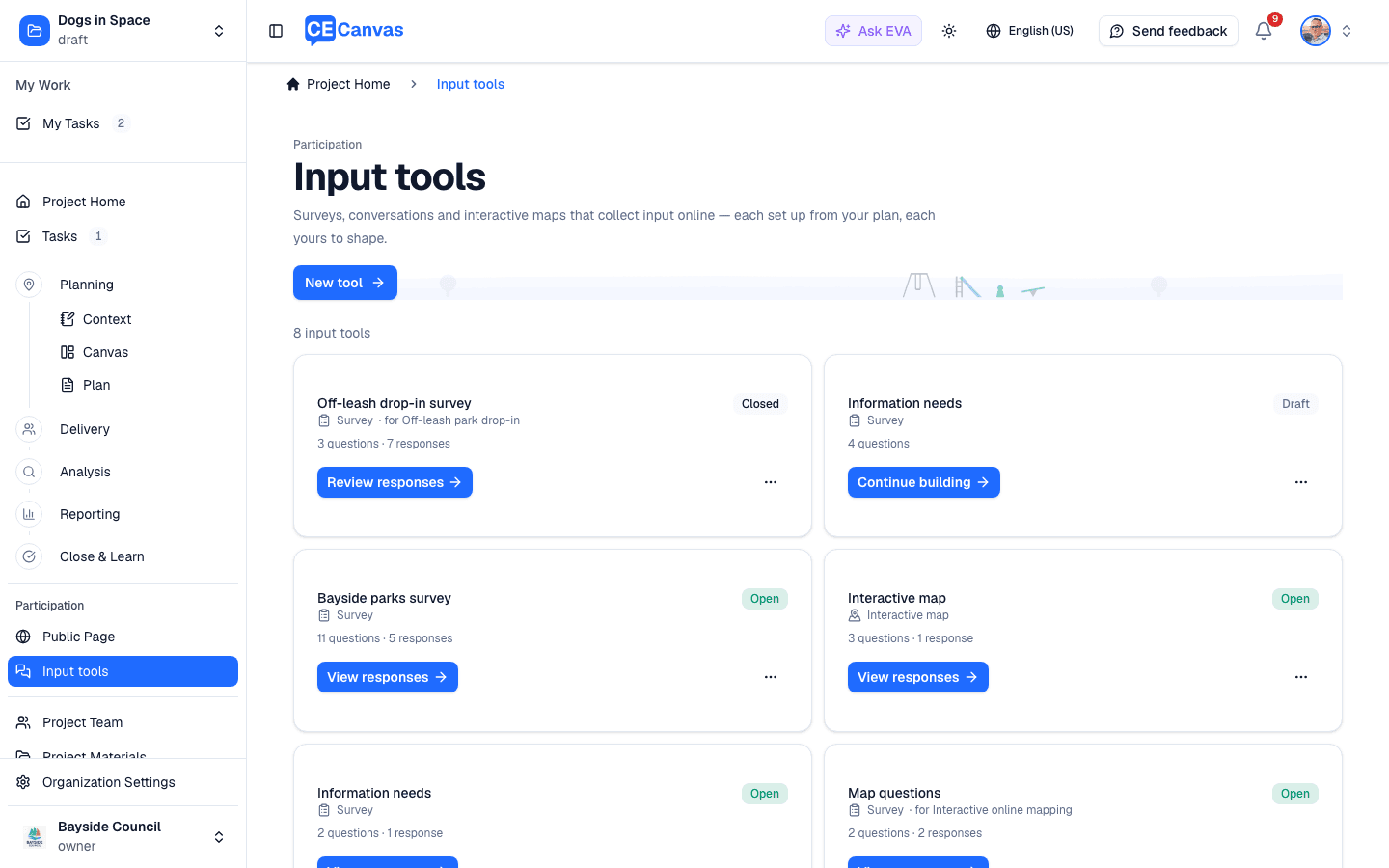
Input tools (Participation → Input tools in the project sidebar) lists every tool on the project as a card: its name, what it is, where it is — Draft, Open, Closed, or hosted in another platform — how many questions and responses it has, and one button for the next thing to do (Continue building, Share, View responses, Review responses). Everything else waits behind the card’s menu. New tool offers:
- Survey — a short form: fixed questions, comparable answers, counted directly.
- Conversation — EVA asks your questions and follows up until each thing you need to learn is answered.
- Interactive map — participants mark places on a map you set up and answer about each one.
Whichever you pick arrives set up from your plan: questions from your objectives, the audience question from your stakeholder groups, and — for an interactive map — the map framed by your project area. Every part of it is yours to change, and nothing is published until you say so. A project can carry several tools at once, including several drafts.
Not every activity needs one. Activities deliver engagement; input tools collect structured contributions. An activity’s Details in Delivery carries an Input collection section: No input tool attached with Create and Attach for most activities, or — when your plan points to one — Your engagement plan describes this activity as using a survey with Create survey and a remembered Not needed. Creating a tool opens its builder straight away; a tool created for an activity is named after it and carries Back to the activity in its header. The Input tools tab appears once a tool is attached.
Building a survey
Opening a tool shows one header: its name (rename with the pencil), a line of metadata (Draft · 7 questions · About 4 minutes · Saved), and the workspaces — Build, Share and Responses (an interactive map adds Map). They are places, not steps: move between them whenever you like. The one blue button in the header is the next thing to do for the state the tool is in: Add first question on an empty tool, Preview survey while you build, Open survey from Share, View responses while it is open, Review responses once it has closed. Finishing a question happens in the editor, and the optional review walk keeps its Looks good, next question under the question being reviewed. Rename and Remove wait behind the … menu.
Starting from your plan
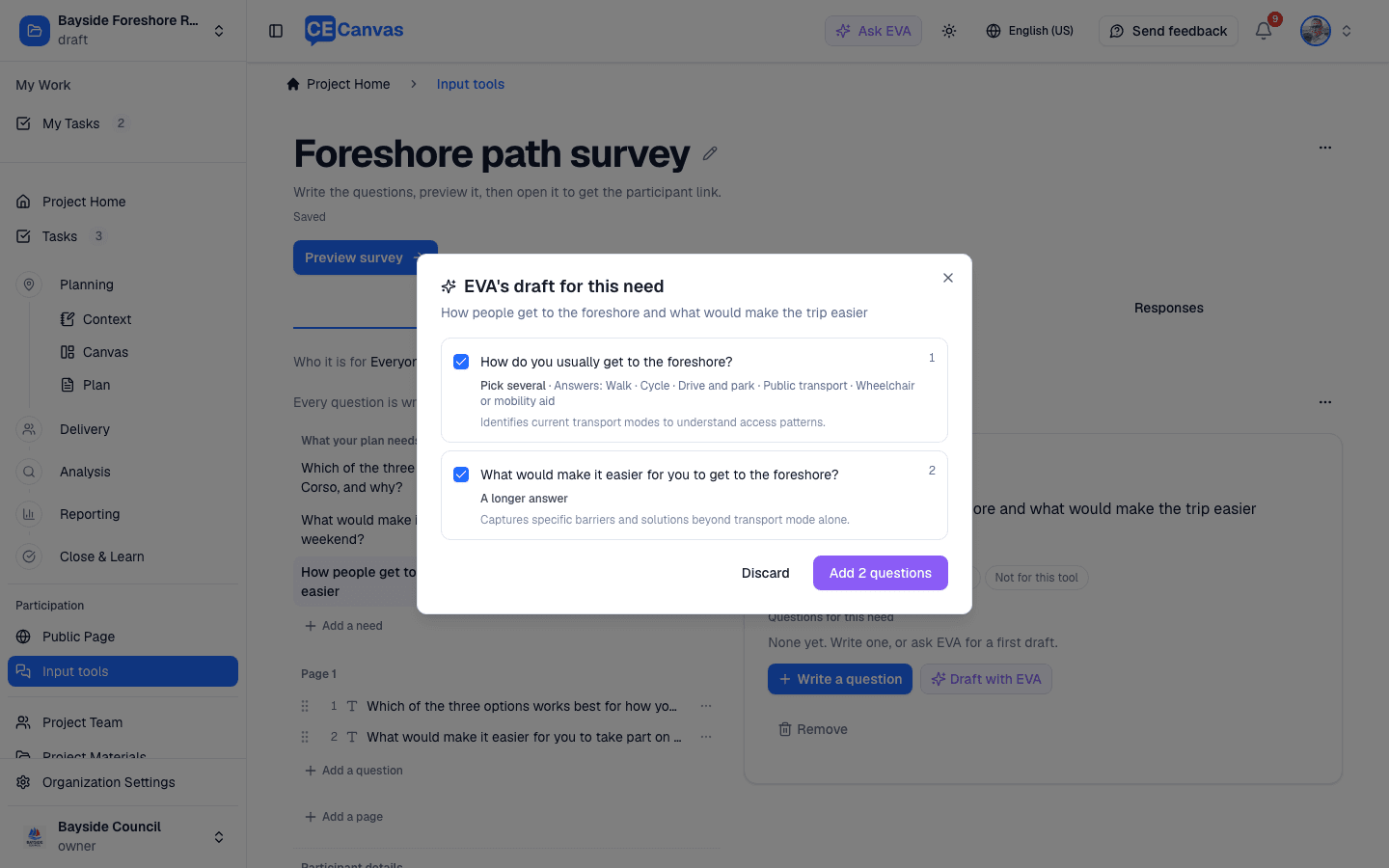
Draft with EVA is two reviews, and nothing is written until you accept each. First, What this survey should learn: EVA reads the activity, its phase and the phases that follow, the decision, the objectives and the plan’s key questions, and proposes the list this tool works from — the key questions this phase can honestly ask (ticked), those that belong to another phase (unticked, with the reason: a survey that understands current use is not handed the question about choosing between options, which waits for the phase that puts the options to people), and what the phase must learn that no key question covers. Untick anything, then Use these and draft questions: the key questions you kept are recorded on the activity in Delivery, so the plan and the tool agree. Second, EVA’s draft: one question per need with its answer method and choices, reviewed the same way; a key question keeps your own wording. Accepting lands the questions linked to their needs and opens the review walk: the outline marks each question as you go, the header says Looks good, next question and then Finish review, and Exit review leaves at any point. The walk is help, not a gate.
An empty tool offers two ways to start: Draft with EVA, or Add first question for the picker. A tool with no plan behind it offers the picker and a link to the engagement plan. An activity that has not chosen its key questions asks none of them by default; EVA’s first review is where that choice is made, or choose them on the activity in Delivery.
Plan alignment
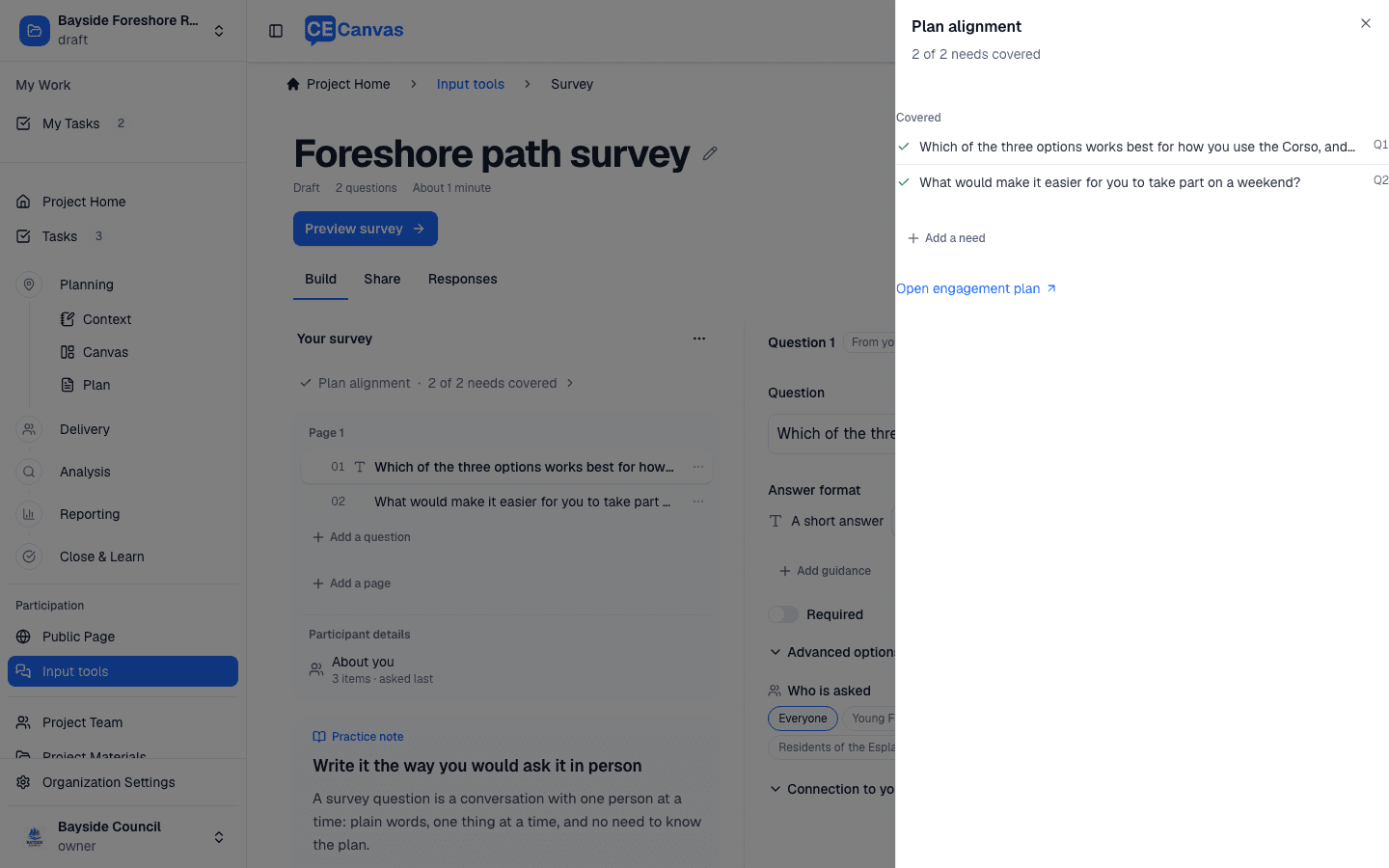
The plan stays out of the way. Above the outline one line, Plan alignment · 9 of 9 needs covered, says whether the survey covers what the plan needs to learn; when something is missing it reads 2 needs not covered · Review gaps instead. It opens a drawer at the side, never a block in the page: the survey’s purpose (the activity and its phase, or the decision), its audience, the participant experience the plan promises, then Needs attention first — the plan’s key questions and objectives with no question yet — and Covered below, each as a short line with the questions that serve it (Q1, Q6). Open a line for its full wording and its decisions: Write a question creates one linked to it, Draft with EVA proposes one to three questions for review, and Answered elsewhere or Not for this tool settles it without a question. Add a need writes one of your own, and one Open engagement plan link leads to where the plan itself is edited. A need is not a question — one need may take two questions, one question may serve two needs — so the list is a coverage check, not a to-do list. Share names any need still without a question as a recommendation, never a block.
In the editor, each question’s own Connection to your plan shows the needs it serves and lets you link or unlink them; that is where the plan is useful while you weigh the wording. EVA reads the same context when it drafts, so nothing needs repeating in a question.
The builder
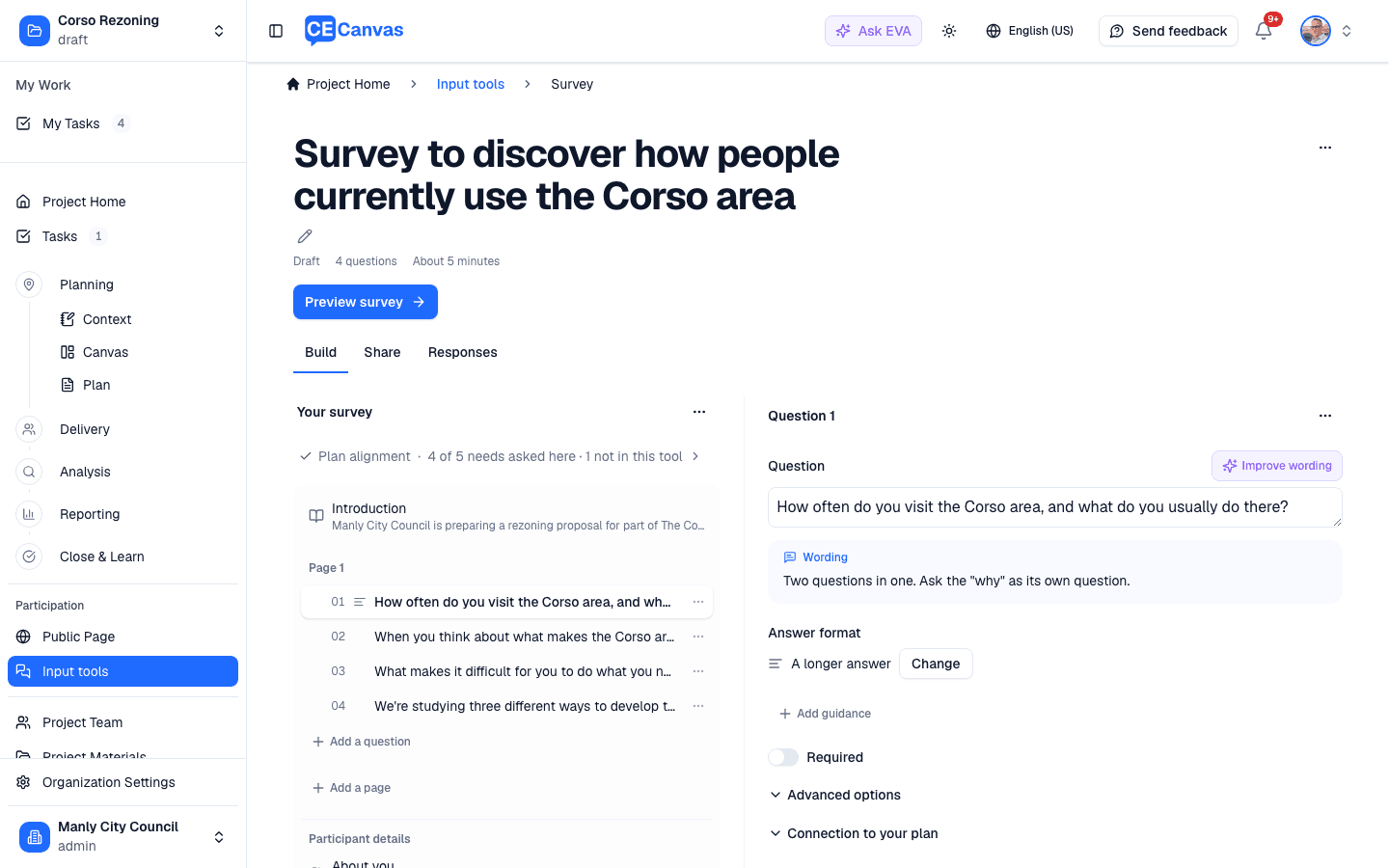
The left side is the outline — an Introduction first, then pages and questions in the order participants meet them, drag to reorder, Add a question on any page, Add a page at the bottom, and the fixed About you page last under Participant details. Select anything and it opens on the right. A question’s own menu (Duplicate, Remove) sits on its row.
-
The introduction is what a resident reads before the first question: the decision, what is already fixed and what their answers can still shape, who decides and how input is used, how long it takes. Write it yourself, or Draft with EVA writes it from your Project Context and shows it for you to keep or discard. When EVA drafts a whole survey it drafts the introduction last, for the same review. Share recommends one until it exists.
-
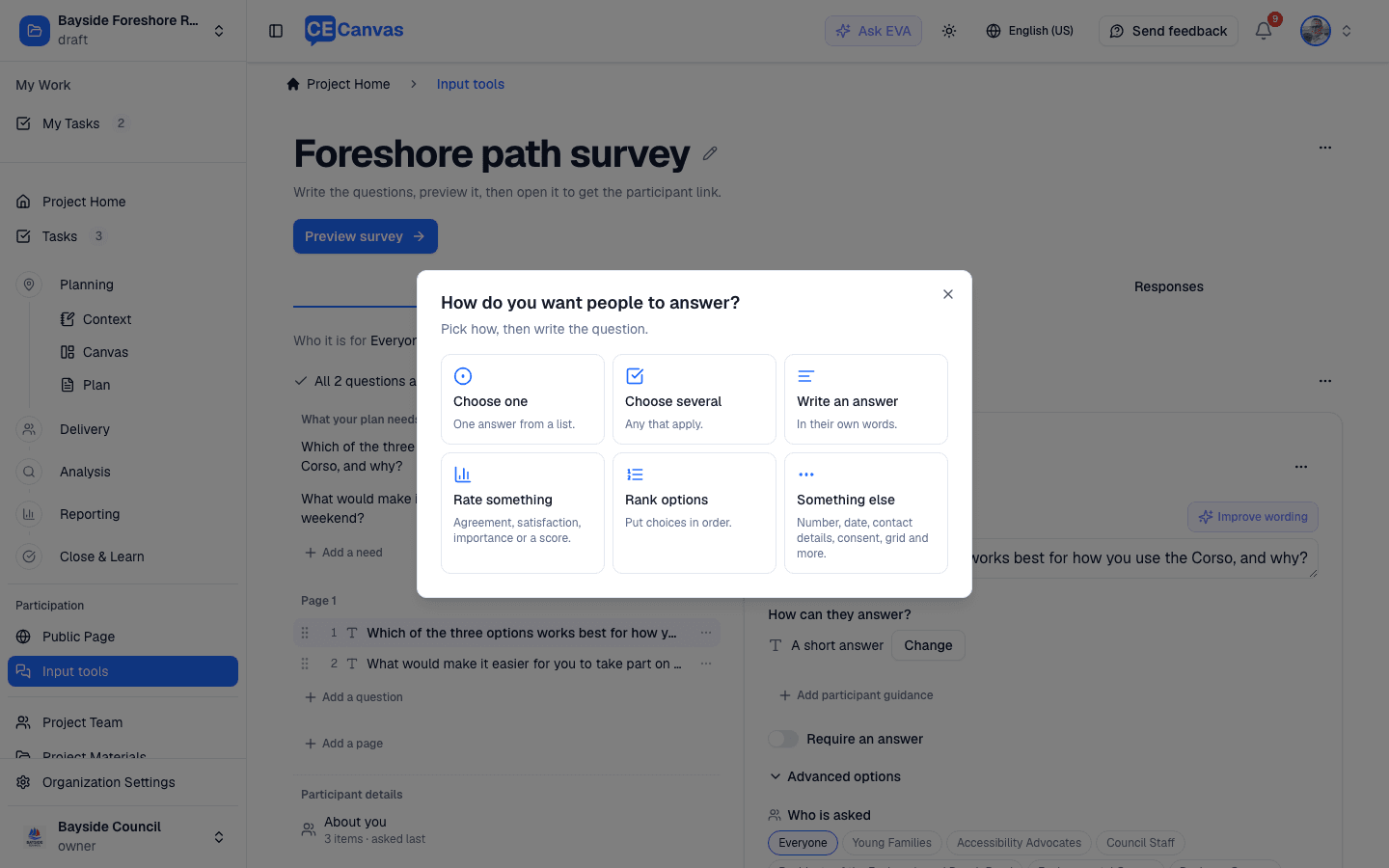
Add a question asks How do you want people to answer? — Choose one, Choose several, Write an answer, Rate something, Rank options, or Something else (number, date, contact details, consent, grid, a text block, a map question — with search). Where a family has more than one look (an agree scale, a 0 to 10 score, stars, a slider), it asks once more. Picking one creates the question and puts you in the wording field; nothing is typed in the picker.
-
Each question, in the order you think about it. Question (or Improve wording with EVA), Answer format, the answer choices — including Other, None of the above and Prefer not to say — Add guidance when a help line is wanted, and Required. Under the question field one slot teaches while the field is empty (the practice note on writing it the way you would ask it in person) and reacts once something is typed: a Wording note in the same frame names everything it sees at once — a statement where a question or an instruction is expected, a leading construction, two asks joined by “and”, a word a resident would trip on, or thirty-plus words. A consent line is a statement by design and is left alone. When EVA suggested the answer choices they wait for your Confirm options; when several are waiting at once, including straight after EVA drafts the survey, one line above the outline offers Confirm all. A question you add lands selected, with its wording field ready. Advanced options folds the rest: limits, formats, how it looks, Only show this question when… and the page it sits on. Connection to your plan shows the needs the question serves and why it is here.
-
Questions come from your plan first. A tool drafted with EVA starts from your key questions or objectives; the needs list above the outline brings in any the plan adds later, and EVA’s batch actions (write the missing wording, rewrite all, refresh needs from the plan) sit behind the … beside the progress line. Wording that arrived with the plan is never rewritten unless you ask for it by name.
-
Who is asked. A question can be for everyone or for specific groups from your plan — a key question tagged to a group arrives already scoped. When any question is scoped, a short Which of these describes you? is asked first, so people only see the questions meant for them; the outline marks scoped questions, the preview honours it, the survey ignores answers to questions a participant was not shown, and Responses reports, per scoped question, how many confirmed members of each group were asked and answered.
-
Pages and logic. Group questions into pages with a title and intro. On a page, After this page rules skip ahead or end the survey (a screened-out participant still counts). Rules can only read earlier answers, and the outline flags anything unreachable.
-
Preview shows the real survey at desktop or phone width without recording anything; when the survey is complete it ends on Continue to share, which opens Share and publishes nothing.
-
Share’s readiness list says what a methodologist would. Besides the blocks (wording, answer sets, logic), it recommends when more than half the questions are open text, when a question reads as a statement, when the estimated time passes ten minutes, when there is no introduction, when every question is closed with no open ending, and when your plan names groups but the survey asks nothing that says who answered. When the format mix passes, one line says so. Recommendations never block opening.
Share and open
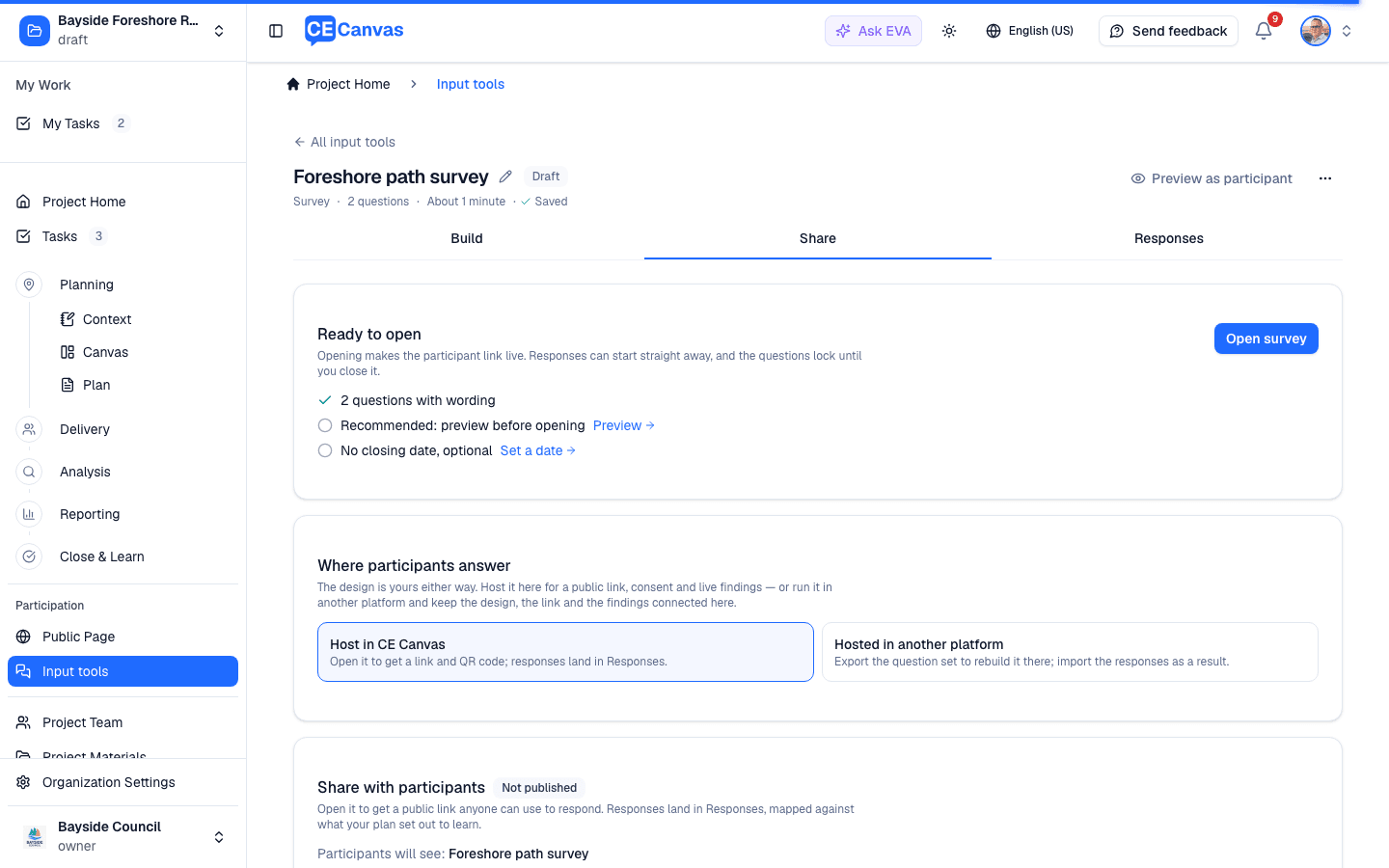
Share is open throughout Draft. It starts with Ready to open, or with what still needs attention — Question 3 needs wording, Question 5 needs its answer choices confirmed, a rule that skips backwards — each line linking straight to the question or page. Below the blocking lines sit the recommendations that never block: preview before opening, set a closing date. Open survey makes the participant link live: responses can start straight away and the questions lock until you close it.
Share also holds where participants answer. The design you built is the plan artefact and it is required either way; hosting it in CE Canvas is one choice. Host in CE Canvas gives a public link, QR code, consent and live responses. Hosted in another platform keeps the design here and runs the survey in SurveyMonkey, Social Pinpoint, EngagementHQ or wherever your organisation collects input: name the platform, paste the participant link (the public page and the activity use it), and Copy question set or Download CSV to rebuild the questions there. Responses for a tool hosted elsewhere come from importing that platform’s export as a result linked to the tool, so they still read against the questions you designed.
Every opening records a version, and every response keeps the version it answered. An open survey cannot change silently: close it in Share, edit in Build, and Reopen to go live as the next version. A question that already has answers cannot be removed or change type — hide it with a rule instead. Recording a response by hand (paper forms, a pop-up before the link goes out) locks the questions the same way; Edit questions in the … menu unlocks them.
Responses holds what comes in — counted against what your plan set out to learn, with coverage by stakeholder group, the background distributions, every question’s answers, the CSV export and Record response for answers collected on paper.
Guided conversations
Beta. Guided conversations are rolling out to selected organisations. This page describes both the participant experience and the practitioner authoring, preview, and review screens, all of which are live.
Some things a plan needs to learn are open-ended — they depend on what a person means, not on picking from a list. For those, CE Canvas can run a short guided conversation: EVA, the assistant, asks one plain-language question at a time, listens to the answer, and follows up naturally until everything the plan needs is covered.
A conversation fills the same information needs as a survey and produces the same structured results — it just gathers them through a natural back-and-forth instead of a form.
What a participant sees
- A short privacy notice and consent. Before anything is recorded, the participant reads a brief notice and ticks to agree. Nothing is stored until they do.
- A friendly conversation. EVA opens with a greeting and a first question, then adapts each follow-up to what the person just said. It never asks for the same thing twice.
- An “End conversation” option, always. A participant can stop whenever they like. What they’ve shared so far is kept; they’re not forced to finish.
- A receipt code at the end. When the conversation finishes (or they choose to stop), CE Canvas shows a one-time receipt code. Keeping it lets them withdraw everything later, without ever giving their name.
If the person reloads the page, the conversation resumes where they left off in that browser.
Who is taking part: identity, done honestly
Understanding who is participating is part of the conversation, not a form bolted on the front. As it goes, EVA works out how the person relates to the project and to the stakeholder groups your plan defined.
A few principles keep this honest:
- You can belong to several groups, one, or none. A participant is never squeezed into a single category, and “a group not listed” is always a valid answer.
- Conversation mappings remain suggestions. EVA may propose a stakeholder-group match from what a participant says, but it does not count toward coverage until a practitioner reviews and confirms it. Direct selections in structured “About you” questions remain participant-stated.
- Your own words are kept. What someone says about their connection is retained as they said it, not flattened into a label.
- Sensitive details are never guessed. CE Canvas will not infer things like health, ethnicity, or other sensitive characteristics from a name, tone, or wording. Such details are only ever recorded if the participant states them directly.
Surveys and mixed instruments
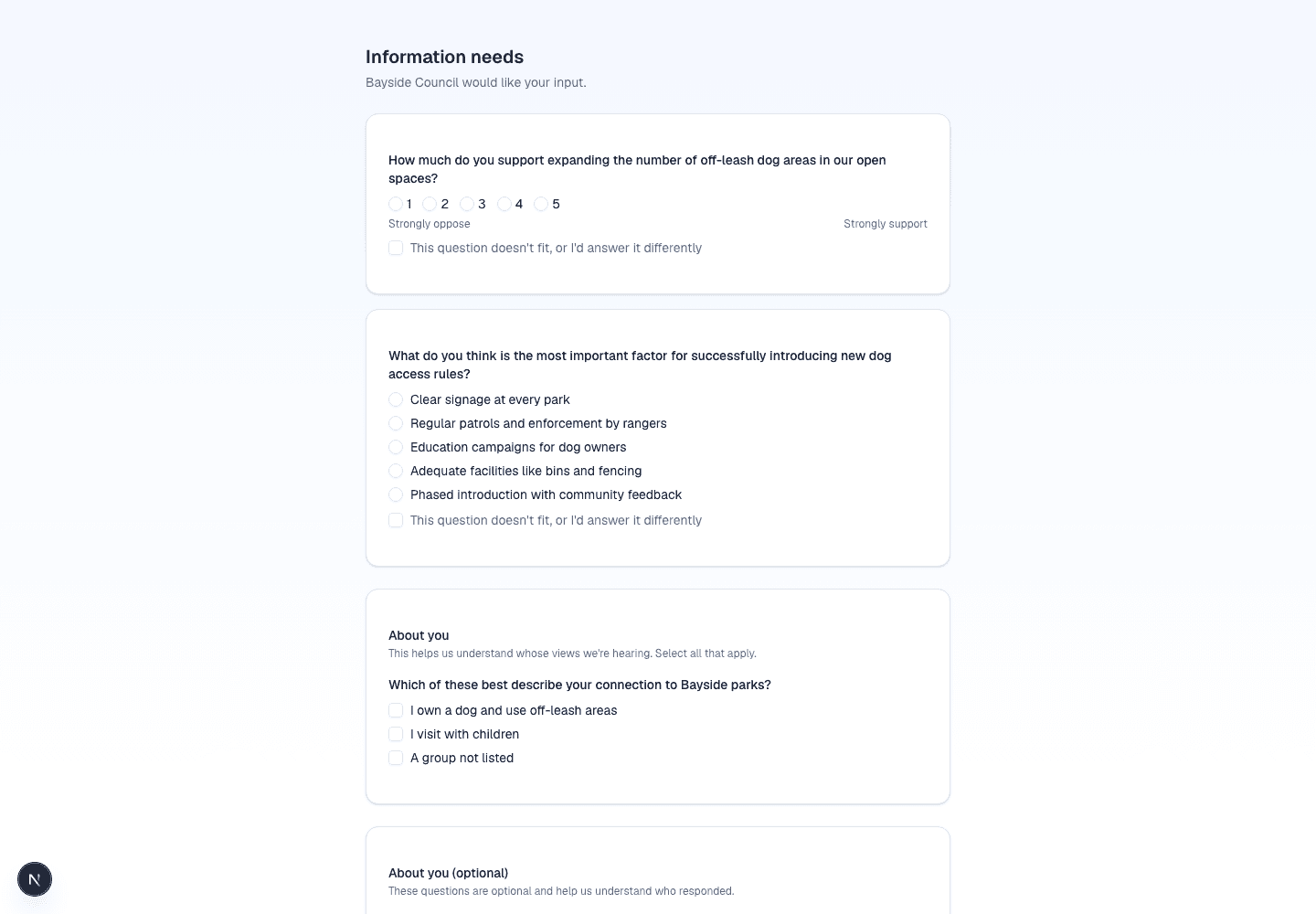
The same participant profile comes out of a survey as out of a conversation, so your results are consistent no matter which format a person used. A survey opens with the privacy notice and consent, then its pages one at a time with a progress line, then the “About you” page: a “select all that apply” stakeholder-group question (with a valid “a group not listed”), any follow-up that only appears once it’s relevant, and the optional background questions. Progress is saved in the browser, so a participant who reloads picks up where they were.
When a plan has both fixed-answer and open-ended needs, CE Canvas can run a mixed instrument: a short structured survey core first, then a guided conversation for the open parts — all as one participant, with one receipt and one withdrawal. Answers from the survey carry into the conversation, so nothing is asked twice.
Consent, privacy, and withdrawal
- Anonymous by default. Guided conversations don’t require a login or a name.
- Consent is versioned. The privacy notice a participant agreed to is recorded, so consent stays auditable. When the notice changes materially, prior consent is not silently reused.
- Withdraw anytime with the receipt. Pasting the receipt code permanently deletes the person’s entire contribution — their profile, group memberships, responses, transcript, and history — in one step.
- What’s kept and why. Transcripts and profiles are retained so practitioners can review what was said and correct any misreadings; a rate-limiting check uses a one-way hash of the connection (never a readable address) purely to prevent abuse, and that hash is purged after a retention window.
For the organisation-wide view of how CE Canvas uses AI responsibly, see Responsible Use of AI.
For practitioners
Guided conversations give you, in the instrument’s own tabs:
- Identity questions derived from your stakeholder groups (Build → About you → “Who is answering”). Build them with one click, then review, edit the wording, mark required, or remove any of them before publishing. Overlapping or thinly defined groups are flagged for you rather than guessed at.
- Background questions (Build → About you → Add a background question). Age, postcode or connection to the area are asked on the About you page, marked Background · privacy-protected: their answers reach Findings only as distributions with small groups hidden, never joined to a person’s answers or their stakeholder group.
- Findings for every type, and an export. Scales and numbers show mean, median and range; grids show one distribution per row; rankings show first choices and average rank. Export CSV gives one row per respondent with labels, not codes (background answers stay out of it). A response can be set aside with a reason — it stays on record but leaves every number — and restored later. Responses recorded by hand carry how they were collected (intercept, workshop, phone, mail).
- When responses are accepted (Share). Optional open and close times and a response limit; outside them participants see a calm message, and a QR code sits next to the link for posters.
- A transcript-backed review (Findings → open an answer’s Review). Every coded answer and group mapping traces to the exact thing the participant said, and you can confirm, correct, or reject it. Your decision is written to an immutable record — and applied together with the change in one step, so the record can never claim a correction that didn’t take — and is never quietly overwritten by the assistant.
- Findings that respect overlap (the Stakeholder coverage card). Coverage counts each participant once, shows which groups you’ve actually heard from (and which are silent), keeps AI suggestions separate from confirmed matches, and hides very small counts to protect individuals.
- A safe preview (Preview as participant → Start test conversation) that runs the real conversation — replies, codings, and proposed group mappings — without creating a participant or affecting your results. For a mixed instrument the preview shows both phases: the survey core, then the conversation continuing from the open needs.
Several tools on one project
A project can carry more than one tool — a drop-in survey, a workshop feedback form, a guided conversation for a hard-to-reach group, an interactive map for the foreshore. The Input tools page lists them as cards; open one to work on it, or New tool to start another from your plan. Each tool is opened and closed on its own, and each shows which Delivery activity it is delivered by.
Several tools can be in draft at once. A tool that was never published can be removed; one that has been open keeps its evidence and is closed instead.
Where the findings go
Nothing you collect with an instrument stays on this page:
- Delivery — the activity that delivers the instrument shows it on its Input tools tab, with its state, the participation link and how many people have responded (see Delivery).
- Results — every instrument appears as a source on the Results overview, and participants who identified with one of your stakeholder groups count in Coverage, without any export or upload (see Results).
- Reporting — once an instrument is closed, its findings are frozen and the Outcomes Report can draft from them, citing the frozen numbers (see Reporting).
- Close & Learn — the same frozen findings appear as Evidence by objective, grouped under the plan objective each question was drafted from.
- Public page — with several instruments, the public page’s Live engagement section asks which one to show. Leave it on automatic and the page shows the single open one; with two or more open, choose.
Closing an instrument is what makes its findings citable: an open instrument is still collecting, so it is visible in Results but never drafted into a report.
Interactive map — the map is yours
An interactive map is map-first: the map is the page, participants drop a pin, and the questions sit with it. You design that map on the Map tab, and what you see there is what participants get.
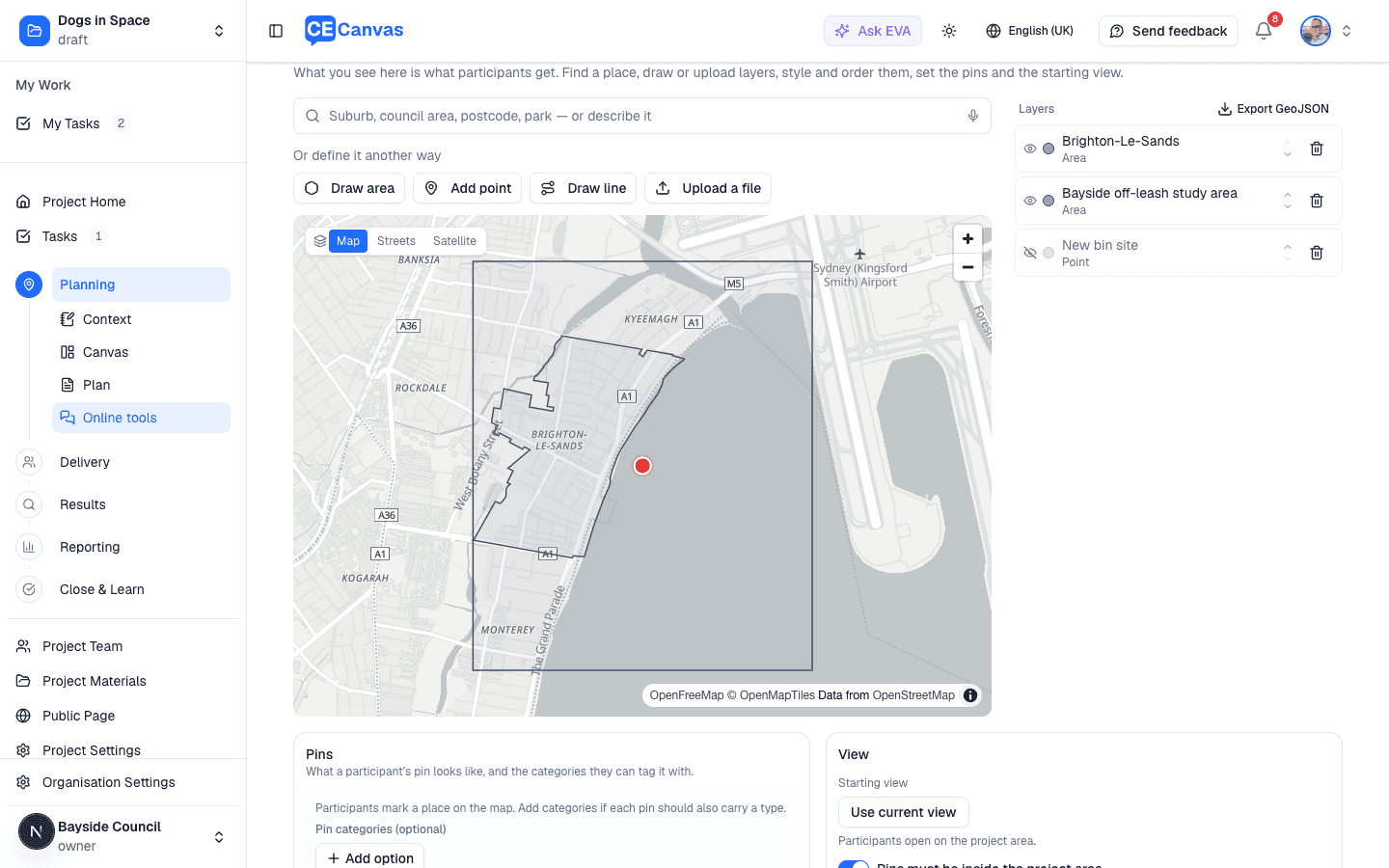
- Layers — the same editor as Project area, over the tool’s own layers. Find a place by name (a park, a suburb, a reserve) and take its real boundary; draw an area, a line or a point; upload GeoJSON or KML (every feature in the file becomes a layer, points and lines included); or bring in one of your project areas. Each layer has a name, colour (outline, fill and opacity for areas; width for lines; marker for points), a show/hide toggle and an order; a single-part area’s corners can be edited; the lot exports as GeoJSON. Layers are the tool’s own: a project area brought in is a copy, so changing it here never touches Project area.
- Pins — the categories a participant can tag a pin with, each with its own colour and marker, plus the plain pin colour when there are none. EVA seeds categories from the objective; edit, recolour or clear them.
- View — basemap (map, streets, satellite), the starting view (Use current view saves where the map opens), and whether pins must stay inside the project area.
Once the tool is open for responses the map is read-only; close it in Share to change it.
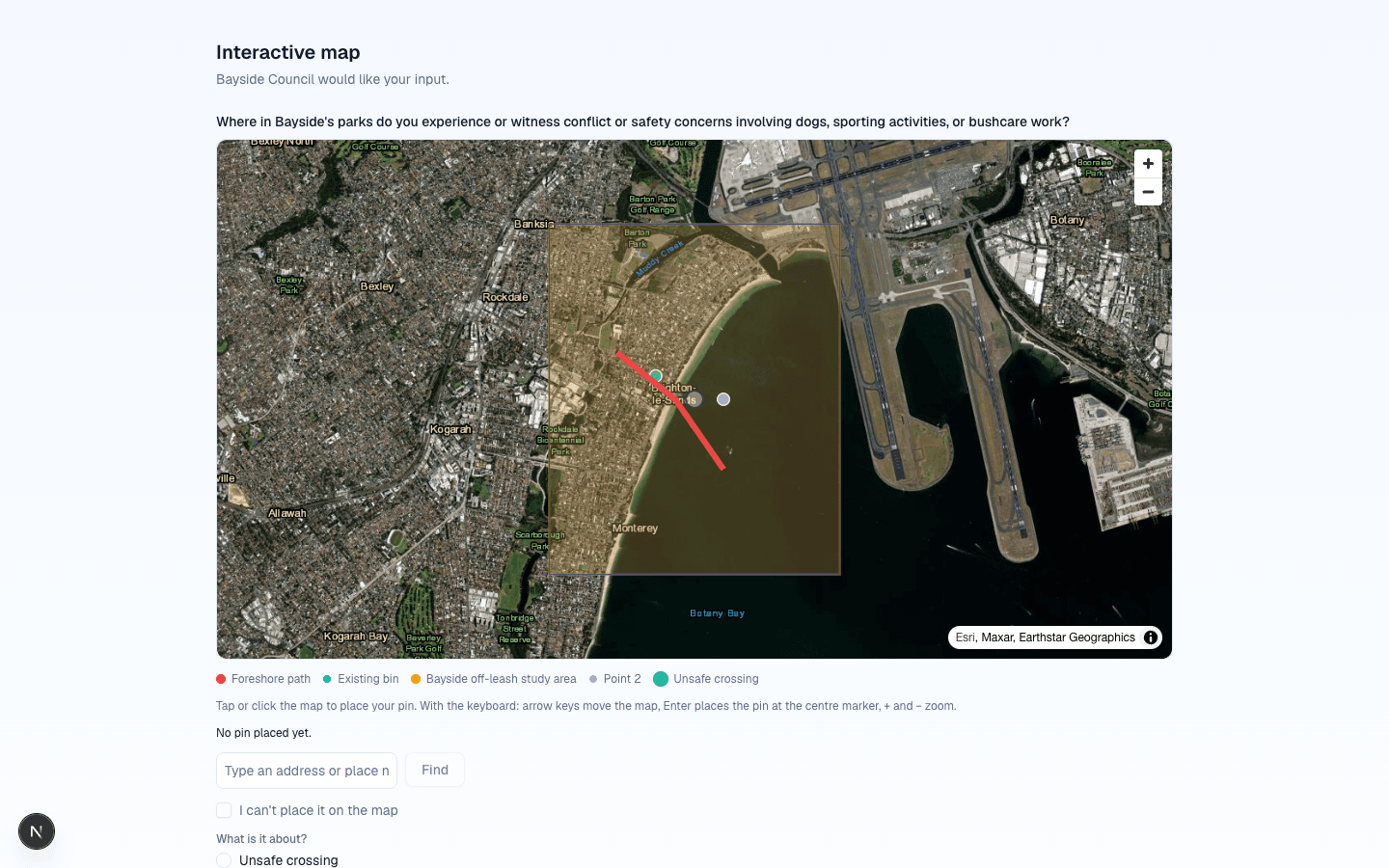
A survey can carry a map question too — Add a question → Mark a place on a map on Build — and it gets the same Map tab. Map questions need the Project Area feature; with it off, a place-shaped objective becomes an ordinary open question and the list says why.
Participants drop a pin by tap or click, or with the keyboard (arrow keys move the map, Enter places the pin at the centre marker), or by typing an address. Someone who can’t use the map ticks I can’t place it on the map and answers with a category and a description instead, so the map is never the only door.
In Responses, a map question shows how many answers were placed on the map and how many were given without a pin, the category distribution, and a map of the pins coloured by category on the basemap and layers you chose. Pin counts also appear on the activity’s Input tools tab and on the Results overview, and closed instruments carry them into the Outcomes Report. Withdrawing a response removes its pins too.