Reporting
Reporting is where the engagement becomes accountable: the Engagement Outcomes Report compiles what was done, who was heard, what they said, and how it shaped the decision — with every claim traceable to analysed results.
From the project sidebar, go to Reporting (step 4 of the 5-step journey — Close & Learn is the final stop).
If you skip this: the engagement ends when the last session does. Communities never learn what their input changed, the organisation can’t demonstrate influence when challenged, and the next engagement starts from a lower-trust baseline. The report is not paperwork — it’s Steps 9–10 of the sequence made real.
Creating the report
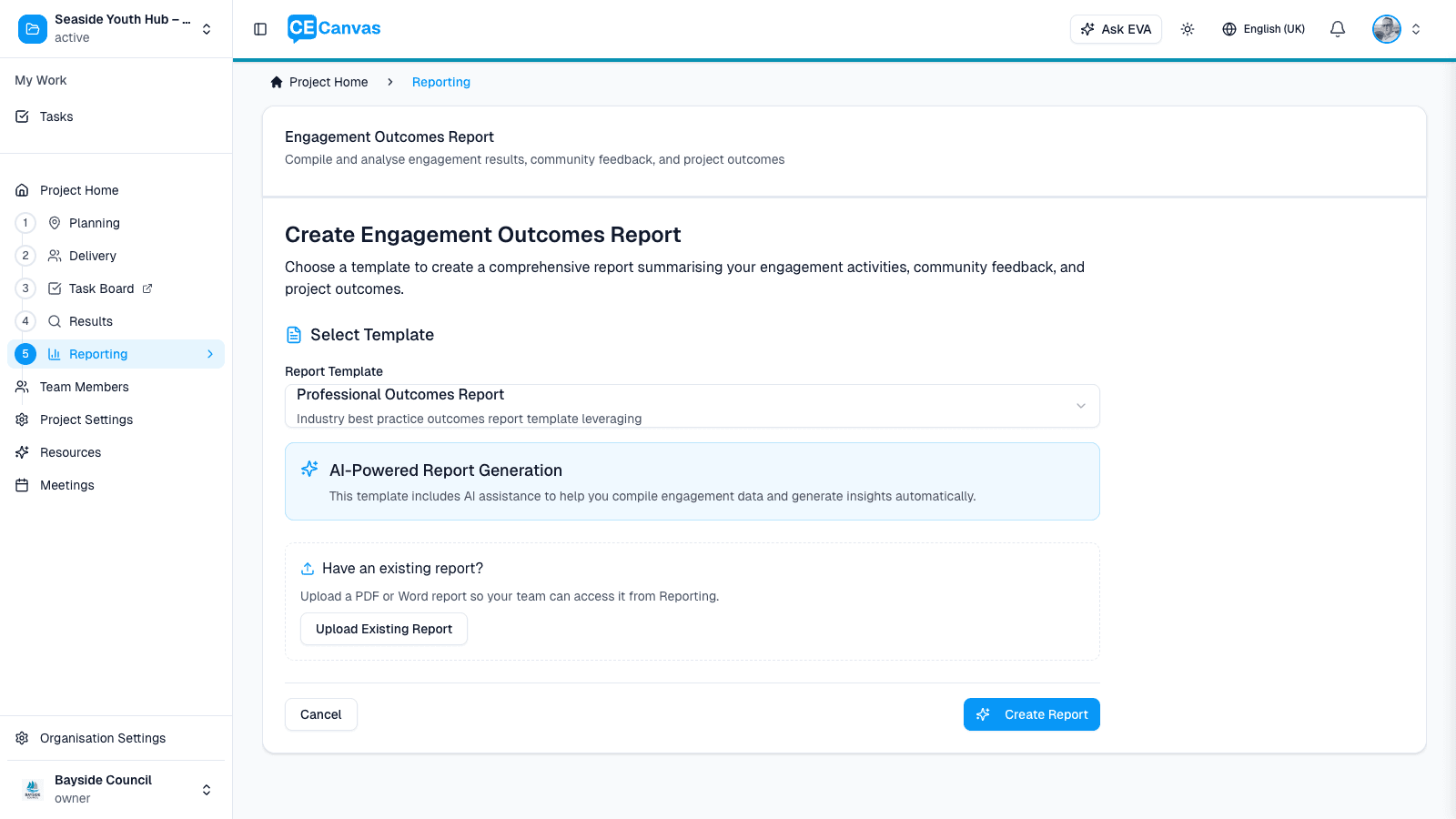
Open Reporting and create the report from a template — your organisation’s report templates are managed in Organisation Settings → Document Templates. If your team produced a report outside CE Canvas, you can upload the existing PDF or Word document instead, keeping it with the project record.
The report editor
The header carries the same progress card as the Engagement Plan — sections marked Ready over included sections — so report completeness is read the same way everywhere.
The editor is organised around the document’s sections — typically Executive Summary, Project Context & Objectives, Engagement Delivery, Who We Heard From, What We Heard, and Appendices (the exact set depends on your template).
The report opens in the same shared document editor as the Engagement Plan, so Draft with EVA, Mark as Ready, Exclude Section, Preview, and the sources chip all behave exactly as they do there. For each section:
- Field guidance describes what the field needs to cover, with word counts against a minimum target
- Draft with EVA generates content from your analysed results, closed CE Canvas surveys and conversations, canvas, and project context — each drafted field shows a confidence and sources chip so you can see exactly what the content is based on. A survey is cited by the frozen findings it was closed with, so a saved version of the report keeps pointing at the same numbers
- Mark as Ready signals the section is reviewed and final
- Exclude Section removes sections that don’t apply to this project
Use Preview to see the formatted document, and export when the sections are ready.
What counts as evidence
Draft from results reads the readiness line before it drafts: how many uploaded results are analysed, how many CE Canvas surveys are closed and ready, and whether any survey is still open — an open survey is still collecting, so close it to include its responses. A result a reviewer has marked Follow up (needs revision) is held out of the draft until it is cleared.
What a strong outcomes report does
A report that closes the loop — rather than just describing activity — answers four questions specifically:
- Who did we hear from? Participation and reach against the groups you planned to reach (the Coverage view is your source) — including who you didn’t reach, honestly
- What did they say? Themes and sentiment with representative evidence, not selective quotes
- What did it change? The specific connection between input and decisions — the thing communities actually want to know
- What happens next? How and when participants will hear the outcome — fulfilling the commitment made in the Canvas’s Closing the Loop section
EVA can draft all of this, with sources attached. What it cannot do is make the influence claim true — if community input didn’t shape the decision, the report should say so plainly. An honest “input confirmed the existing direction” preserves trust; an inflated influence story destroys it when communities compare the report to reality.
Next steps
- Results — analyse the input the report draws on
- Close & Learn — fulfil the feedback commitment the report enables
- Engagement Canvas — the objectives and closing-the-loop commitments the report traces back to