Project Team
Once a project is set up, add the people doing the work and give every task an owner. Unowned work is the quietest way an engagement falls behind — nothing fails loudly, it just doesn’t happen.
Adding members to a project
Navigate to your project and click Project Team in the sidebar.
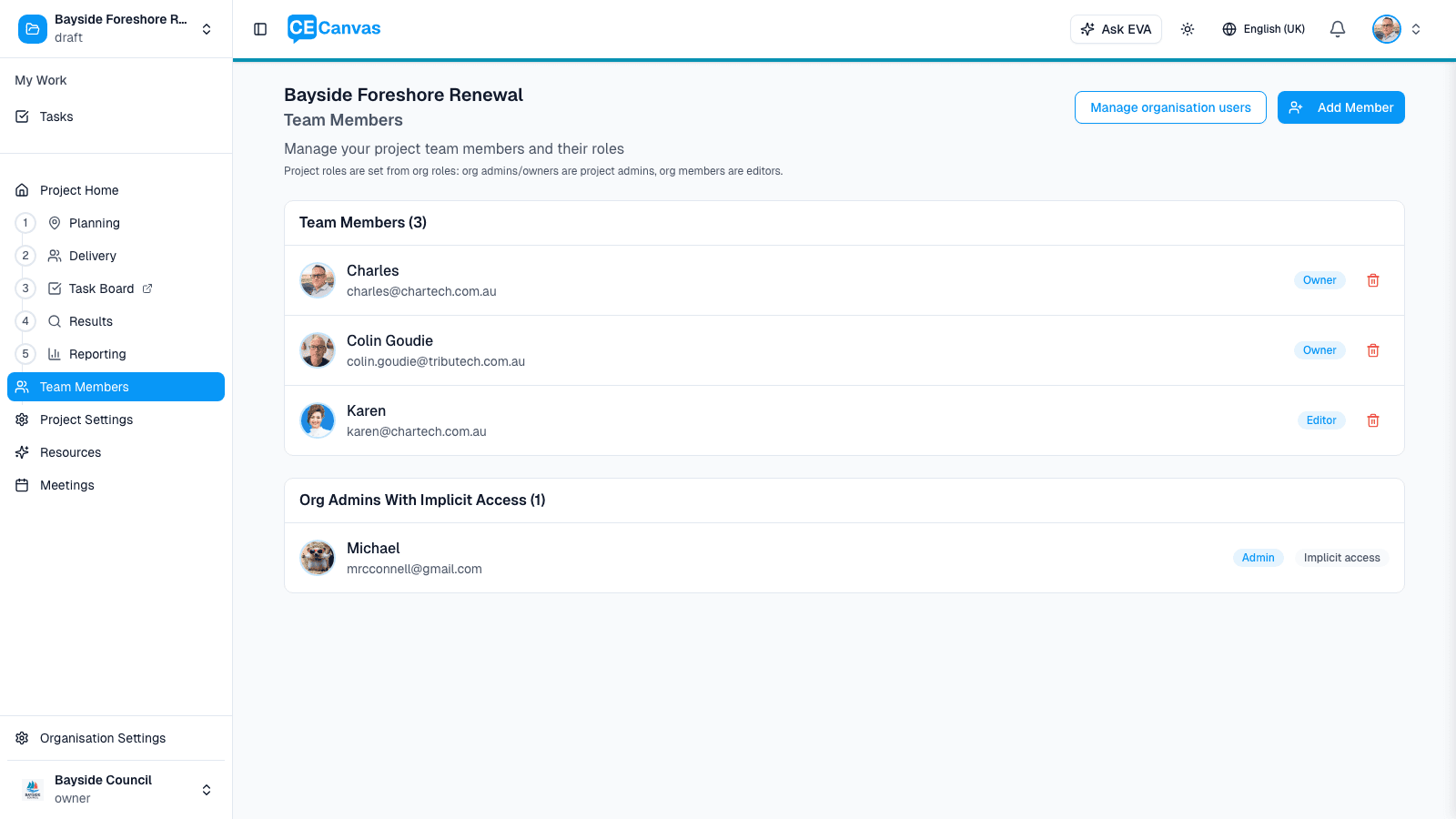
Click Add Member to add someone from your organisation. In the modal, pick the person and a Project Role (Editor or Owner). Only users with an account in your organisation can be added — invite new users first from Organisation Settings → Users. To remove someone, use the remove action on their row.
Changing roles and ownership
Use Edit on a member’s row to switch them between Editor and Owner. The person who creates a project starts as its Owner; promote someone else to Owner and demote yourself to hand a project over. Every project keeps at least one Owner — assign another Owner before demoting or removing the last one.
| Org Role | Project Access |
|---|---|
| Owner | Implicit admin access to every project — no need to add explicitly |
| Admin | Implicit admin access to every project — no need to add explicitly |
| Member | Must be added; works as a project editor |
Org owners and admins appear under Org Admins With Implicit Access automatically. See Roles and Permissions for the full model.
Implicit access isn’t team membership. If an org admin is actually working on the project, use Add to team on their row — org admins join as an Editor (promotable to Owner) and org owners join as an Owner, appear in the project’s avatar strip, and can be handed ownership. Their access doesn’t change; what changes is that the project now names them as part of the team. Removing them from the team returns them to the implicit-access list — implicit access itself can’t be removed per project, because it comes from their org role. To change that, update their role in Organisation Settings → Users.
Assigning work
With members added, assign tasks from Tasks — on the task card’s assignee control, or in the task detail. The member’s avatar then appears on the board, in filters, and in their own My Work → Tasks view across projects.
Members also appear in the project hero’s avatar strip on Project Home and the dashboard — the quiet signal of who this project belongs to. Owners lead the strip, and hovering an avatar shows the person’s name (with an Owner tag where it applies). Only explicit project members appear there; org admins with implicit access don’t, unless they’re on the team.
Next steps
- Tasks — assign and track the work
- Roles and Permissions — the full access model